
Overview:
In today's age most of the internet(https) traffic is secured using the Secure Sockets Layer (SSL) or its successor Transport Layer Security (TLS). Since the SSL/TLS encrypt the traffic to provide security, it also raises a challenge in inspecting that traffic. If you want to take access decisions for such encrypted traffic, not just based on the IP/port but higher layer characterisitics, then this calls for decryption of such traffic.
This article aims to explore the various options for decryption available on Versa devices. It further delves into configuring those options along with steps for validation.
Use case:
Encrypted traffic cannot be inspected by ordinary firewall. As a result although such traffic becomes more secure from endpoint perspective, organizations are also at risk if a malicious traffic gets leaked into the trusted network through such encrypted connections.
Thus, to detect threats such as malware or detect data leak at an earlier stage, ssl (decryption) proxy is essential.
Moreover, not all encrypted traffic is desired to be accessible, despite being harmless. As such to meet compliance requirements of organizations, too, ssl proxy if required.
SSL decryption enables the organization to decrypt the traffic, inspect the contents to determine if the traffic should be blocked or reencrypted and continued to traverse over the network.
SSL decryption while has its advantages, it does require a lot of computation. Therefore, decrypting all of the traffic indiscriminately, can be resource-intensive. Hence, Versa allows for configuring decryption policies, to notify the module to only decrypt the traffic that is matching and bypass decryption for any other traffic to the other modules of the NGFW.
Fundamentals:
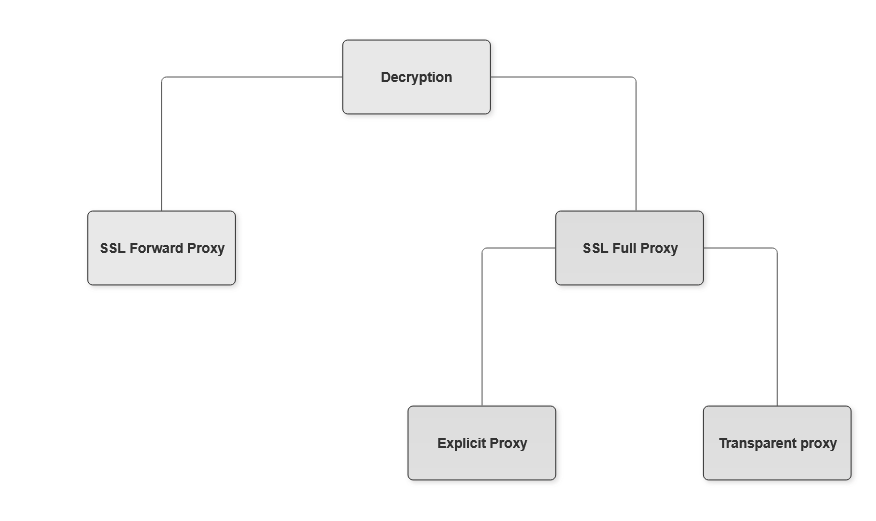
Versa OS offers two types of decryption:
- SSL Forward Proxy
- SSL Full Proxy
- Explicit
- Transparent
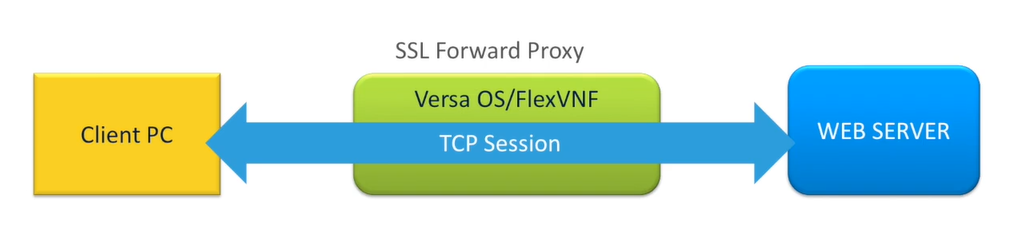
SSL Forward Proxy:
The client tries to access a webpage, Versa device will intercept and just edit the SSL layer information before sending the traffic to server based on the action in the decryption profile/policy. The web server sees the traffic coming from the client and is unaware of the proxy in the path. Versa will replace the server certificate with its own certificate for the webpage and send it to the client.
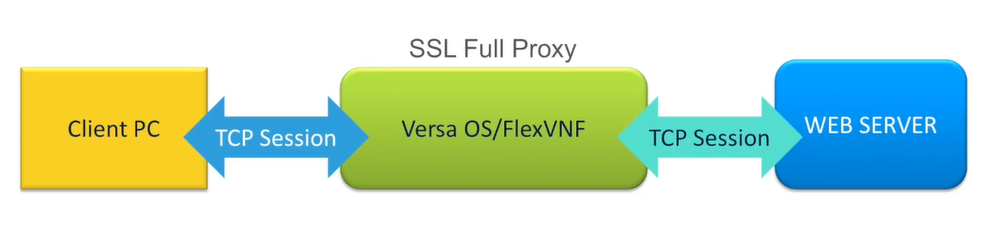
SSL Full Proxy:
The client tries to access a webpage, which is terminated at the Versa device after being interepted. Based on the decryption profile/policy config, the traffic will be decrypted, and the Versa device initiates another SSL session to the web server. Thus there are two SSL connections maintained for the same traffic flow: client to Versa and then Versa to web server (the 5 tuple session will still be one).
There are two options in Full Proxy:
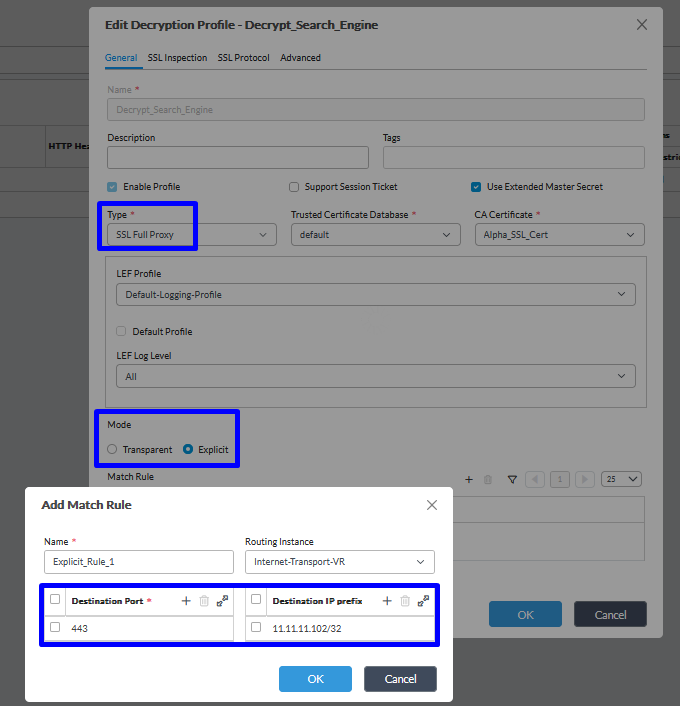
Explicit: Client systems are configured with proxy IP/port and the Versa acts as proxy only when traffic arrives on that IP/port.
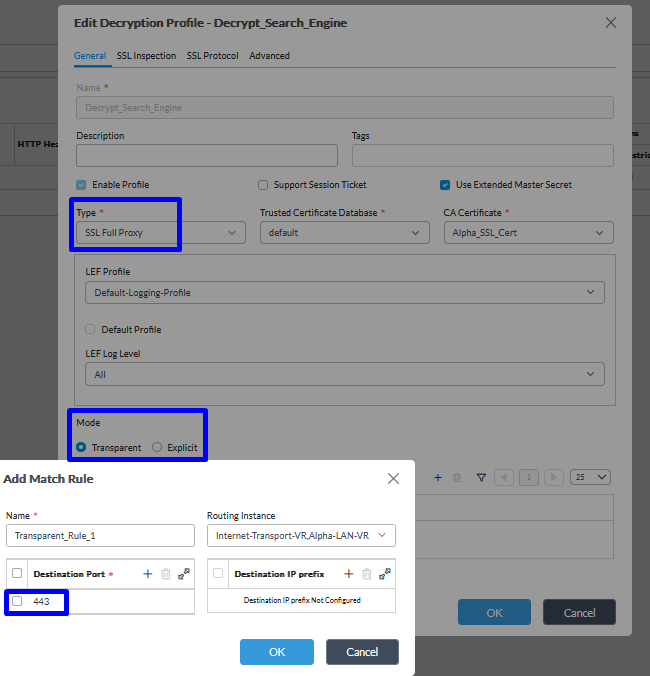
Transparent: Client systems are transparent to the proxy presence. Versa device will be configured for intercepting any https/ssl traffic arriving on it. This is configured via port number on the Versa, so all traffic arriving on that port will only be intercepted.
Configuration:
Before we get into the configuration steps, here are some prerequisites:
- NGFW service is enabled in Service-Node-Group and Limits under Org
- Internet connectivity from the VOS
- NGFW rule allowing TLS/SSL traffic to the internet on TCP 443
- DNS is configured on appliance
- Date/time is relevant on the user systems, VOS appliance, Directors
- For the VOS security software modules to work, you must block QUIC traffic. Versa does not support decryption of the QUIC protocol
Part A: Certificate generation/import on Versa OS
Generate a key and certificate on the appliance:
Appliance name > Configuration > Objects & Connectors > Custom Objects > Keys

Appliance name > Configuration > Objects & Connectors > Custom Objects > Certificate
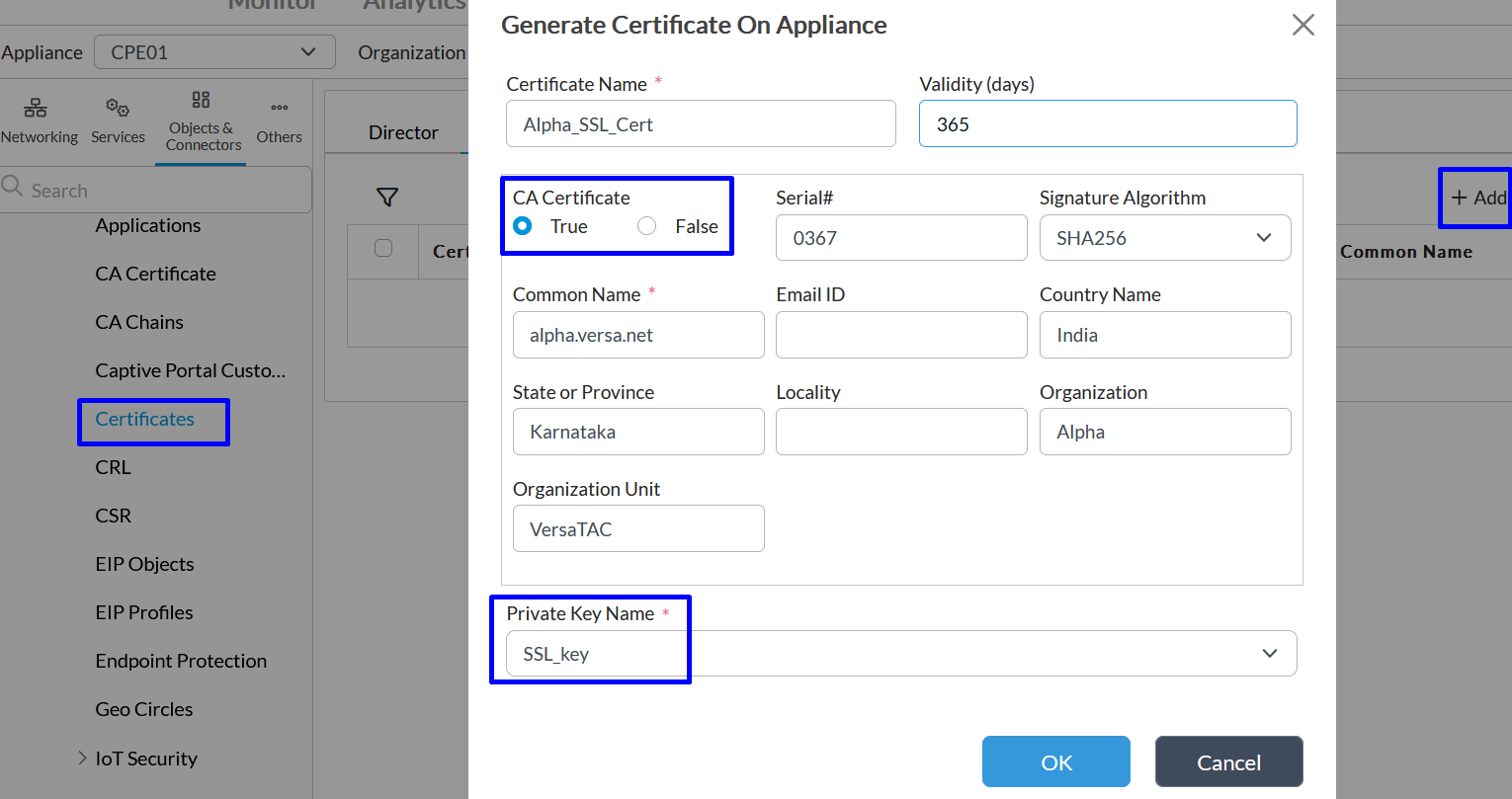
Note: CA Certificate needs to be True to allow Versa to sign the certs for every webpage that Versa will generate certificate for.
Part B: Configuring the SSL decryption
i. Decryption Profile (how to decrypt)
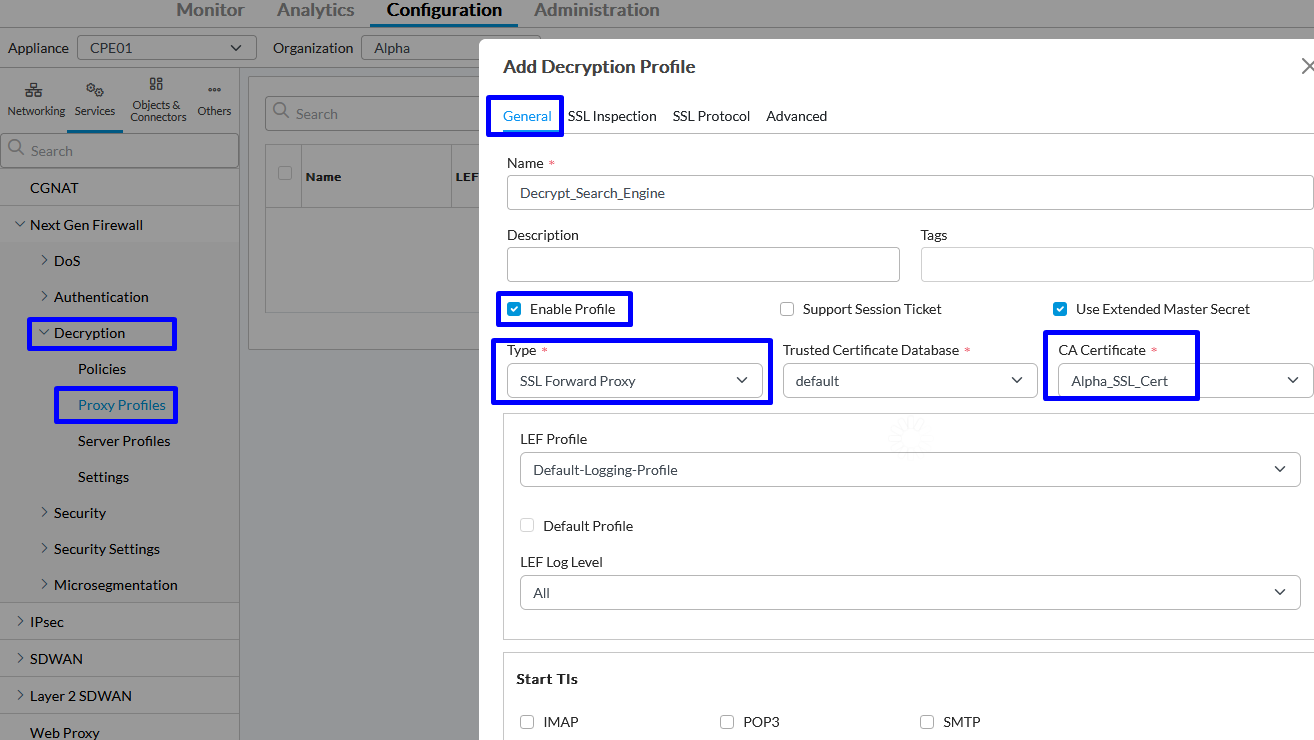
Appliance > Configuration > Services > Decryption > Proxy Profiles:
General > Forward Proxy
General > Full Proxy:
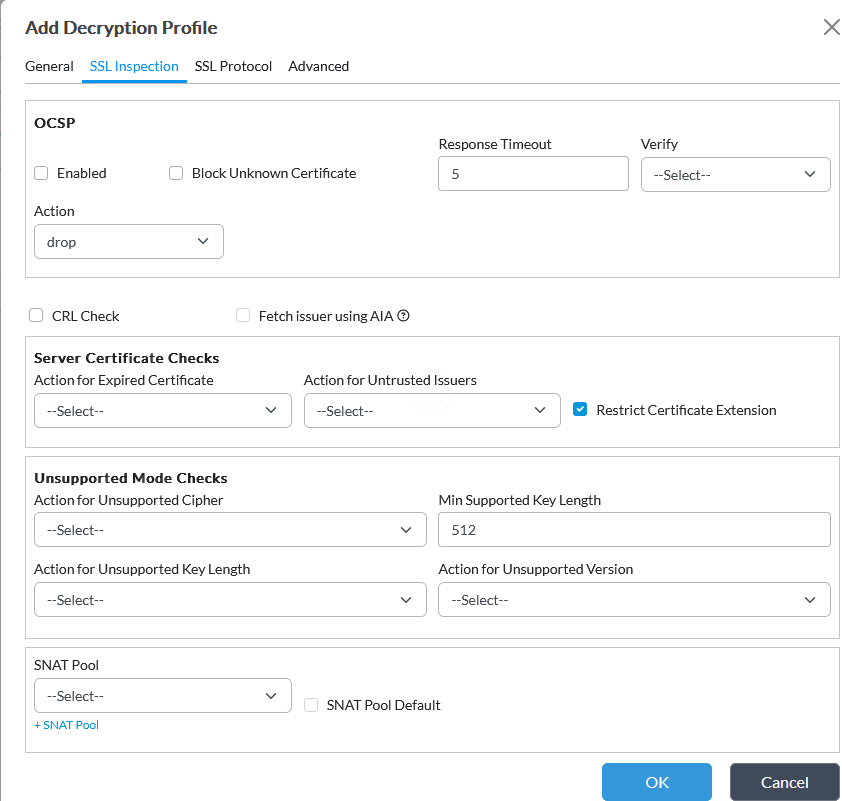
SSL Inspection
SSL Protocol
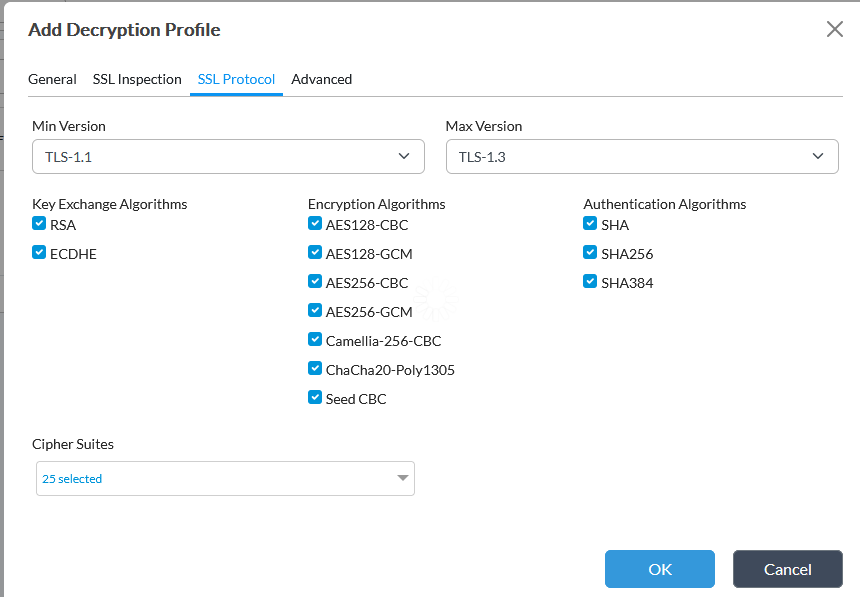
For a FIPS enabled device, TLS1.3 is not supported.
Advanced
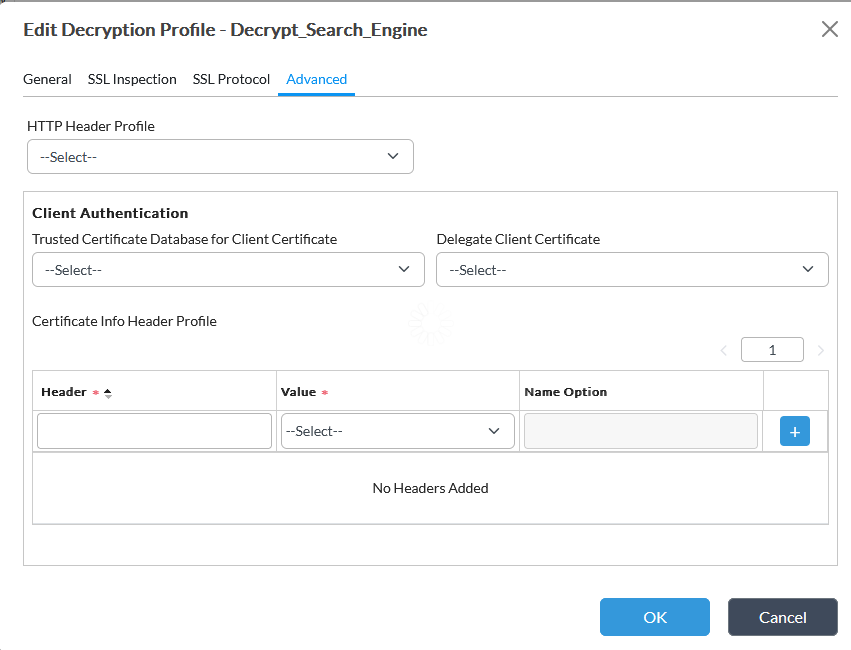
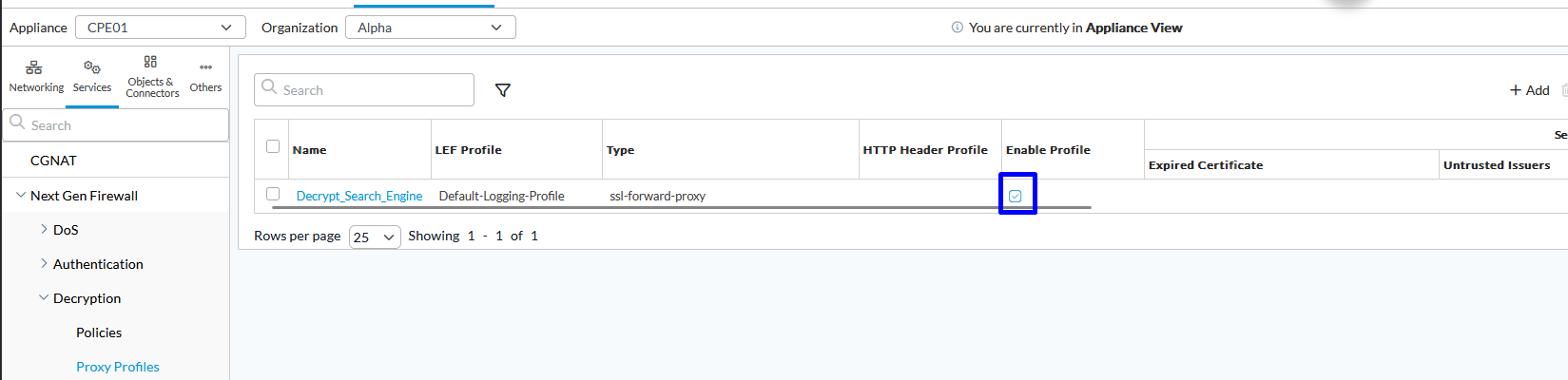
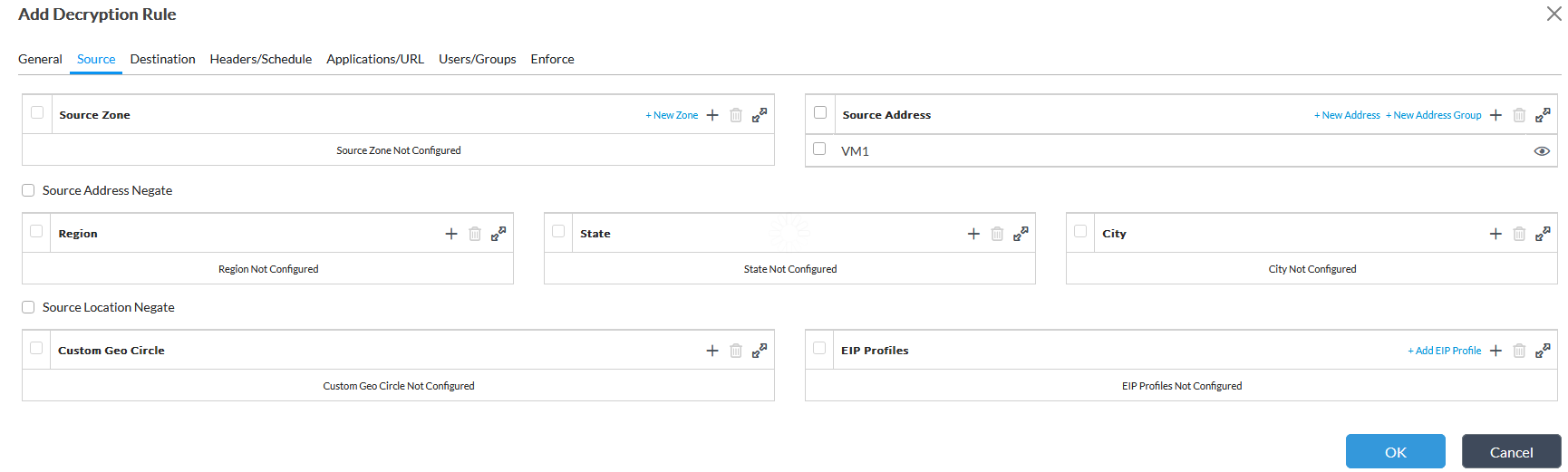
ii. Decryption Policy (what to decrypt)
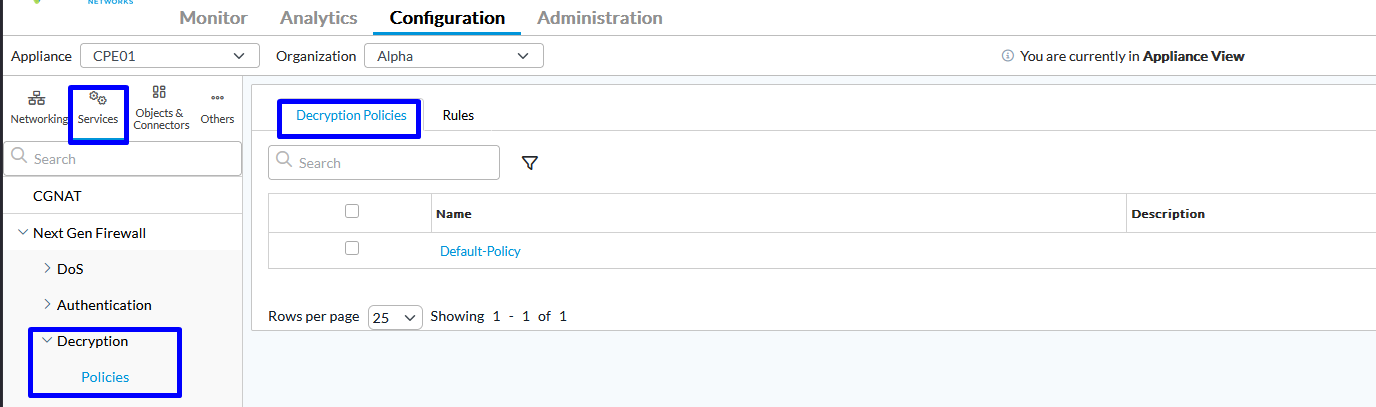
Appliance > Configuration > Services > Decryption > Policies > Decryption Policies should have the Default Policy. The individual rules can then be created under Rules section.
Rules:

Part C: Importing certificate on User systems
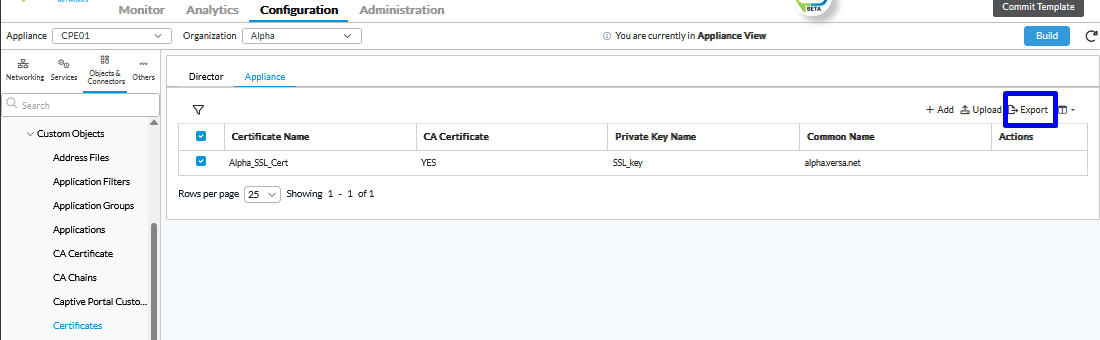
i. Export the certificate from the Appliance Objects:
Configuration > Objects and Connectors > Custom Objects > Certificates > Export:
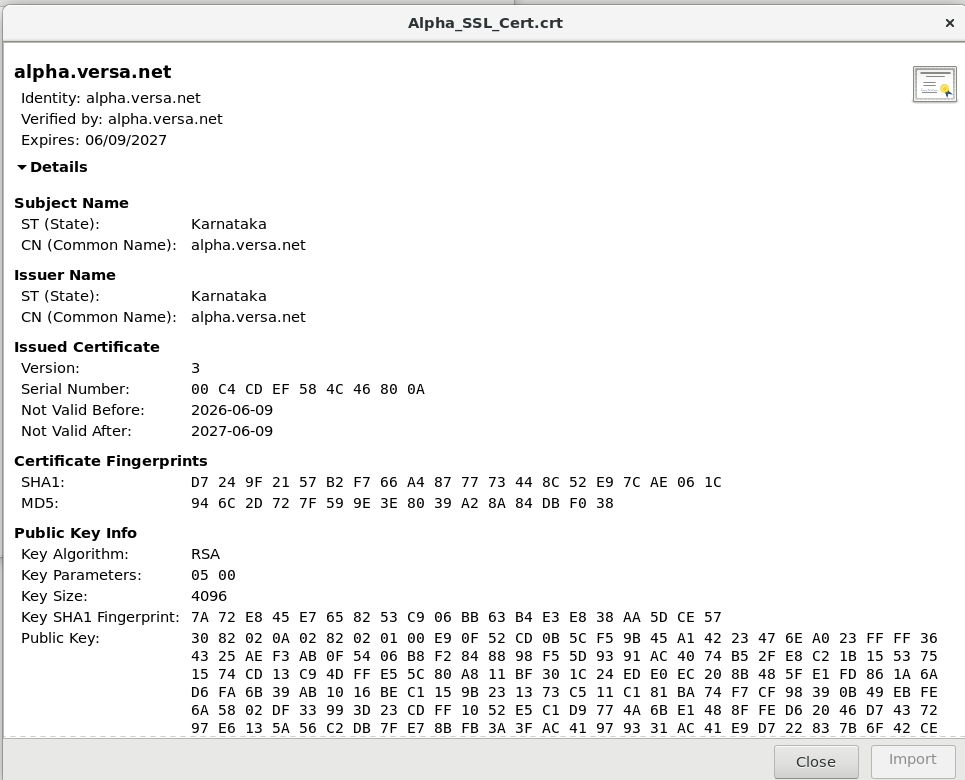
ii. Transfer the file to the Client system and viewing the same:
iii. Add certificate to Trusted Store:
For eg: On Firefox, go to Settings > Privacy and Security > Certificates > View Certificates > Authorities > Import:
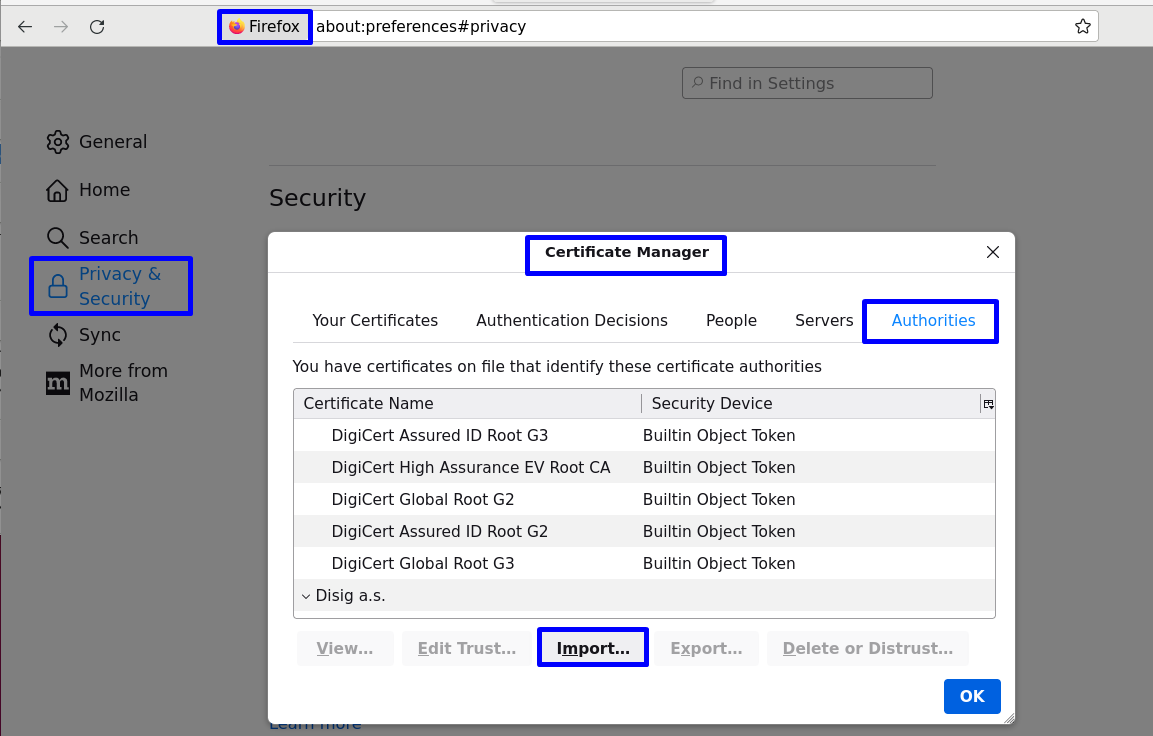
Choose the Versa certificate to be imported here:
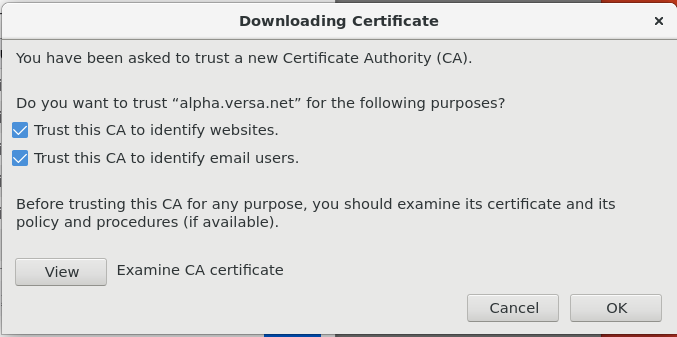
Note: There are various ways to have the certificate pushed to client devices such as via the AD Group Policy, MDM etc.
For the purpose of this article we will have it copied manually.
Demonstration/Validation:
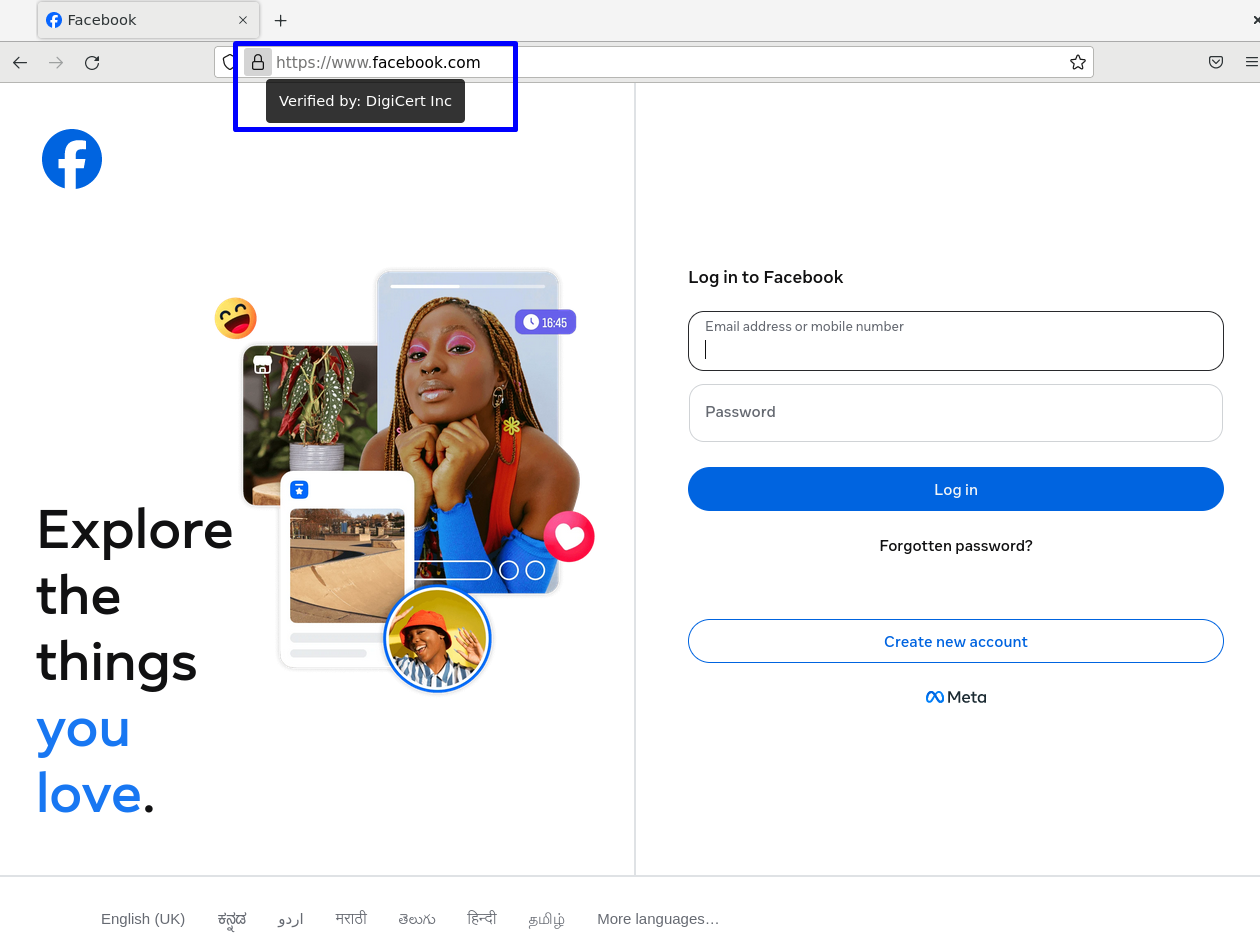
1. Without decryption policy configured, the client system tries to access facebook, and the page opens with the certificate from Digicert:
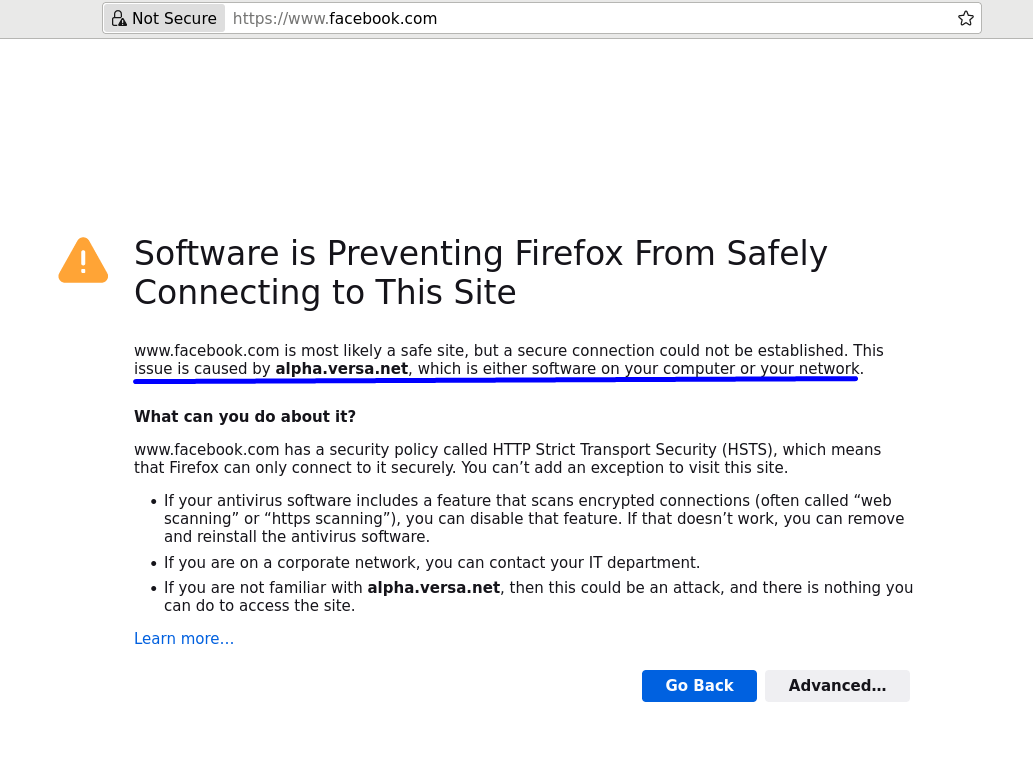
When Decryption profile/policy is configured, but the Versa certificate is not added in the Client Browser, the webpage will show an error like below:
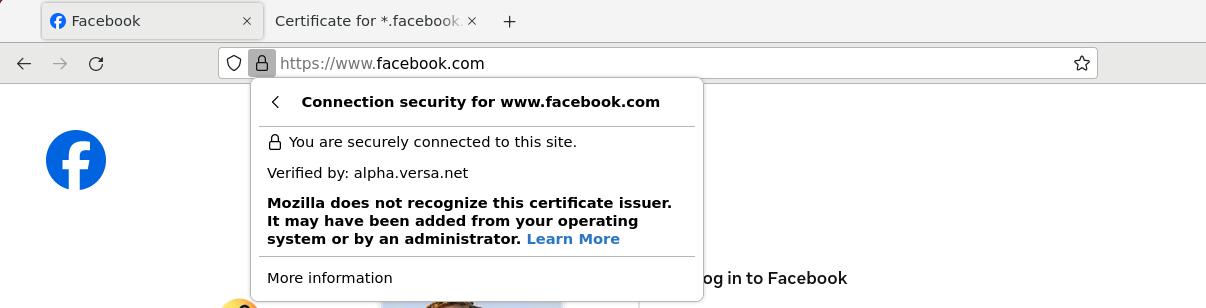
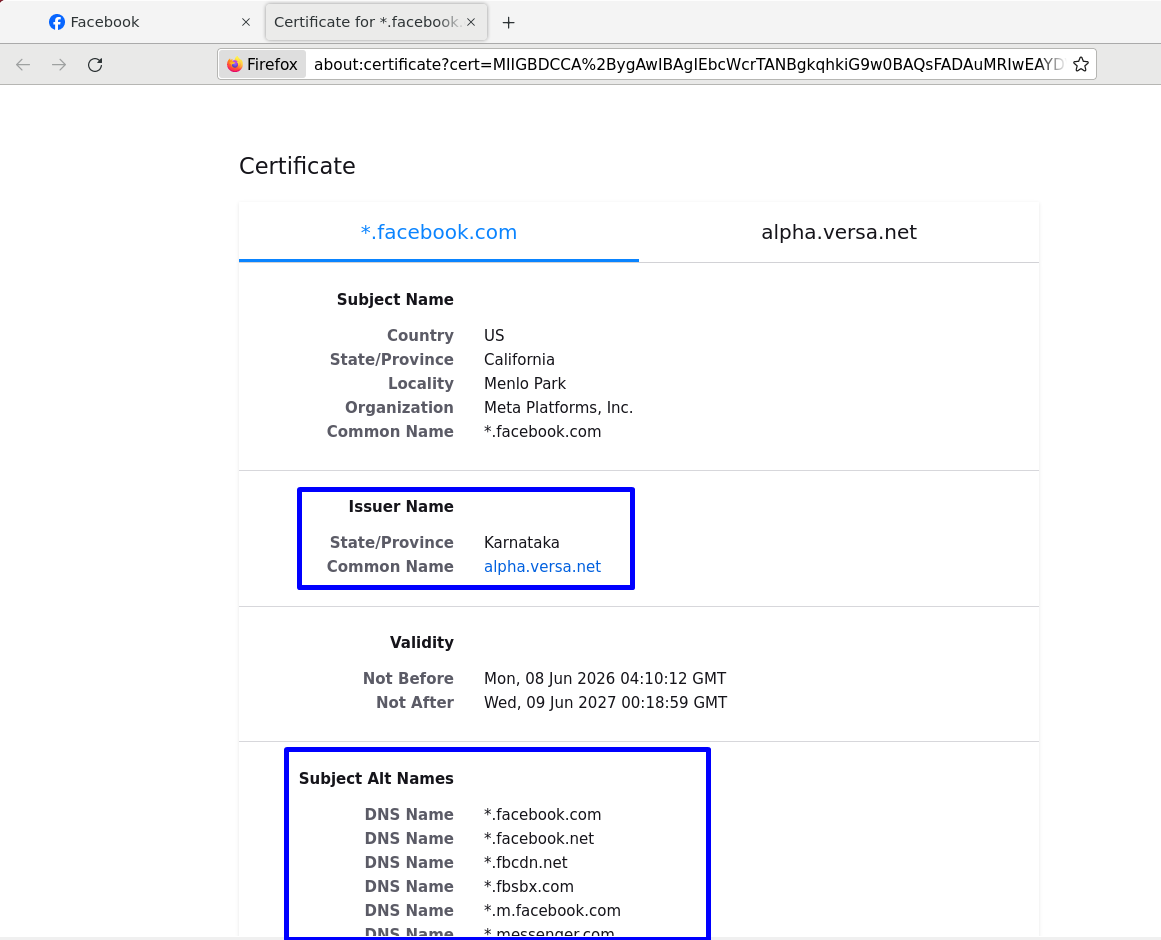
After importing the Versa certificate on the client system, when Facebook is now being attempted, Versa will now show up instead of the earlier Digicert for Facebook:
Related Articles:
Troubleshooting SSL Decryption related issues: https://support.versa-networks.com/a/solutions/articles/23000029854?portalId=23000007779