Okta IDP Integration with Versa Director
This is IDP/SP initiated SSO setup because we selected the “All" option in the “SSO Initiated filed” hence we can login into multiple applications from both either IDP (or) SP. (In this setup-only one Versa -Director application is present)
- IDP(okta)
- SP(Service Provider –In this case Versa Director )
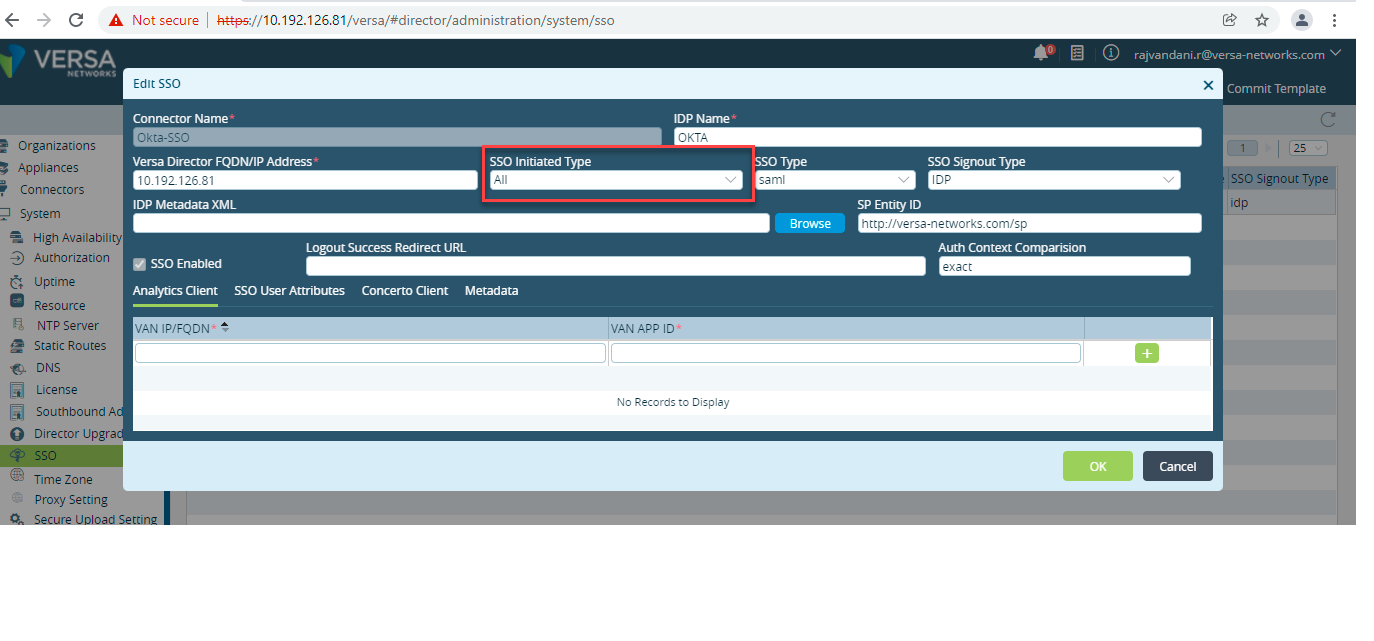
1.How to login using IDP initiated SSO
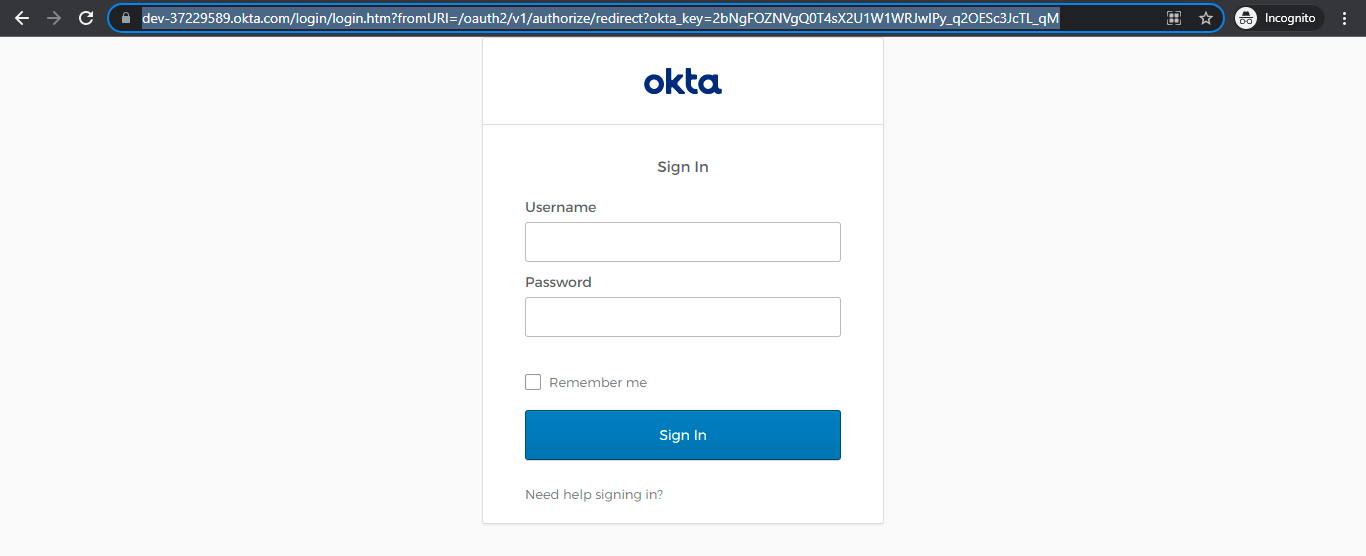
Step 1.1: Login into okta with your individual account credentials.
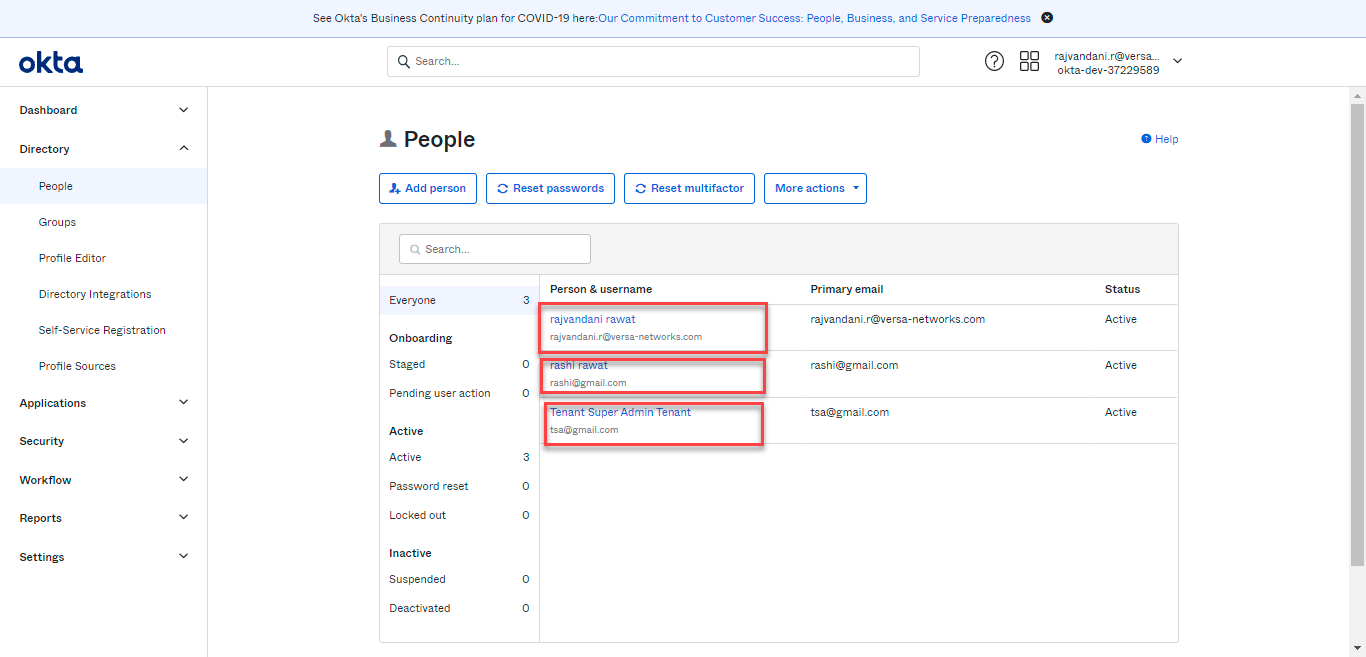
On the below setup only 3 users are present:
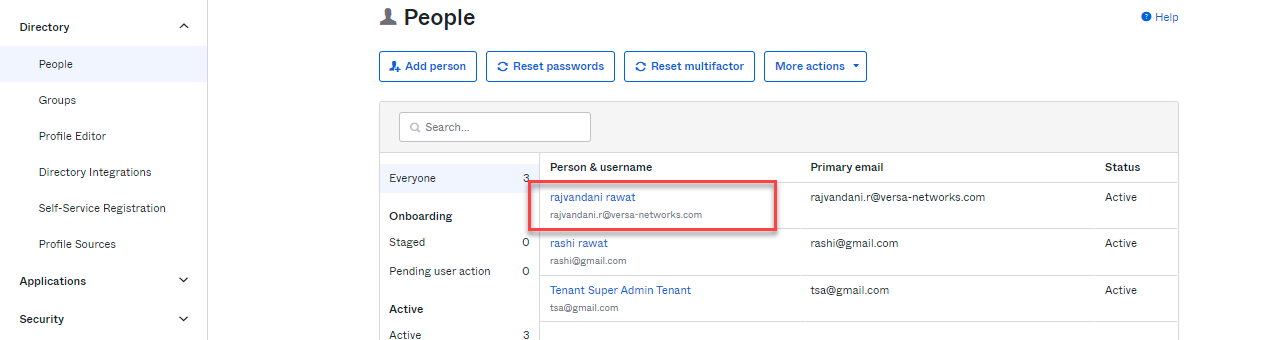
rajvandani.r@versa-networks.com(System User) ,tsa@gmail.com( Tenant User), rashi@gmail.com(Tenant User)
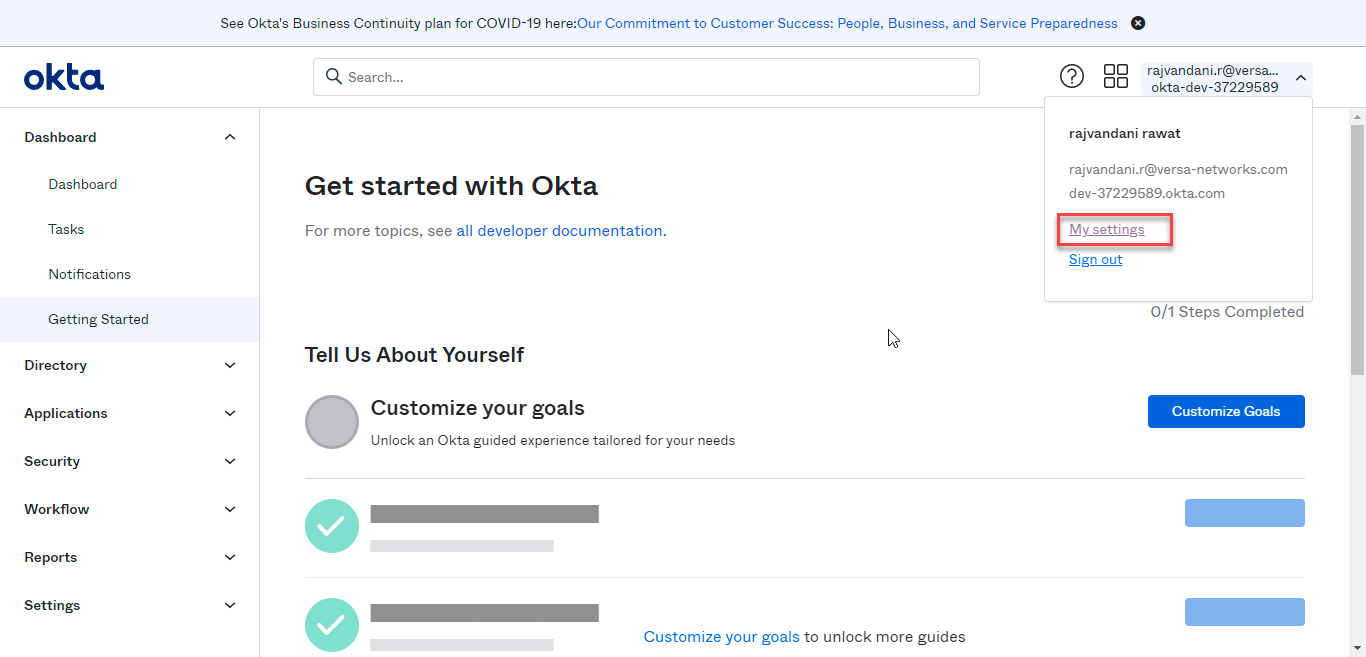
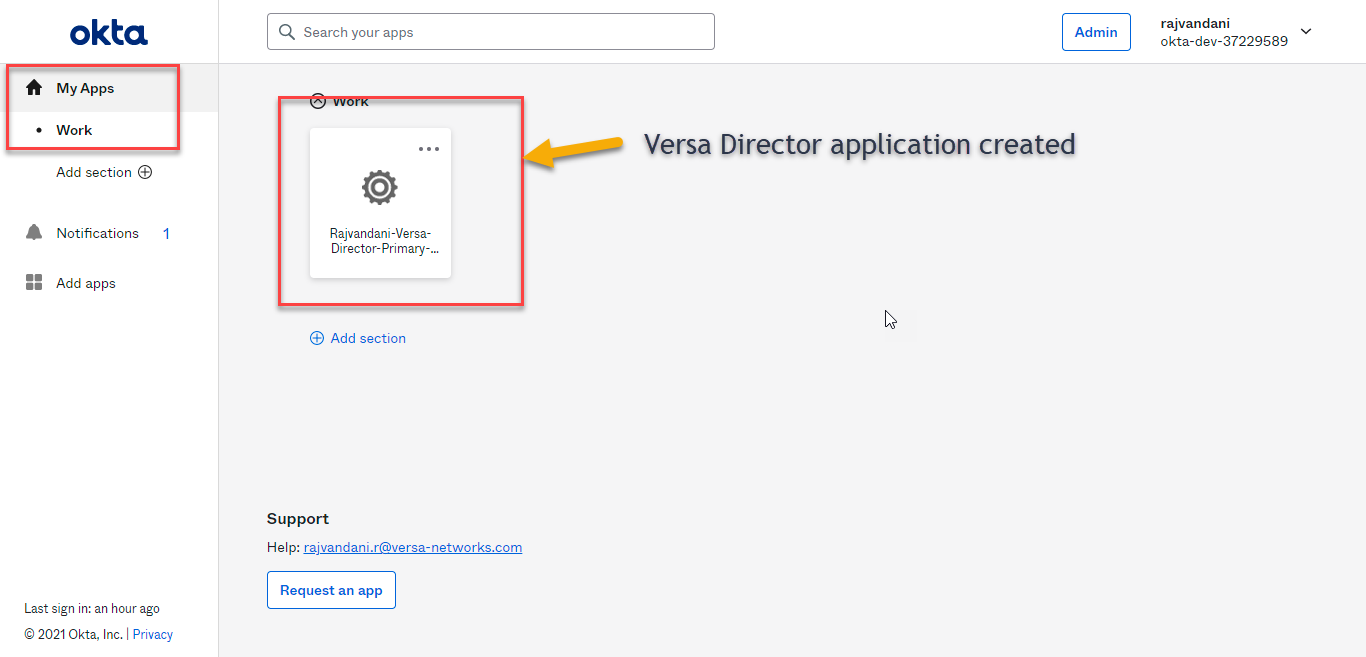
Step 1.2 : Go to My Settings > Work >Application(In this case Versa Director)
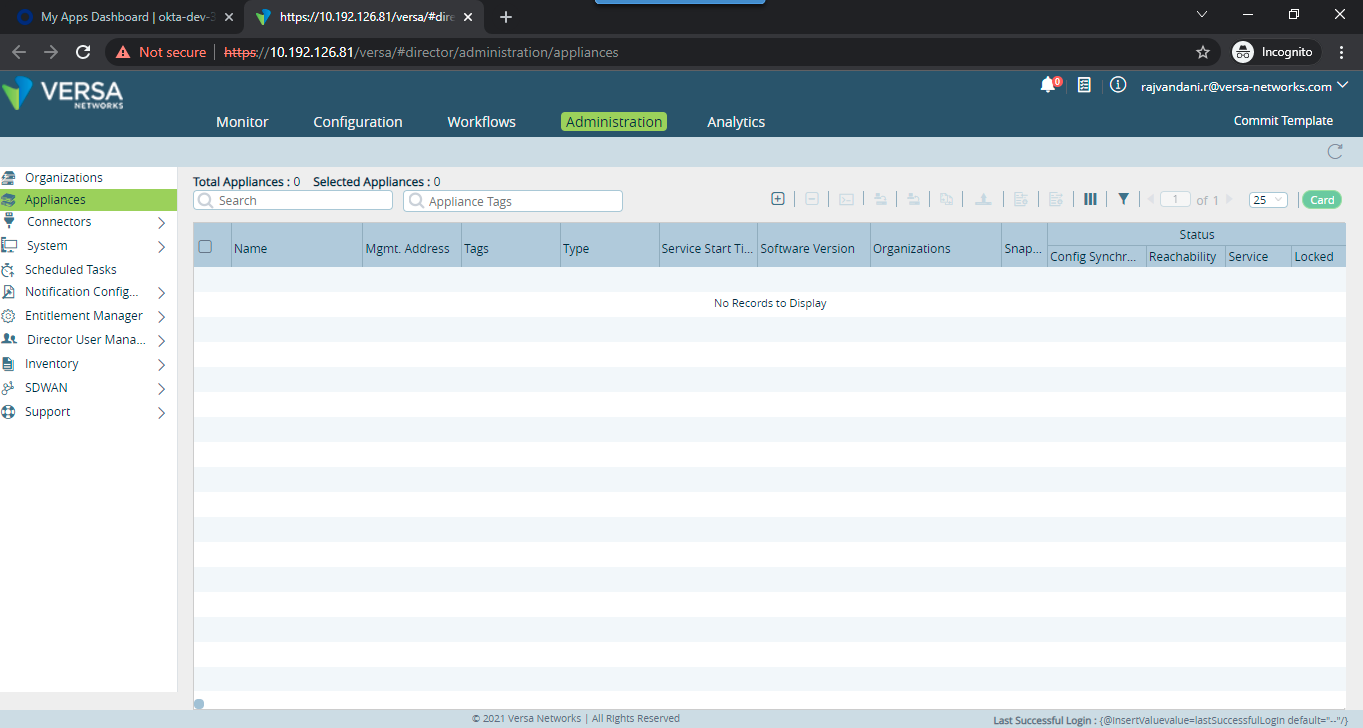
After clicking on the specific application you will be redirected to a specific application without giving credentials one more time.
2. How to login using SP initiated SSO
Step 2.1: Use Versa Director URL and click on“Login with Single Sign-ON”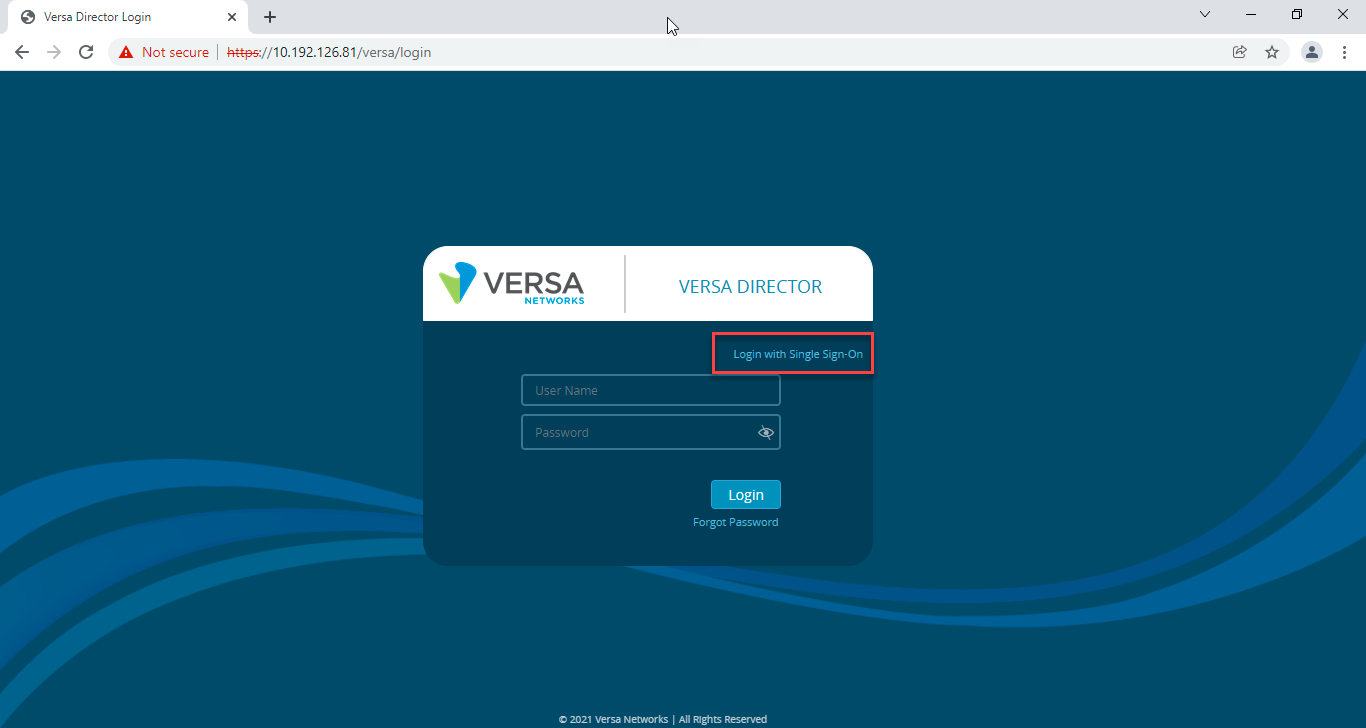
- If you are system user then select “System users” options and If you are a tenant user then enter organization name and then click login
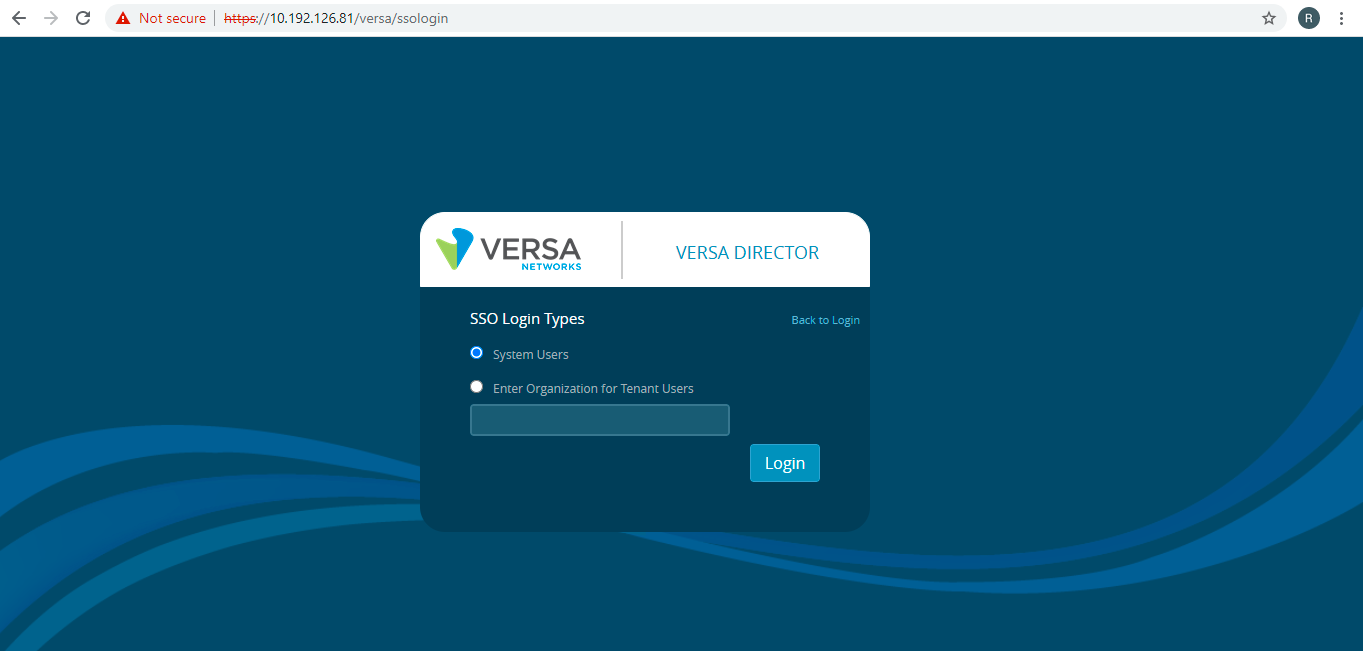
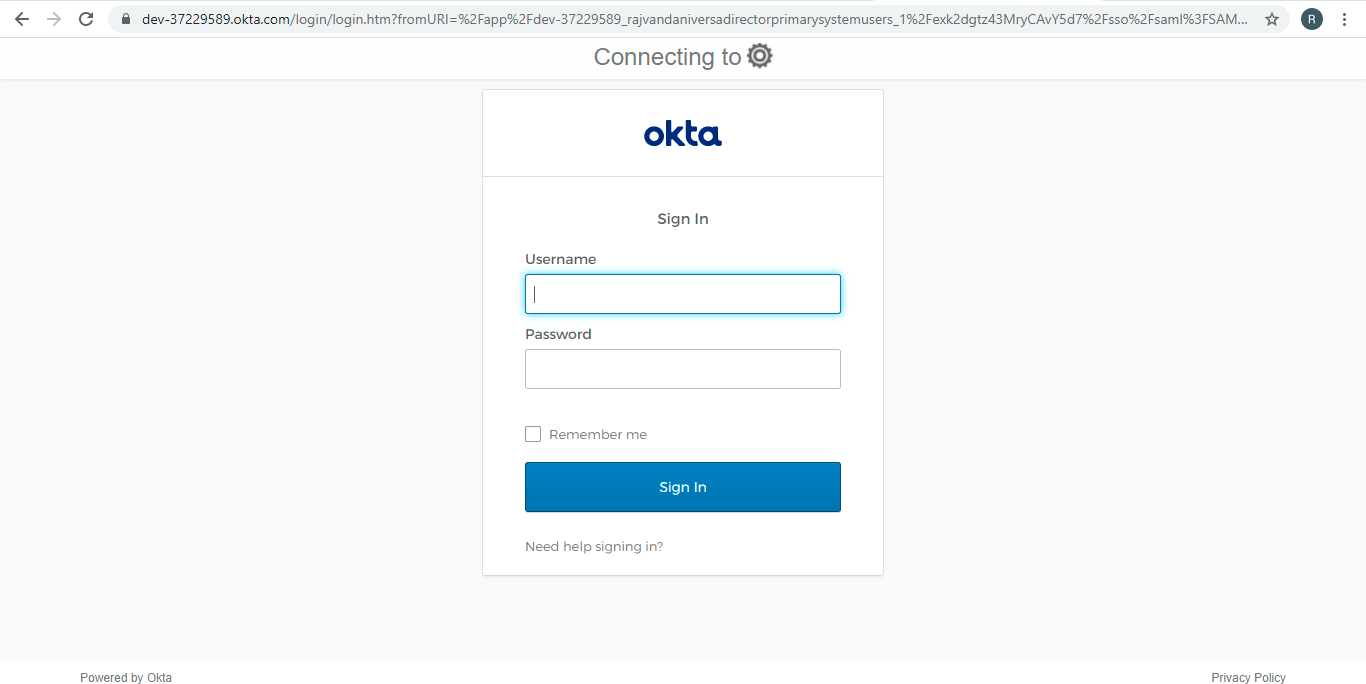
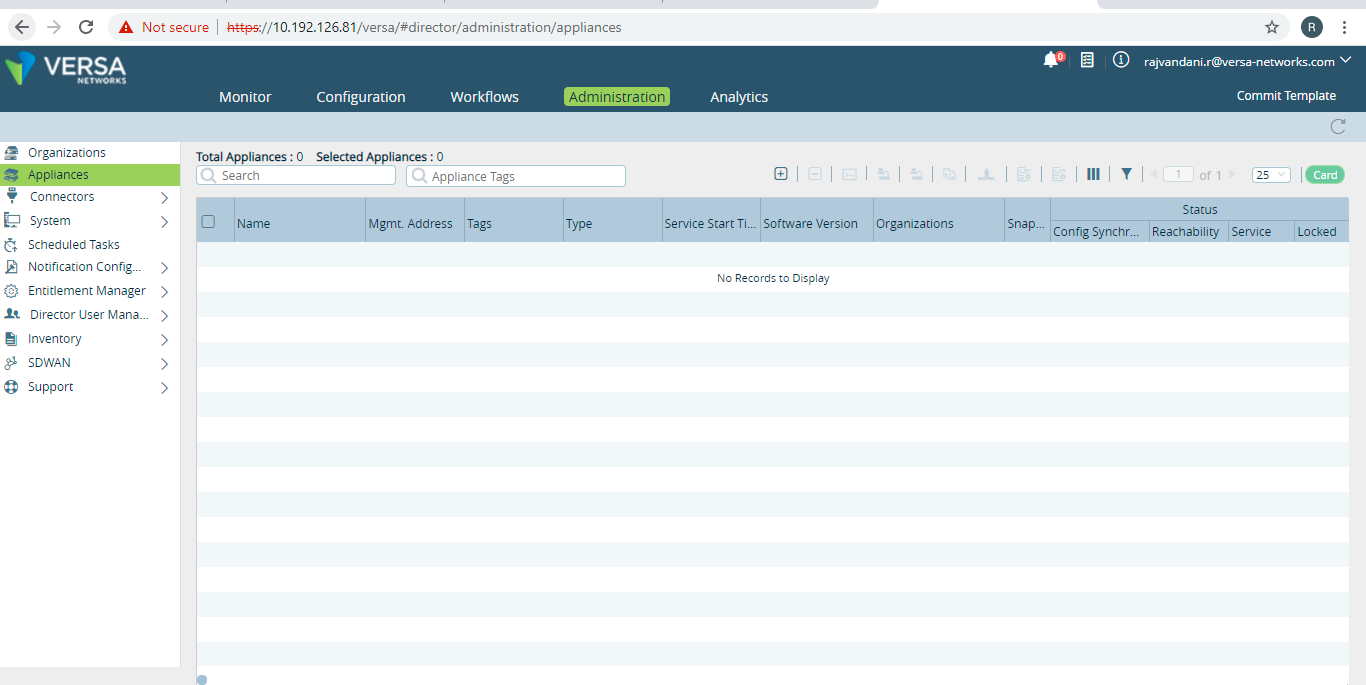
User will be then redirected to okta login page , Enter your credentials and then you will be redirected to the application (Versa-Director)
3. Difference between Sign-out type: Local and IDP
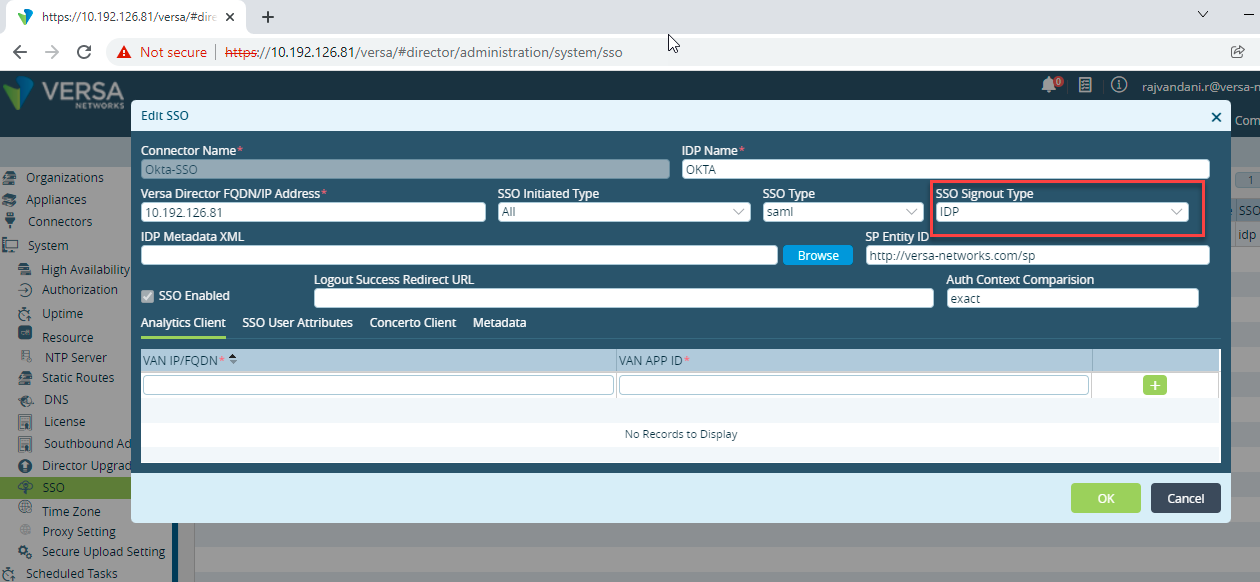
Local: If any user logout from application and sign-out type “local” is set then still IDP(okta) session will be there and user can login again with the existing session without entering the credentials again.
IDP: If any user logout from the application and sign-out type “IDP” is set then IDP session also gets logout and user need to login again and enter credentials again.
4. Troubleshooting
4.1: After login by IDP/SP,if we are getting the below error, then we need to make sure VD Clock is in sync with standard time.
For example :
admin@Rajvandani-VD-01:~$ sudo date +%T -s "21:58">>>>>command to change clock time on VD.
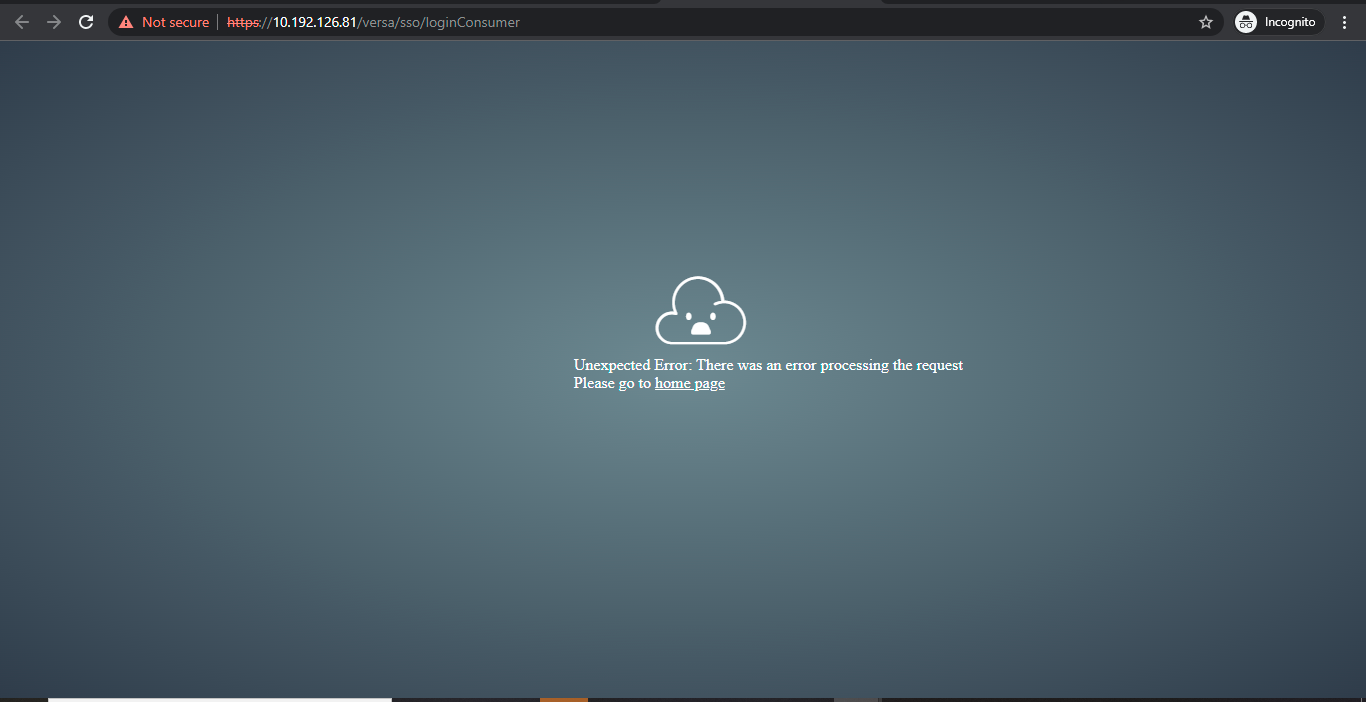
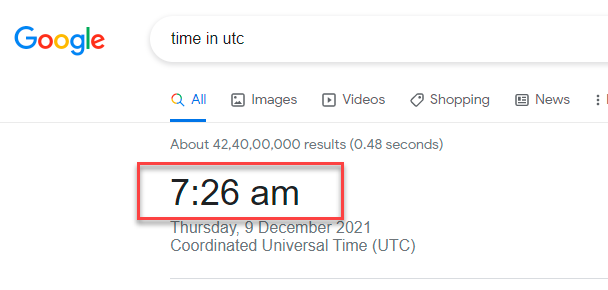
- Also check below error in springboot logs on Director
admin@Rajvandani-VD-01:.../vnms/spring-boot$ cat vnms spring-rest.log vnms spring-boot.log
[28-Oct-2021 19:26:21.080][ERROR][https-jsse-nio-9183-exec2][com.versa.vnms.core.sso.saml.SAMLLoginResponseParser] Exception while validating response
java.lang.Exception: Timing issues. Possible reasons include: SAML expired, service's clock setting is not UTC.
at com.versa.vnms.core.sso.saml.SAMLLoginResponseParser.isValid(SAMLLoginResponseParser.java:120)

4.2: Not able to change the Sign-out type to IDP from local.
- We need to make sure “ Single sign out URL” has been configured in SAML integration profile and “Enable Single Logout URL” knob is enabled.
- In the meta data configuration Signout URL must be present.
Administrator@Rajvandani-VD-01% show system sso
settings {
default-idp-connector Okta-SSO;
is-single-idp-connector false;
}
idp-connector Okta-SSO {
idpname OKTA;
sso-type saml;
single-signon-url https://dev-37229589.okta.com/app/dev-37229589_rajvandaniversadirectorprimarysystemusers_1/exk2dgtz43MryCAvY5d7/sso/saml;
single-signout-url https://dev-37229589.okta.com/app/dev-37229589_rajvandaniversadirectorprimarysystemusers_1/exk2dgtz43MryCAvY5d7/slo/saml;
idp-entity-id http://www.okta.com/exk2dgtz43MryCAvY5d7;
idp-certificate "MIIDqDCCApCgAwIBAgIGAXy3tiIAMA0GCSqGSIb3DQEBCwUAMIGUMQswCQYDVQQGEwJVUzETMBEG\nA1UECAwKQ2FsaWZvcm5pYTEWMBQGA1UEBwwNU2FuIEZyYW5jaXNjbzENMAsGA1UECgwET2t0YTEU\nMBIGA1UECwwLU1NPUHJvdmlkZXIxFTATBgNVBAMMDGRldi0zNzIyOTU4OTEcMBoGCSqGSIb3DQEJ\nARYNaW5mb0Bva3RhLmNvbTAeFw0yMTEwMjUxMzQ3NTlaFw0zMTEwMjUxMzQ4NTlaMIGUMQswCQYD\nVQQGEwJVUzETMBEGA1UECAwKQ2FsaWZvcm5pYTEWMBQGA1UEBwwNU2FuIEZyYW5jaXNjbzENMAsG\nA1UECgwET2t0YTEUMBIGA1UECwwLU1NPUHJvdmlkZXIxFTATBgNVBAMMDGRldi0zNzIyOTU4OTEc\nMBoGCSqGSIb3DQEJARYNaW5mb0Bva3RhLmNvbTCCASIwDQYJKoZIhvcNAQEBBQADggEPADCCAQoC\nggEBAJIrIgE3bSFQSGN7LpDi15bwappoXCs2Loa8wFm11/VoWUA2Septv1wivT0ELeeevupPejJI\nTKcez7ePuPVQcA52BBVymeQyTYLO0S0i9iQxq/6AeAJyx1/a/ibq/9VrnuzRmiqlQoym60m4GF5u\nzysuW+umzzOnllAVNXdb9fdgYnTxtp0IJzINOXyaN3DcyGn/ulNtLzgczRhKaIJwv+OXZziS2TMt\nQqVUpbFRVOiRGrH3FfFLuhmf15eFBcjnzX0bVxCuYz5n1NSLatWFJ6CqAAj2pK7E/XwKsmhHVSga\nlSUIoI30SSgZX9dPSVle87tjBPSXTvs0Lb0MkVwfKikCAwEAATANBgkqhkiG9w0BAQsFAAOCAQEA\nR/ZQM7ouTp6v4DEf9epFSDE2alKT1fZddHhQ+FtSXJ1rM72Pa72QutzZrjDYyNP1HrYRmieicwgM\nMZICQxyZIAXxtNWkYAtRjQXPwrMXoQNB+itEpI6//PNIYXQGI/BwH+Z9B6YJgXMVcJEfrY/Fta0+\nMbFmGdqEBaNTe2DJtQc1uAiWee00xrXzhQ9KxCk3eCjD0PUs+PIzPtfpBStKg3hbFVK9k0wjiMsM\nSxDO5NfYHC6g24anbhinHoQUqwEPglDnx4uk6mj0S6LVvlxZsvow4QMxrK7P79THdmFJ228erzlf\nMpNBjvxUlxdsUsnQRyZRfujFYqIQOVcnX2eK6w==";
sp-entity-id http://versa-networks.com/sp;
auth-context-comparision exact;
sp-certificate "-----BEGIN CERTIFICATE-----\nMIIC1DCCAj2gAwIBAgIJAKqSwloKn2scMA0GCSqGSIb3DQEBCwUAMIGCMRcwFQYD\nVQQDDA52ZXJzYS1kaXJlY3RvcjEXMBUGA1UECgwOdmVyc2EtbmV0d29ya3MxFjAU\nBgNVBAsMDVZlcnNhRGlyZWN0b3IxCzAJBgNVBAYTAlVTMRMwEQYDVQQIDApDYWxp\nZm9ybmlhMRQwEgYDVQQHDAtTYW50YSBDbGFyYTAeFw0yMTA2MDQyMjEyNTJaFw0y\nMjA2MDQyMjEyNTJaMIGCMRcwFQYDVQQDDA52ZXJzYS1kaXJlY3RvcjEXMBUGA1UE\nCgwOdmVyc2EtbmV0d29ya3MxFjAUBgNVBAsMDVZlcnNhRGlyZWN0b3IxCzAJBgNV\nBAYTAlVTMRMwEQYDVQQIDApDYWxpZm9ybmlhMRQwEgYDVQQHDAtTYW50YSBDbGFy\nYTCBnzANBgkqhkiG9w0BAQEFAAOBjQAwgYkCgYEAy8HApp3Ue0g4H/ZTotUlMT5P\nxmMbmD6UkGF/Y8eBmC9/6NIZ+quCIYZo/fymw3eXc1LnoSh2SItL8MEIrE3R8niz\nfet3ggbQfZXlnNIwrtdz8rbSk6w9llTw++bc2KZ37svLxVqf5S0ormvBJdRqXJrr\naR5hy1M1ib/uEqJEDgkCAwEAAaNQME4wHQYDVR0OBBYEFD33AY73fQga73qKzguG\nytddFM2MMB8GA1UdIwQYMBaAFD33AY73fQga73qKzguGytddFM2MMAwGA1UdEwQF\nMAMBAf8wDQYJKoZIhvcNAQELBQADgYEAlB9LfX61fUqeUnhzqEP3vjuykLPqR1aY\nxe4IpqomsPKaKcHcX/79p3G3gQxsWEz01SPvHBX3+yxWqpK3Y/Ognvv9PGYC+Jn2\nHF9srmGVpFyOWMsilVFAMm0lEc46caNMXpns8CQGCuSmFJ1Pk+QmRUJy+599Ip2J\nvW+0z/1g4uc=\n-----END CERTIFICATE-----";
sso-acs-url https://10.192.126.81/versa/sso/loginConsumer;
slo-acs-url https://10.192.126.81/versa/sso/logoutConsumer;
saml-client vd-ui {
ui-login-consumer https://10.192.126.81/versa/sso/consumer;
ui-logout-consumer https://10.192.126.81/versa/sso/consumer;
}
is-enabled true;
sso-initiated-type all;
signout-type idp;
email email;
role role;
org org;
idle-time-out IdleTimeOut;
}
[ok][2021-10-31 13:38:16]
5. How to add application in okta
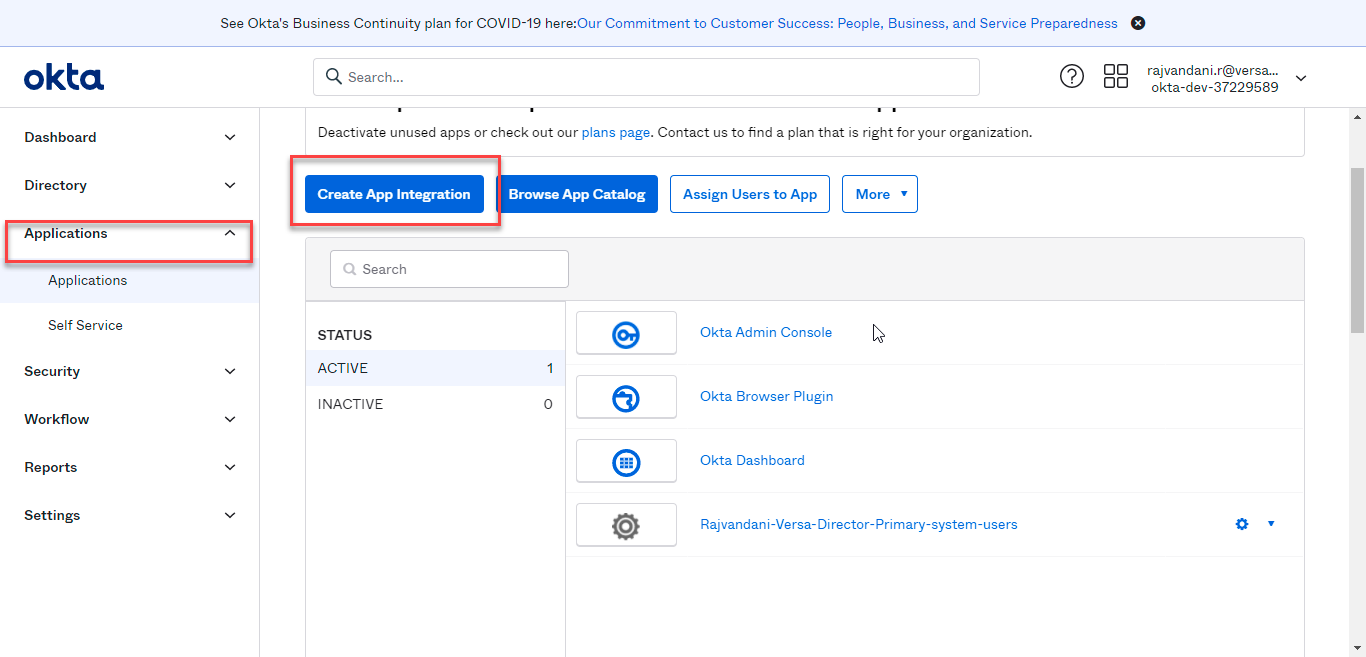
Step 5.1: Go to Applications > Create App Integration
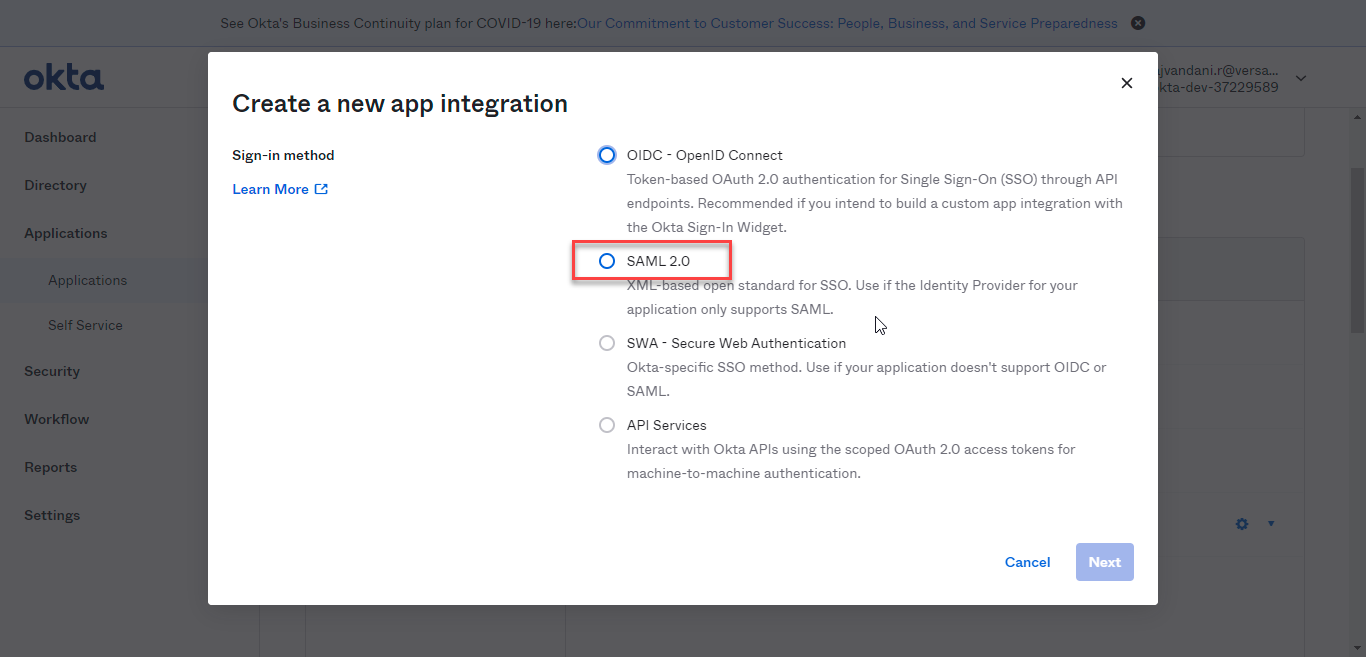
Step 5.2 : Select SAML2.0
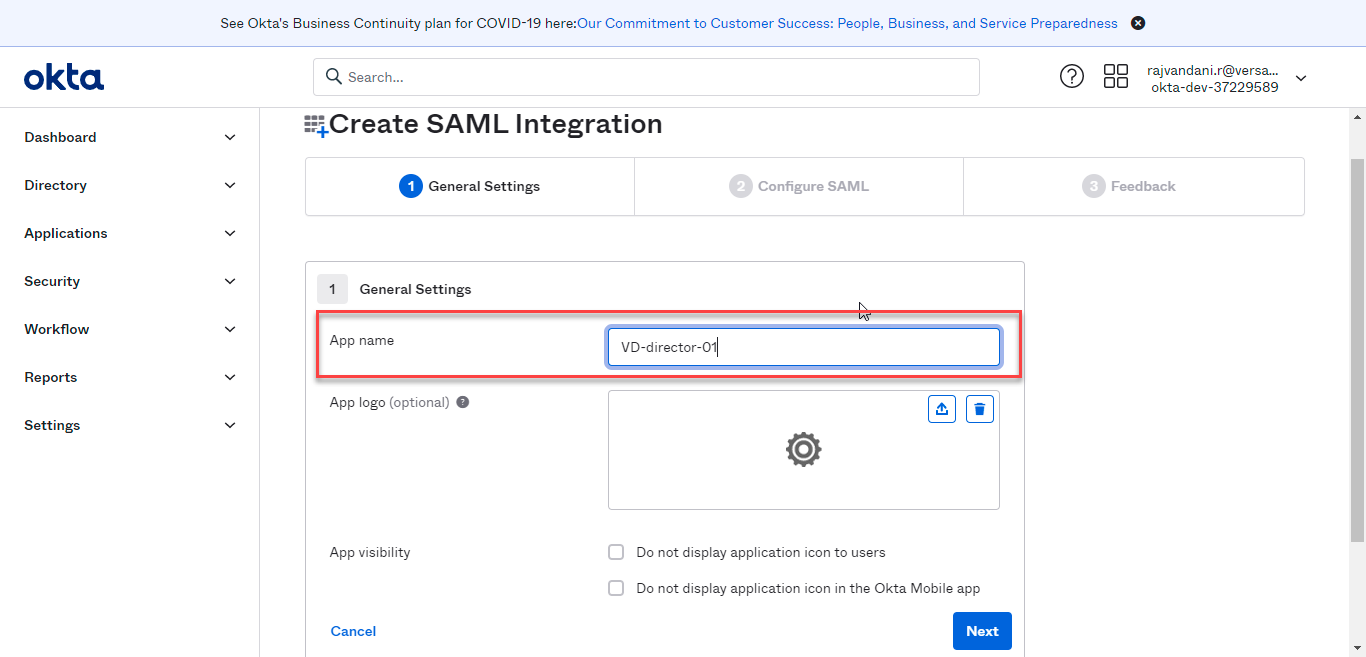
Step 5.3: Enter the Application name
Step 5.4 : Configure SAML setting as given below
Default Relay State: Per application, we can set only one relay state
If the customer want IDP initiated SSO for system users, then the relay state is vd-ui::system. If it is for tenant users, then the relay state is vd-ui::{Tenant Name}.
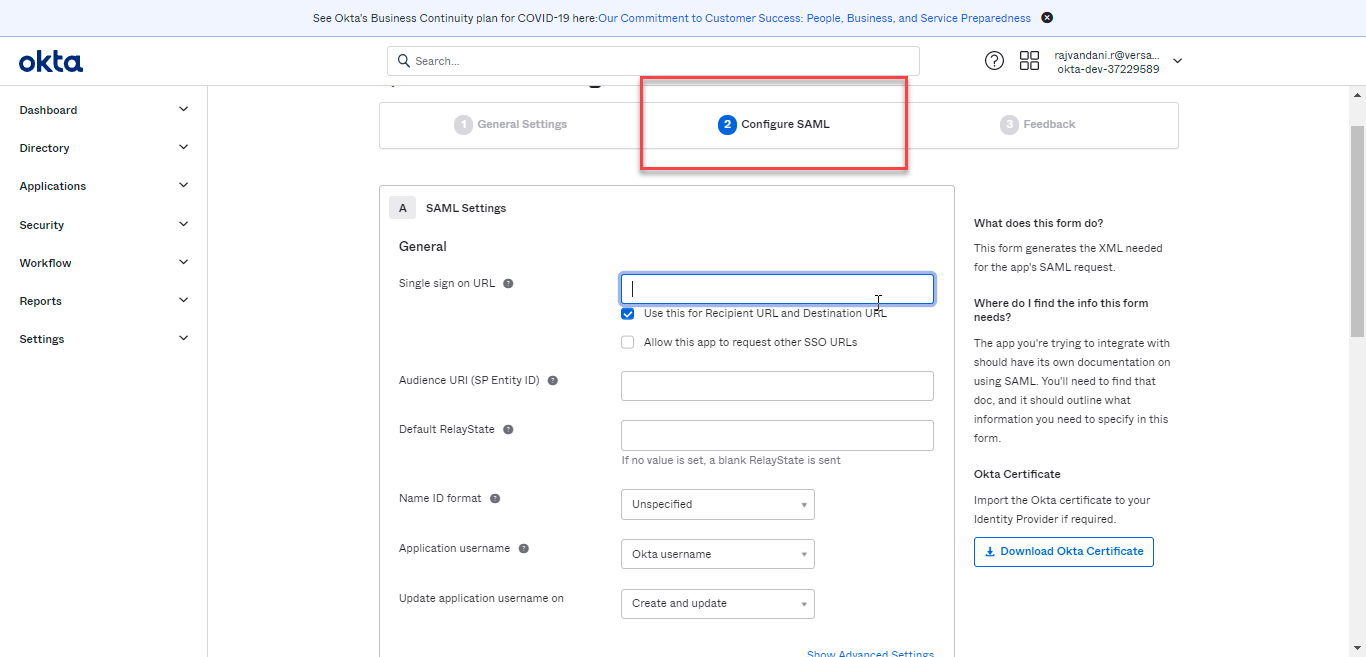
Example of SAML settings
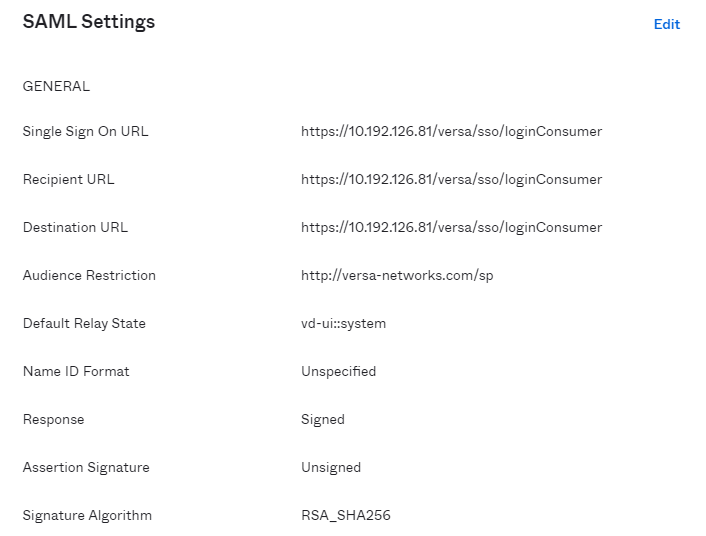
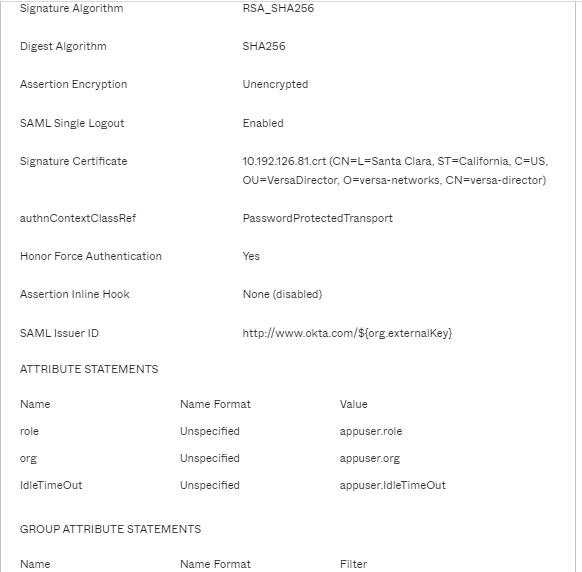
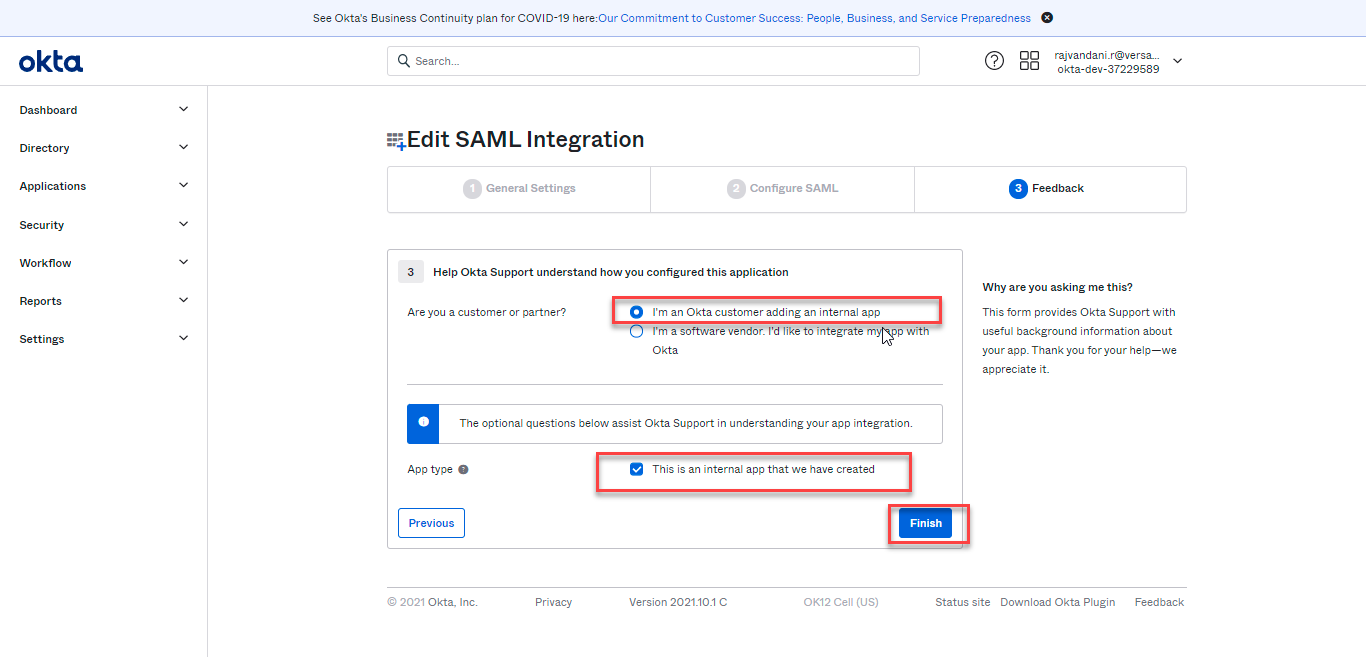
Step 5.5 : Complete Feedback
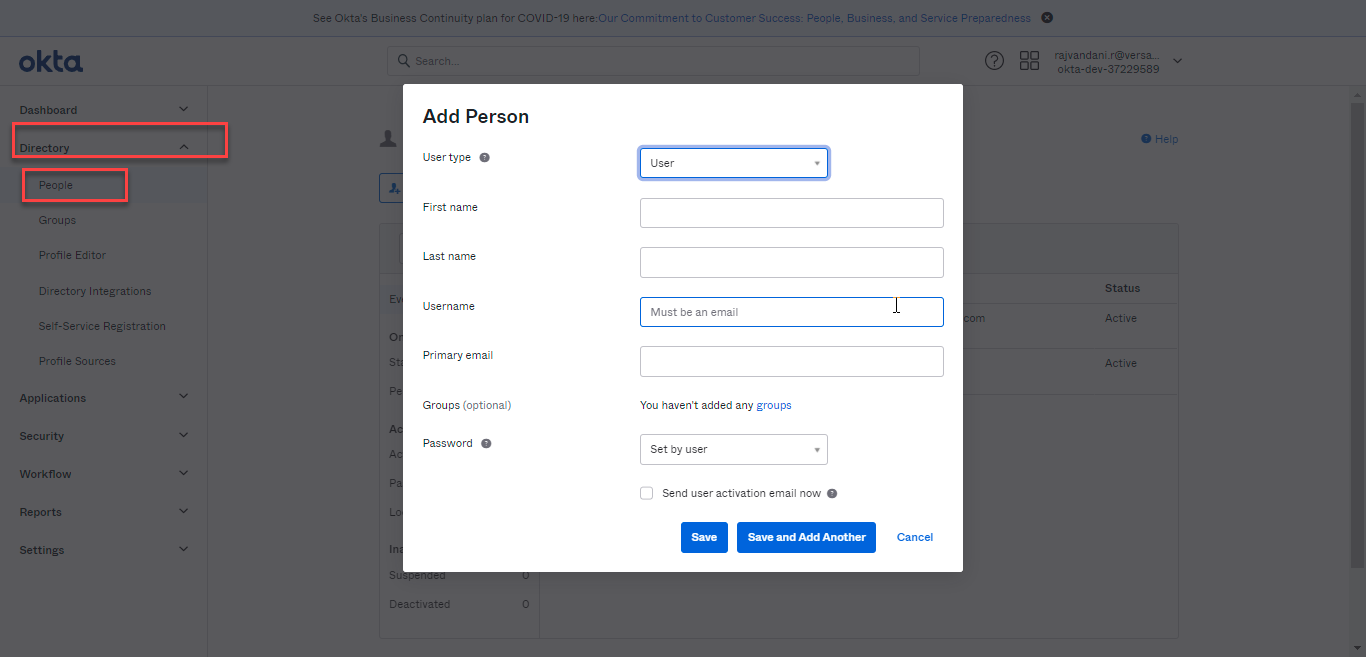
Step 5.6: How to add a new user
- Go to Directory > People
7: How to assign user authentication to an application
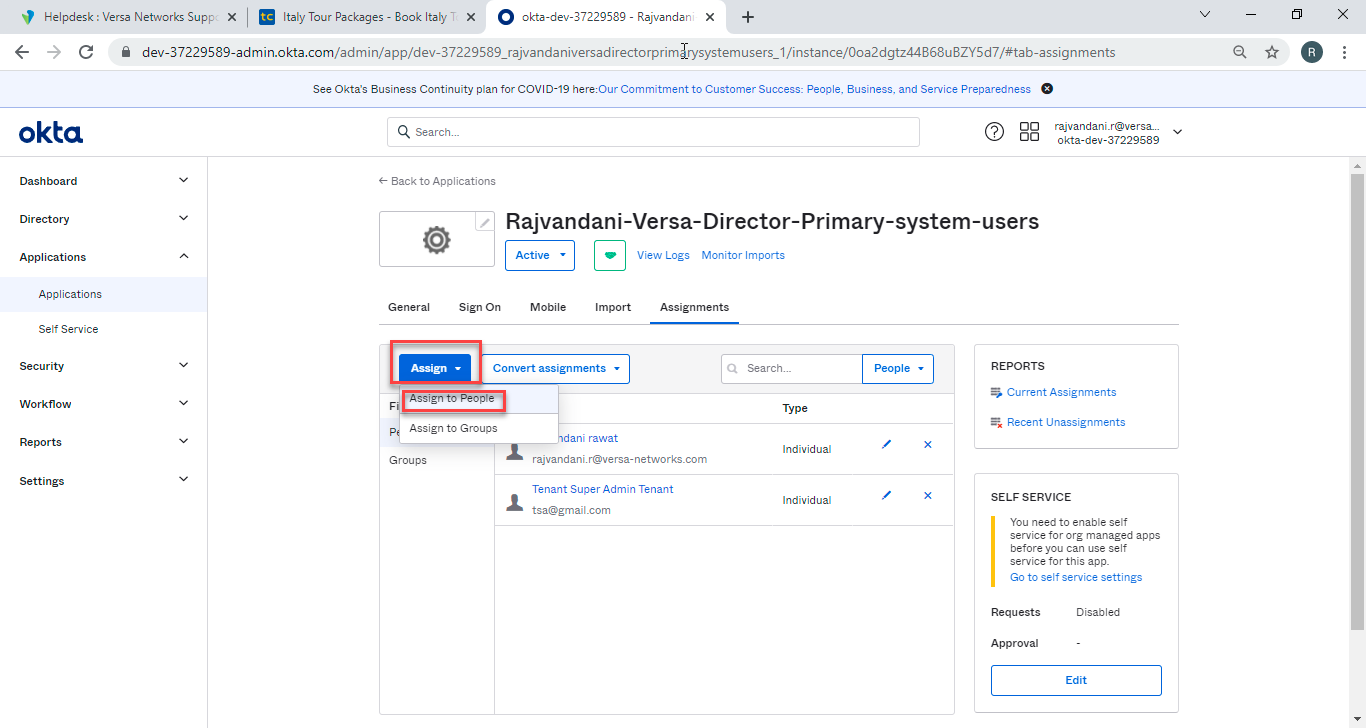
- Go to Applications -----> Click on the specific application which you have created
- Click on Assign >Assign to People
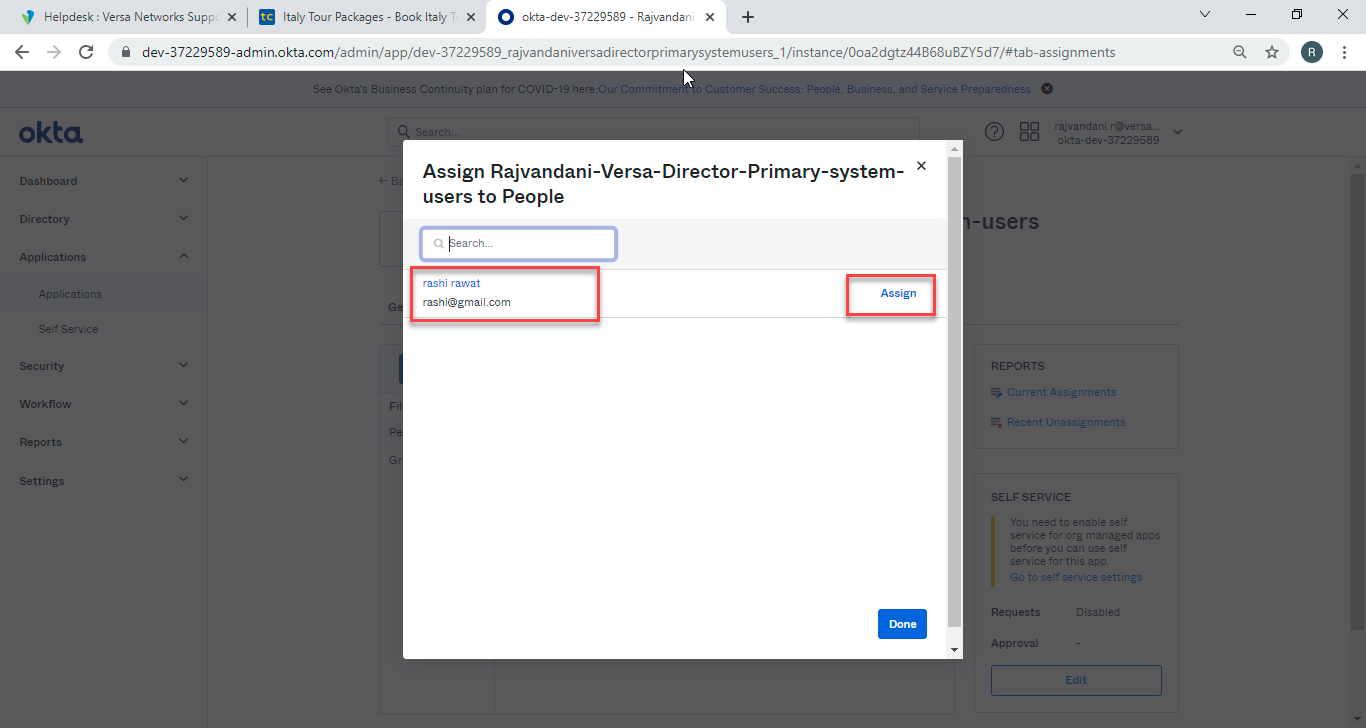
- Click on Assign for respective user
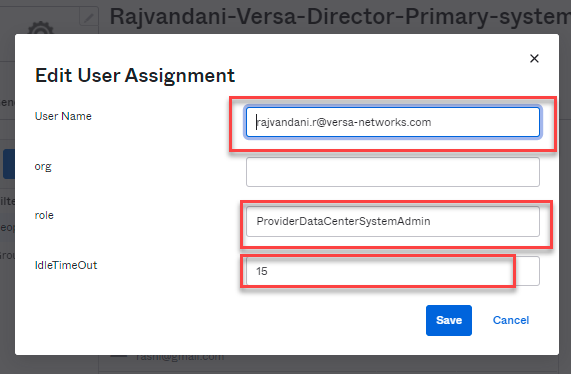
- Configure all the attributes
- NOTE: For tenant users attributes org, role and Idle-timeout are mandatory, for System users org is not needed, role and idle-timeout are mandatory
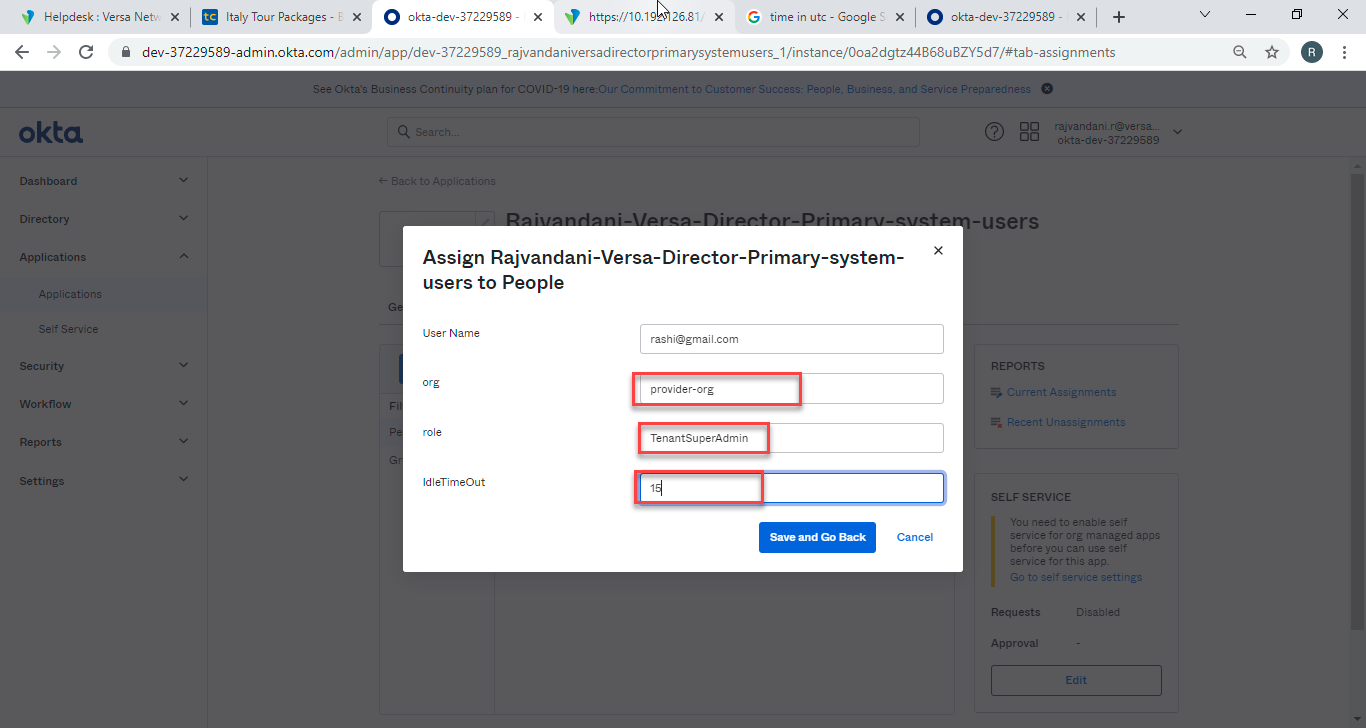
Example of system user :
Note: For "SAML" Type - Okta, SSO cert expiring under the path "/var/versa/vnms/data/certs/vnms_sso_public.crt" should not impact the functionality of the SSO Login.