Created by: Vishal Gudhka
Introduction:
Certificate-Based Authentication is a strong security mechanism that replaces passwords with digital certificates issued by a trusted CA authority. There are two methods of certificate-based authentication.
- User Certificate-Based Authentication
- Device Certificate-Based Authentication
User Certificate-Based Authentication
Certificate Issuance
- The client certificate is issued to a user identity (e.g., vishal.gudhka@outlook.com or vishal.gudhka).
- The client certificate is stored under the “Personal” Store of the Current User (Windows Current User store or macOS Keychain).
Device Certificate-Based Authentication
Certificate Issuance
- The client certificate is issued to a device identity (hostname, serial number, or UUID).
- The client certificate is stored in the local machine certificate store (Trusted at the OS level, macOS system Keychain, TPM, or pushed via MDM/Intune)
Key Difference between User and Device certificate-based authentication
In practice, the significant difference lies in the location where the certificate is stored.
Example,
- When a client certificate is generated with the subject common-name = vishal.gudhka.
- If you store this certificate at the Personal Store level of the current user, then you can use “User cert-based authentication”. OR
- If you store this certificate on the Local Machine's Personal Store, then you can use “Device cert-based authentication”
- Note: If you store the same certificate in the Personal Store of both the local Machine and the current user, then Enterprise can switch between user- or device-based certificate authentication.
Configuration on Concerto
The configuration of User and Device Certificate-Based Authentication is the same, except you either choose “User Certificate Based” or “Device Certificate Based.”
Steps:
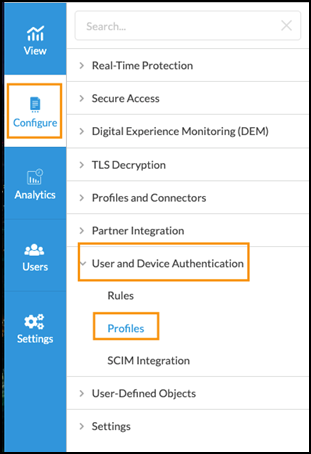
- Go to Configure → User and Device Authentication → Profiles → Click “+Add” to create a new Profile.
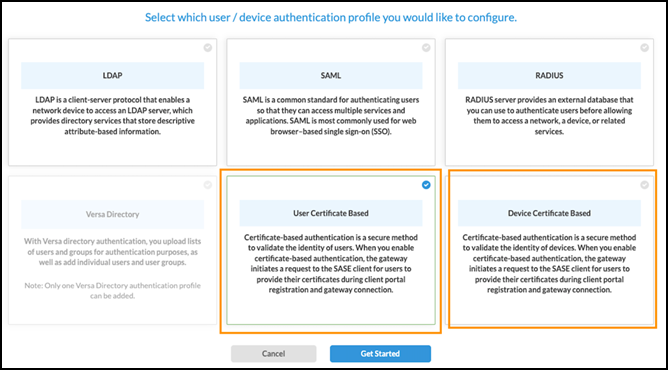
- Choose “User Certificate Based” or “Device Certificate Based” option → Click Get Started.
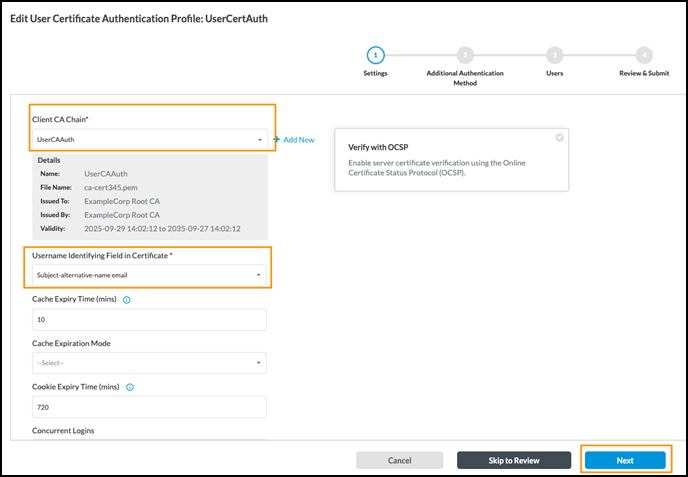
- Under Client CA Chain, upload the CA and the Intermediate (if it exists) certificates.
- Under Username Identifying Field in Certificate: You can choose either
- Subject Common-name
- Subject-Alternative-name email
- Subject-Alternative-name principal name
- Leave the rest of the fields to defaults and Click “Next”
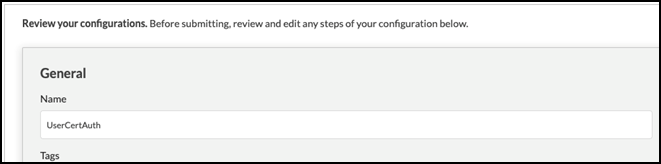
- Go to Review & Submit Tab → Give the Filename → Click “Save”.
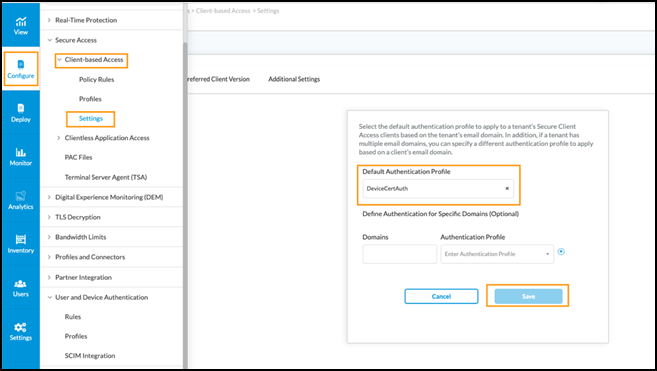
- Go to Configure → Secure Access → Client-based Access → Settings.
- Choose the Authentication profile under “Default Authentication Profile”
- Publish the changes to the SSE Gateways.
SASE Client
- On your laptop, please install the client certificate.
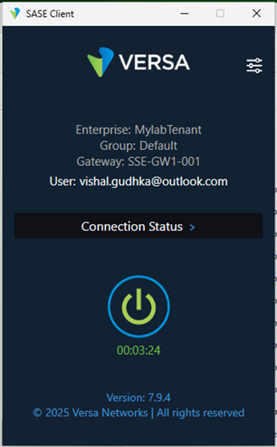
- On your SASE client, perform registration as follows.
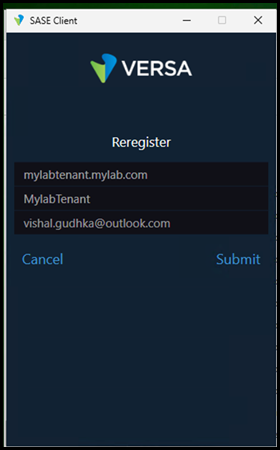
- Upon Successful registration, the user will be connected to the SASE/SSE gateway.