Question: How to deploy and verify Versa branch on Azure using Versa Director?
Answer:
Prerequisites for Deploying a Branch/Device on Azure
- Virtual WAN is provisioned on Azure.
- Hub is deployed for the provisioned virtual WAN.
Deploying Branch/Device on Azure Using Versa Director
Follow these steps to deploy a branch/device on Azure using Versa Director:
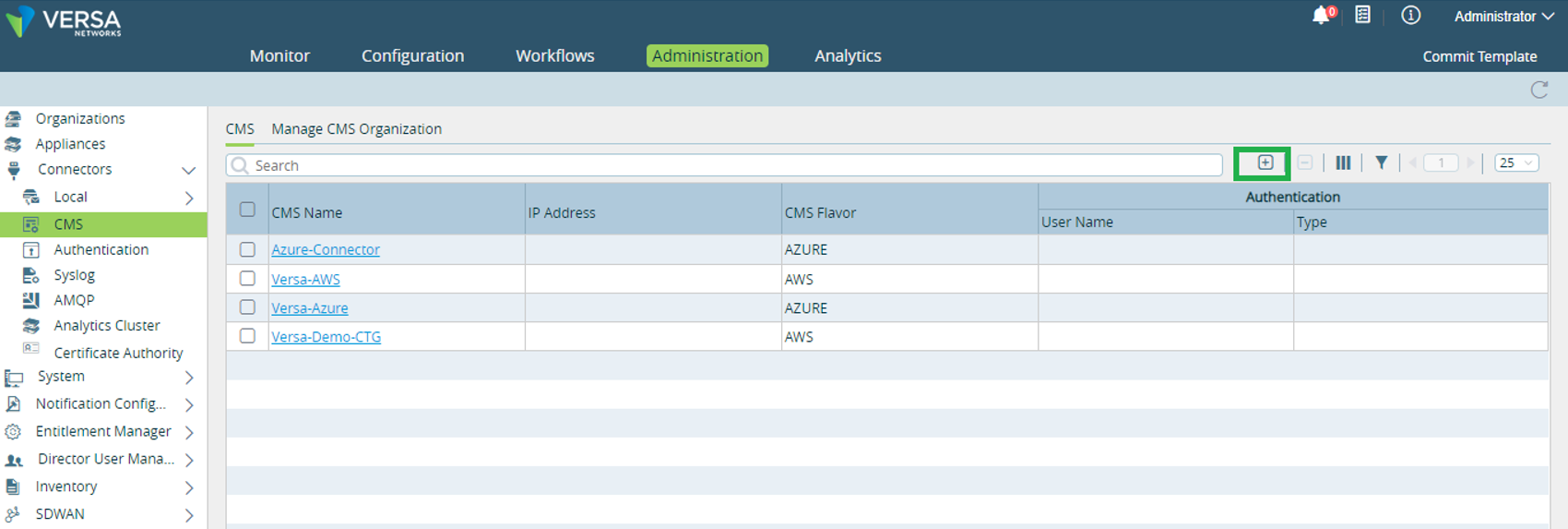
- In the Versa Director, Select Administration > Connectors > CMS and click
 .
.
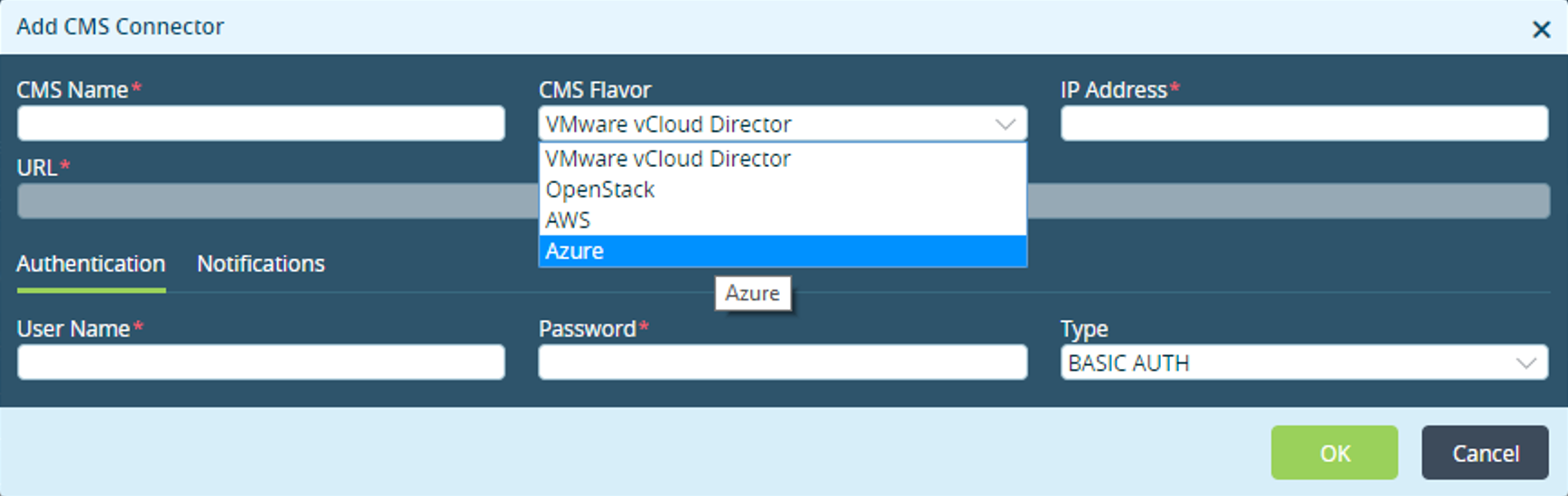
- This opens Add CMS Connector window. Select Azure from the CMS Flavor drop-down menu.
This opens Add CMS connector window.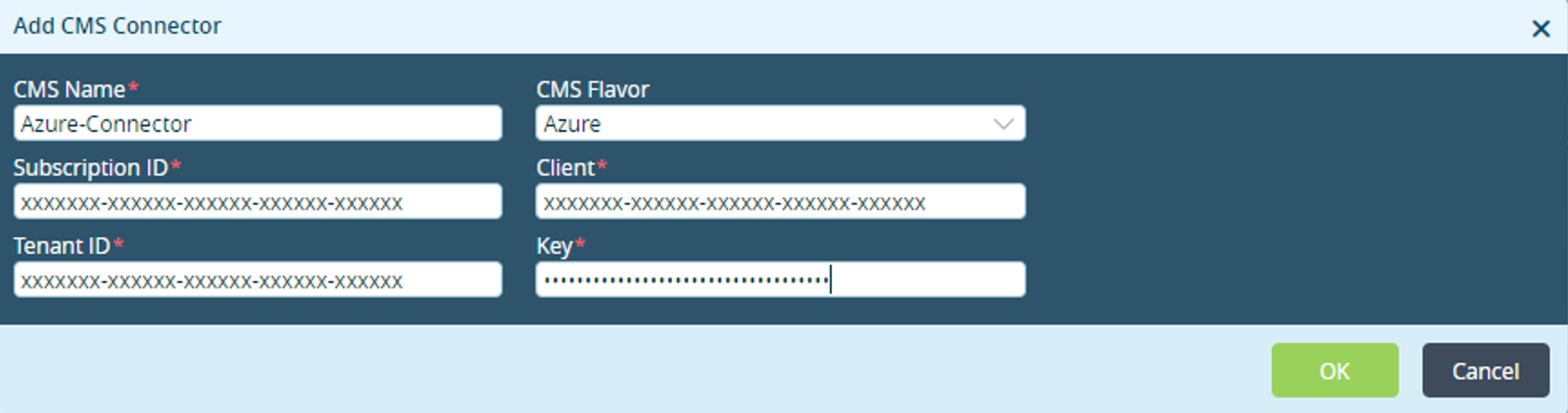
Enter these details and click OK.Field Description CMS Name Specify the name of the CMS. Subscription ID Specify the subscription ID information here. It is obtained when the Versa appliance is registered as part of the prerequisite.
Client Specify the client ID information here. It is obtained when the Versa appliance is registered as part of the prerequisite.
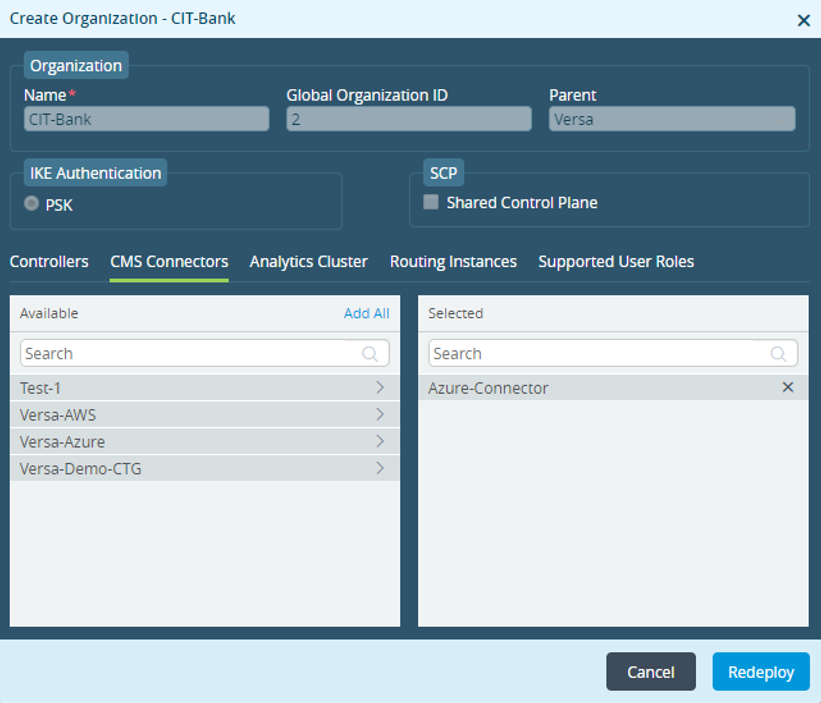
Tenant ID Specify the Tenant ID information here. It is obtained when the Versa appliance is registered as part of the prerequisite. Key Specify the Key information here. It is obtained when the Versa appliance is registered as part of the prerequisite. - Select Workflows > Infrastructure > Organizations and select the desired organization. This opens Create Organization window.
- Select CMS Connectors tab and add Azure Connector and click Redeploy.
- Select Administration > Appliances and click
 . This opens Add Appliance window.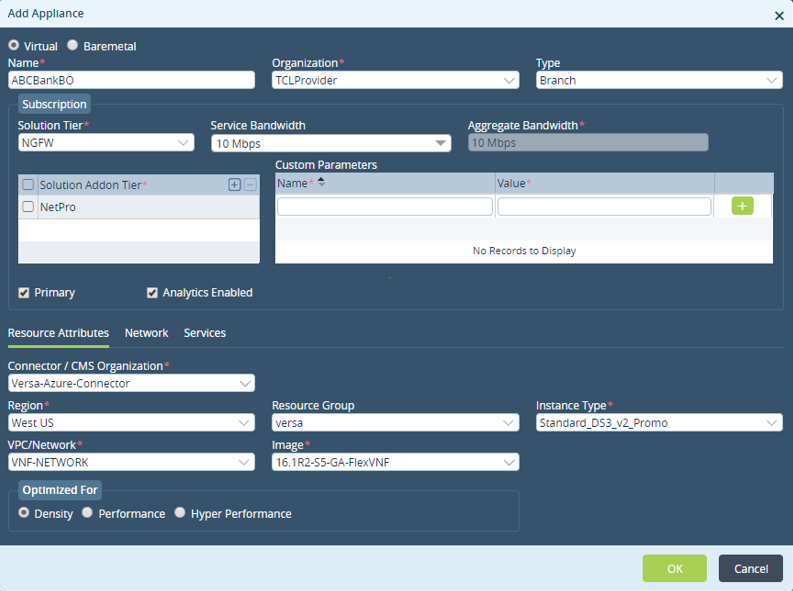
Enter these details and click OK.Field Description Name Specify the name of the appliance. Organization Specify the name of the organization associated with the appliance. Solution Tier Select a solution tier. Service Bandwidth Select a bandwidth for the selected solution. Resource Attributes Connector/CMS Organization Select the CMS Azure connector configured earlier. Region Select the region where virtual WAN is provisioned. Instance Type Select the instance type. VPC/Network Select the type of network. Image Select the suitable qcow2 image file.
NOTE: Please make sure to deploy the device in the same region where virtual WAN and hub are deployed in Azure.
Secure Connectivity to Azure (VPN s2s connectivity) Using Versa Director
Follow these steps to securely connect with Azure using Versa Director:
- Select Administration > Appliances and select the appliance and click the Secure Connectivity to Azure.

- This opens Secure Connectivity to Azure window.
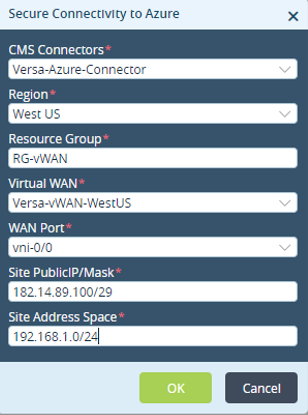
- Enter these details and click OK.
Fields Description CMS Connector Select the CMS connector configured earlier. Region Select the region where virtual WAN is provisioned. Resource Group Specify the resource group name. Virtual WAN Select the Versa Virtual WAN. WAN Port Select the WAN port of the device which is connected to the VPN gateway/hub.
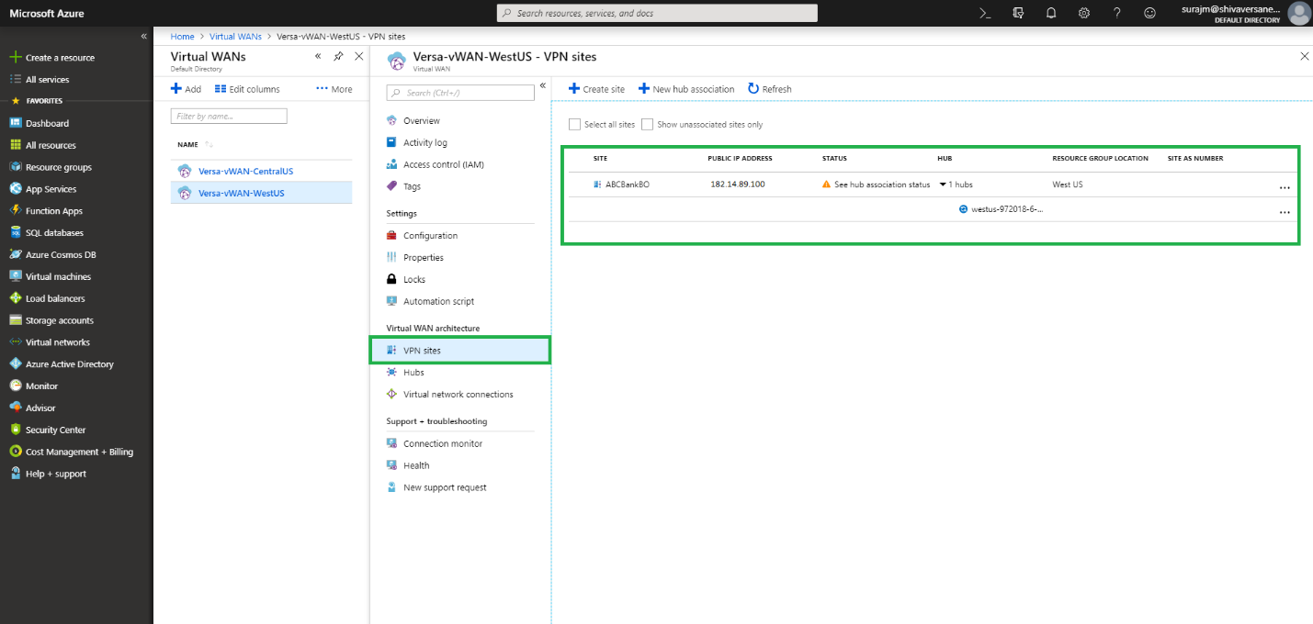
Site Public IP/Mask Specify the public IP address which is assigned to WAN port. Site Address Space Specify the private IP address. This is the client's or LAN side IP address. - Login to the Azure portal and verify the VPN site associated with the hub.