How to onboard a device using GZTP
This article describes how GZTP works and step for onboarding a device using GZTP
Below info is required from provider to be provisioned on GZTP infra:
- Provider name
- Region where provider’s Controller is deployed
- Controller IP address
- Local and remote authentication ID’s
- Local and remote authentication keys
- Serial number of CPE
Note: Local and remote authentication ID’s and keys can be found in VPN profile of staging Controller
Go to Director -> Administrator -> Device -> Configuration -> Services -> VPN Profiles -> Staging template -> IKE
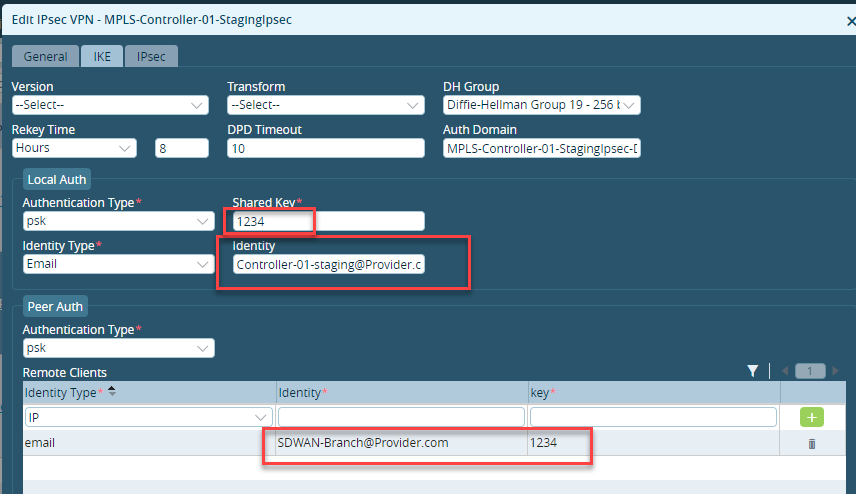
To provision Controller using Boteshwar:
Syntax: ./GZTP-Template-DG-Provisioning <CUSTOMER-Name> <REGION/COUNTRY> <Controller_IP> <LOCAL_AUTH> <REMOTE_AUTH> <LOCAL_KEY> <REMOTE_KEY>
Ex:

To provision Controller using chatbot:
Syntax: /noc infra <CUSTOMER-Name> <REGION/COUNTRY> <Controller_IP> <LOCAL_AUTH> <REMOTE_AUTH> <LOCAL_KEY> <REMOTE_KEY>
Ex: /noc infra GlobalConnect Norway 37.205.126.214 SDWAN-Branch@gcdynamics.com controller01-staging@gcdynamics.com
Note: if local key and remote key are not specified, default value will be taken as 1234.
To provision device using Boteshwar:
Before provisioning the serial number provided by customer, check if it is already provisioned by running grep command. If yes, then there is no need to provision the serial number as it is already configured.

If you don’t see any output for grep command, then you have to add the serial number using below ./GZTP-Add-Device scipt.
Syntax: ./GZTP-Add-Device <SERIAL_NUMBER> <CUSTOMER_NAME> <REGION/COUNTRY>
Ex:

To provision device using chatbot:
Syntax: /noc cpe <SERIAL_NUMBER> <CUSTOMER-Name> <REGION/COUNTRY>
Ex: /noc cpe JAB19302023 GlobalConnect Norway
GZTP Procedure:
Once the provisioning is done, GZTP is enabled. This process involves two phases.
Phase1:
- Once the device is connected to network via cable and switched on, device will be loaded with default configuration.
- CPE will require IP address using DHCP and will request for Versa signed CA certificate from Versa CA server located in the cloud, will store this certificate.
- Using this CA certificate, CPE will connect to Versa GZTP staging Controller using IPsec tunnel. The Versa GZTP Director will then push the provider config for staging to CPE through the GZTP staging Controller
At this point, CPE will reboot to apply the configuration received from GZTP server
Phase2:
- CPE will connect to provider staging Controller to authenticate IKE using PSK key mechanism. Provider Director will validate using two-factor authentication, if it is enabled. After successful authentication, Director will push provider staging config to CPE through provider staging Controller.
CPE will reboot again, bootup a staging configuration received.
- If provider has a CA certificate authorial, CPE will connect to provider CA server adapting the certificate after CMP-V2 inter message exchange. CPE will direct the provider CA signed certificate to provider SDWAN Controller to authenticate IKE using provider CA signed certificate. The provider’s Versa Director will push the final config to CPE through SDWAN Controller after successful authentication.
- At this point CPE will reboot for one last time and apply the received post-staging config/final config.
- On reboot, the CPE will connect to provider’s SDWAN Controller, establish Ike/IPsec tunnel and start exchanging MP-BGP routing info with the Controller
Now the device is ready and is part of the customer’s SDWAN network.
To reset the serial number:
When customer erase running config, it also deletes the certificates and device on bootup tries to contact GZTP infra. But EJBCA does not issue certificate, if it has already issued for the same serial number. We will need to reset the certificate to new for it to generate certificate for the same device.
Syntax: ./reset-ejbca <Serial number>
Ex:

To reset serial number using chatbot:
Syntax: /noc reset <serial number>
After resetting the serial number, customer needs load default config on device using below script.

Note:
If not customer needs to press the reset button 6 times on the device and device will load the staging config directly and by pass the GZTP. Device will reach out to their Controller instead of GZTP.
To delete the CPE provisioned:
Syntax: /noc dcpe <serial number>