What is a REST API?
Let’s say if you are trying to find videos about python on YouTube. You open YouTube, type “python” into a search field hit enter and you see a list of videos about python.
A REST API works in a similar way, you search for something and you get a list of results back from the service you are requesting from.
Each URL is called a request while the data sent back to you is response.
Methods in REST API:
- GET - This request is used to get a resource from a server. It’s a READ operation.
- POST - This request is used to create a new resource on a server. It’s a CREATE operation.
- PUT - This request is used to update a resource on a server. It’s a UPDATE operation.
- DELETE - This request is used to delete a resource on a server. It’s a DELETE operation.
How to use Postman
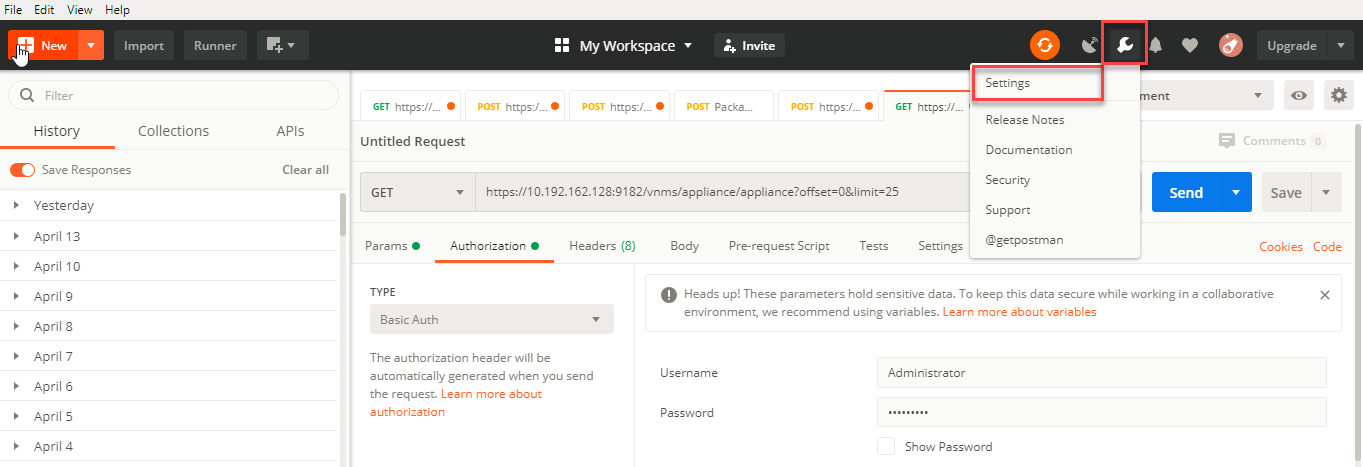
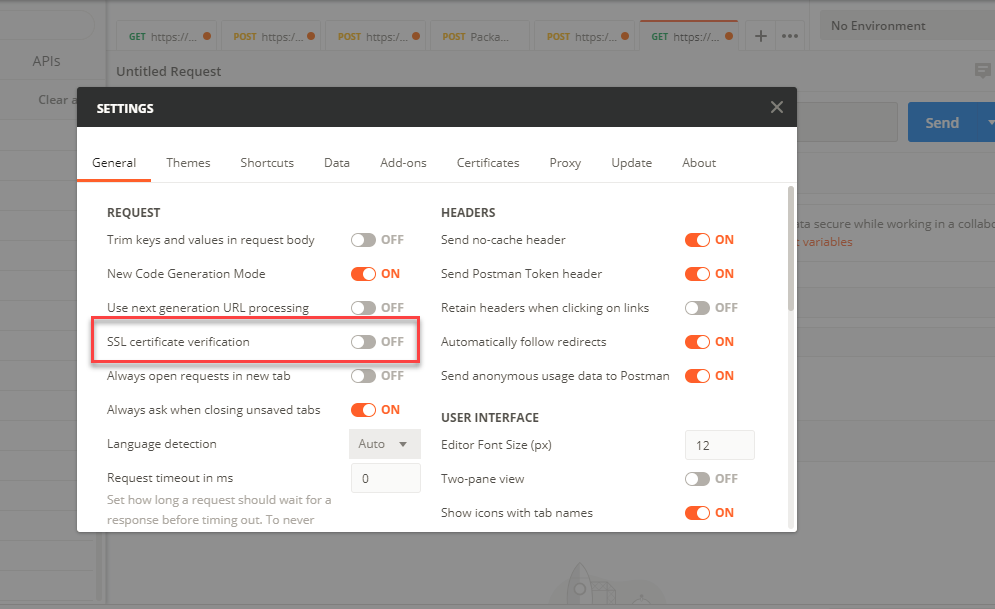
Step 1: Go to Settings, check SSL certificate verification is unchecked.
Step 2: Now we can proceed to run Versa API using Postman tool:
Examples:
We will be using API port 9182 for REST API authentication using HTTP basic authentication with username and password.
GET API Request:
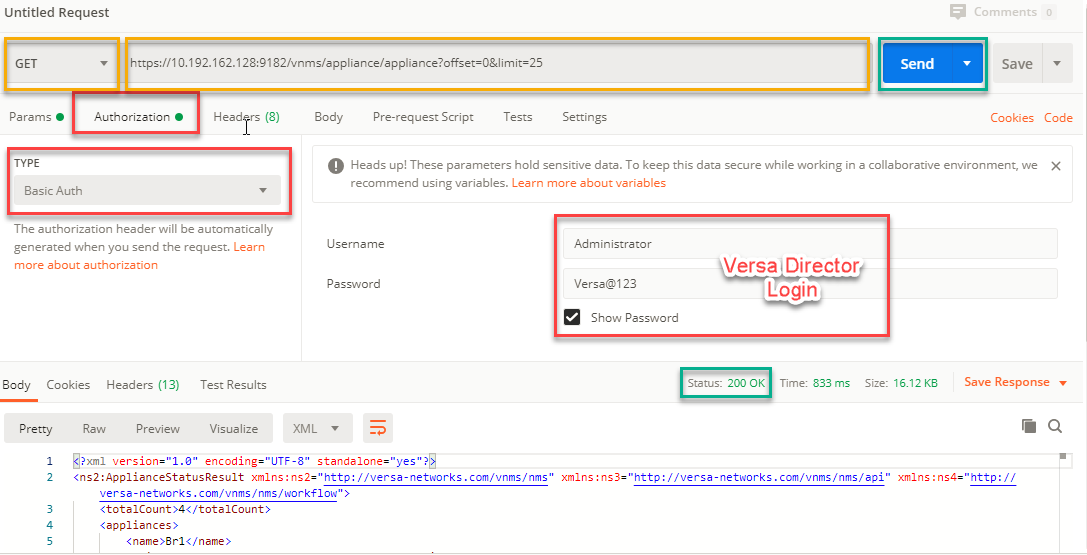
- Select GET method. Copy API to URL address.
- Select Authorization > Type: Basic Auth > Enter Versa Director GUI Credentials
- Click Send
- After sending request you will get 200 OK Response.
This is the example of GET API using Postman:
API URL: https://10.192.162.128:9182/vnms/appliance/appliance?offset=0&limit=25
POST API Request:
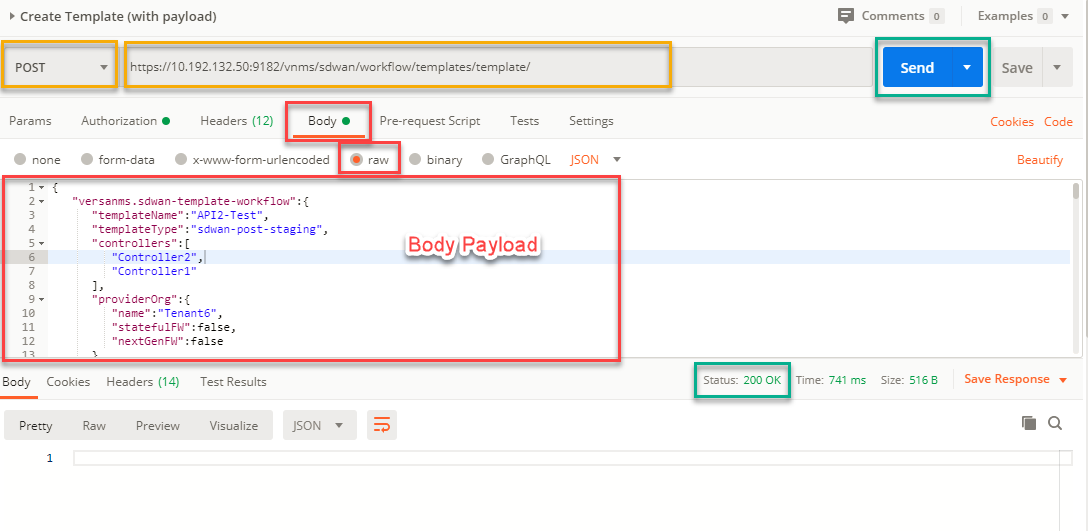
- Select POST method. Copy API to URL address.
- Select Authorization > Type: Basic Auth > Enter Versa Director GUI Credentials
- Add payload to Body and Click Send
- After sending request you will get 200 OK Response.
API URL: https://10.192.132.50:9182/vnms/sdwan/workflow/templates/template/
Body Payload:
This we can get from the browser
2022-10-27 update:
You can easily find what API to use in the developer tools in your browser.
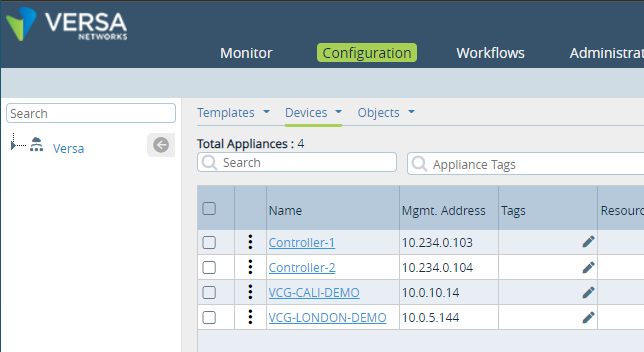
1. We opened page which shows all devices for the Versa tenant:
In the Developer tools of the browser we see the request which was actually sent:
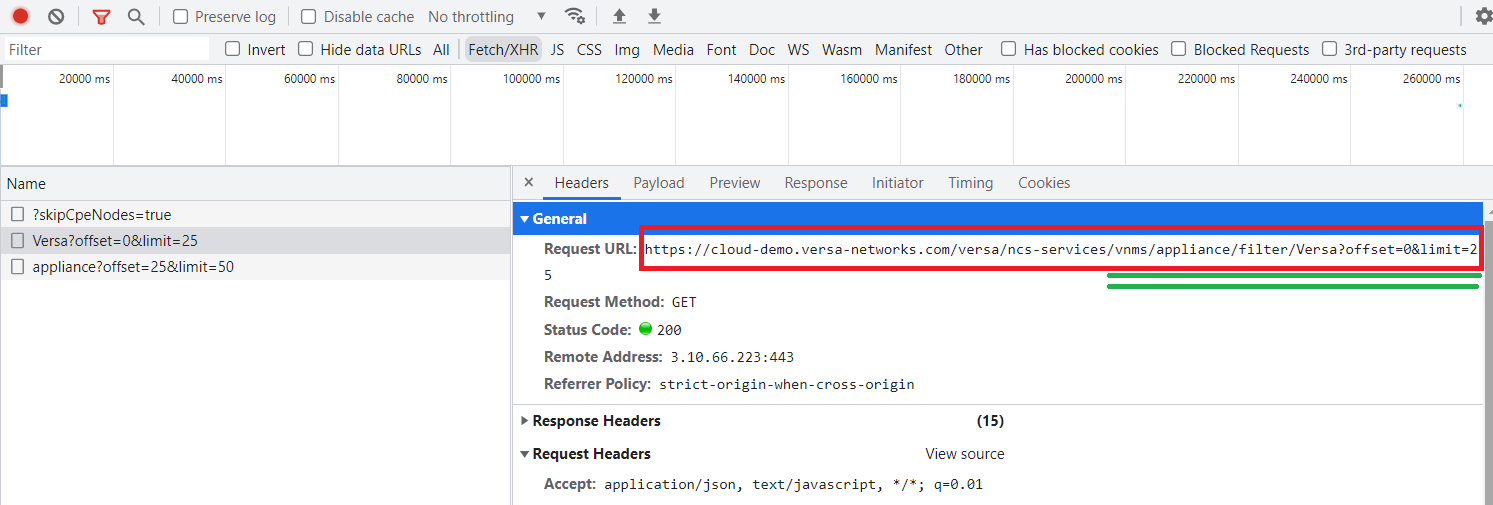
green text is the actual API we need to copy to the Postman to work.
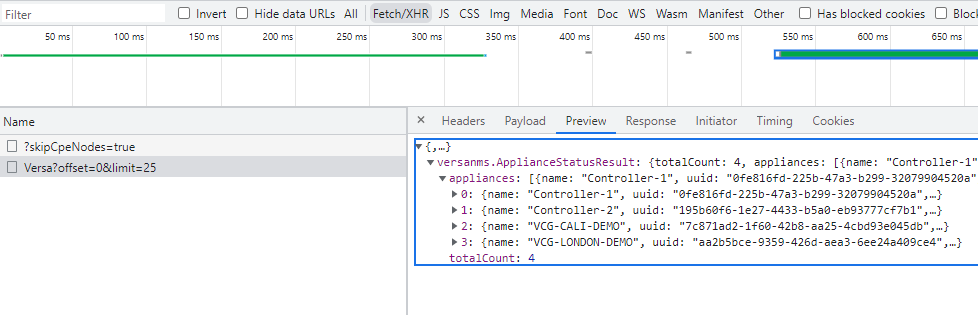
And the output contains the same devices as we saw in the GUI:
Now check the result, you enter underlined text after the port number and voila, output is the same as in the Versa Director:
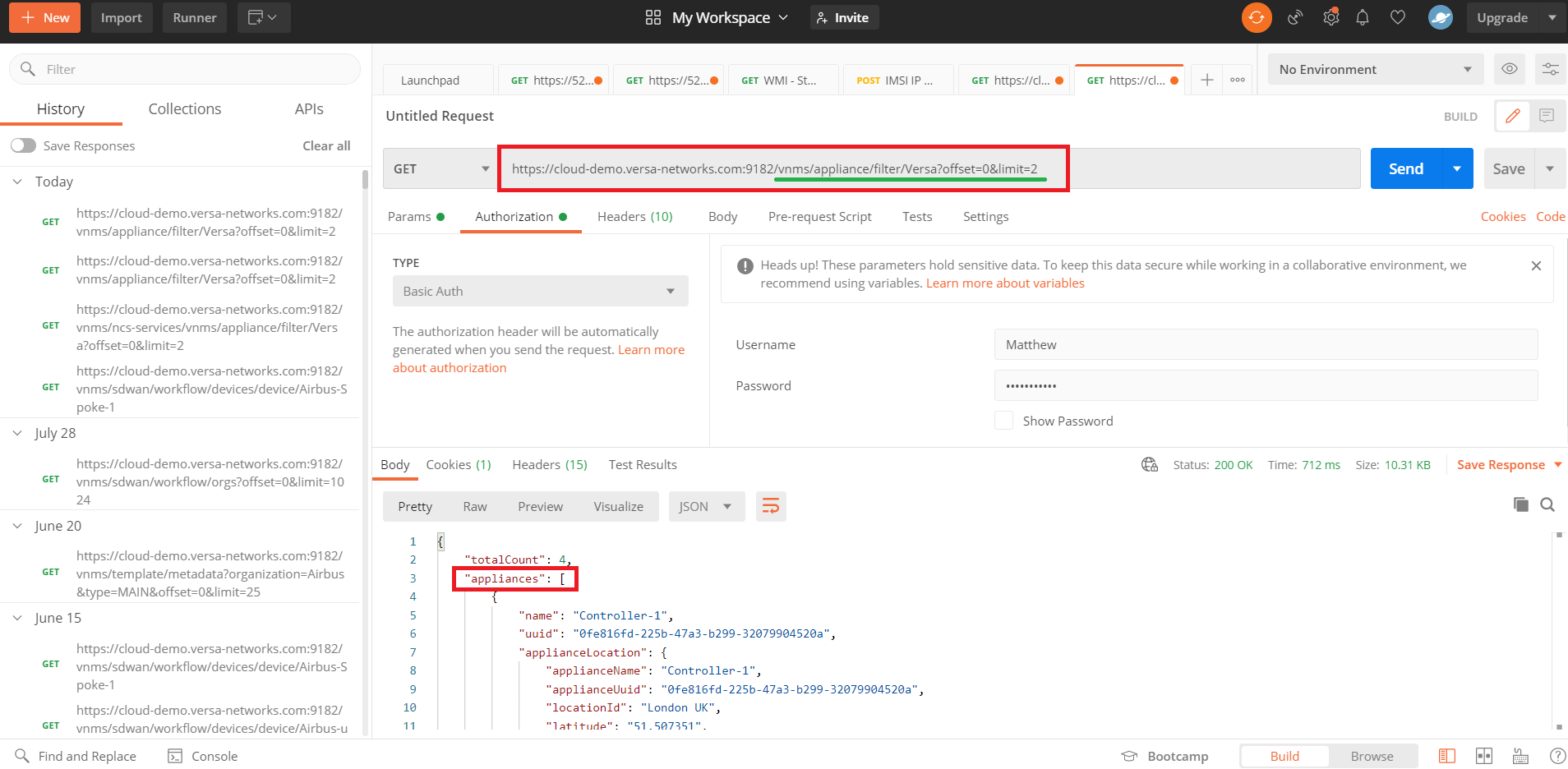
This way you can find the REST API for any operation which is done through the Director's GUI.