This document aims to consolidate and present a comprehensive list of third-party VPN software clients that have been tested alongside the Versa SASE client within customer networks. The focus is on scenarios involving both Internet Access and Private Access, ensuring that the Versa SASE client can effectively function without conflicts.
Additionally, the document provides detailed configuration guidance to facilitate the seamless coexistence of third-party VPNs by leveraging our local breakout policies. This includes step-by-step instructions on configuring exclude routes, exclude domains, and excluding specific custom application processes to bypass traffic as needed. By following these guidelines, customers can optimize their network setup while maintaining secure and efficient connectivity.
Step-by-step guide
The process requires capturing essential information from end customer who is managing the firewall
- Capture the intresting FQDN used by the VPN client during connectivity, this could be a dedicated VPN FQDN created where the 3rd party VPN would establish connectivity
- Capture the public IP address ranges or /32 Public IP, in some cases the FQDN might resolve to more than just 1 public IP, which might require us to keep discovering the public IP, instead we could capture the entire block /24 address range and allow those subnets or if its a customer captive DC, we would know the exact public IP (/32)
- In Some cases, just excluding the FQDN and IP addresses may not suffice, because of the inherent VPN clients behavior to capture certain ports and services which may affect even Versa Client VPN process, this requires detailed analysis to identify, if its really possible to work alongside these VPN clients.
- Existing VPN clients software that are running in the network may tend to interfere with the driver sharing and this may require in cases to uninstall them, followed by installing Versa Client and then re-installing the 3rd party VPN
Mandatory pre-requisites:
- Suggest the customer to disable the Web-proxy settings, PAC-file or 3rd party agent before starting the POC/ Pilot or Production
- Disable 3rd party VPN client for which you might be intending to replace for e.g. ZS, NS, Fortinet, global protect before testing
- Exclude Versa SASE gateways Public IP's and FQDN's in the 3rd party VPN agents gateway configuration profiles, so that the Versa SSE gateway communication tunnels are not routed through the VPN concentrator.
- Customer must ensure the Versa gateway IP's must be reachable, if SASE client is being tested for VSIA behind branch
Platforms Tested:
- Cisco Anyconnect
- AWS VPN
- Checkpoint VPN
- Fortinet VPN
- Any other VPN service provider or SSE provider
Cisco Anyconnect VPN
Cisco Anyconnect VPN integration would require us to capture both the FQDN's and the Public IP address range, if customer isn't providing the required information it would become a discovery process of pcap analysis and arriving at the public IP ranges. Please note sometimes "ping" of FQDN may not be right approach as there are subsequent connections and redirections that might take place.
Step-1
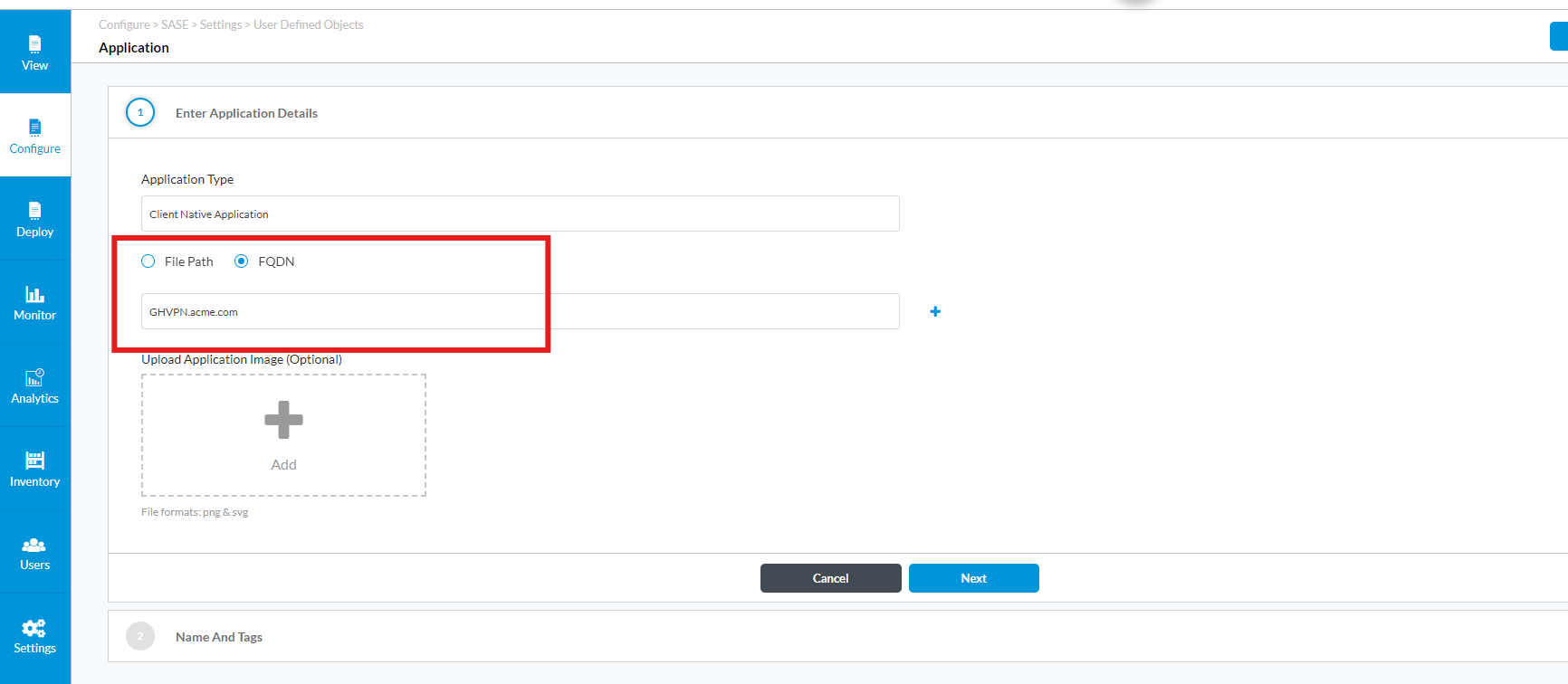
Create a Custom Application with the Cisco Anyconnect FQDN shared by the customer
- Create a Custom "Client Native Application" under settings---->user defined objects----->applications-----client native Application--→ FQDN
Step-2
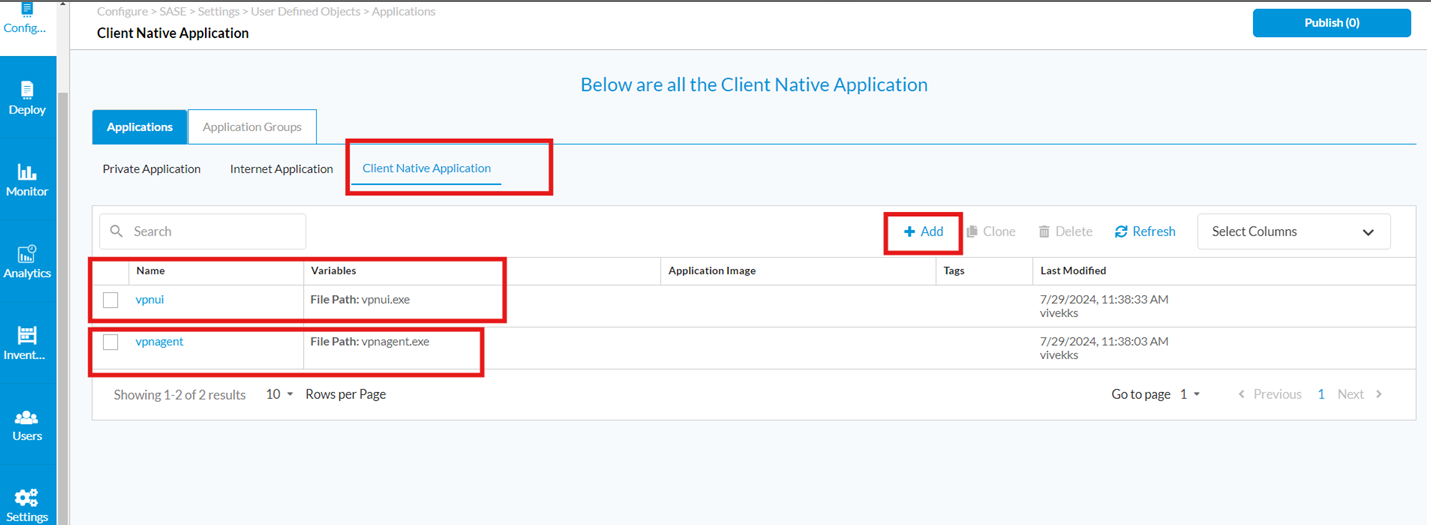
- Create a Custom "Client Native Application" under settings---->user defined objects----->applications-----client native Application
- Exclude the application under Secure Access(SA) policies
- and add exclusions for 2 Cisco ANyconnect processes, namely,
- vpnui.exe
- vpnagent.exe
IMP NOTE: When working with exclusion based on the application process, what essentially happens is if the process makes any connection to any destination IP. SASE client dynamically adds the route for this destination with nexthop as a physical adaptor. This would work fine where the application makes connections to a public network only, but where the application makes a connection to a private network, it can break things as a route for this private IP, which will be added with Next hop as the physical adaptor and if the traffic is intended to over SASE client or third party client will break. A typical example is VPN clients, which test connections to private DNS servers.
Step-3
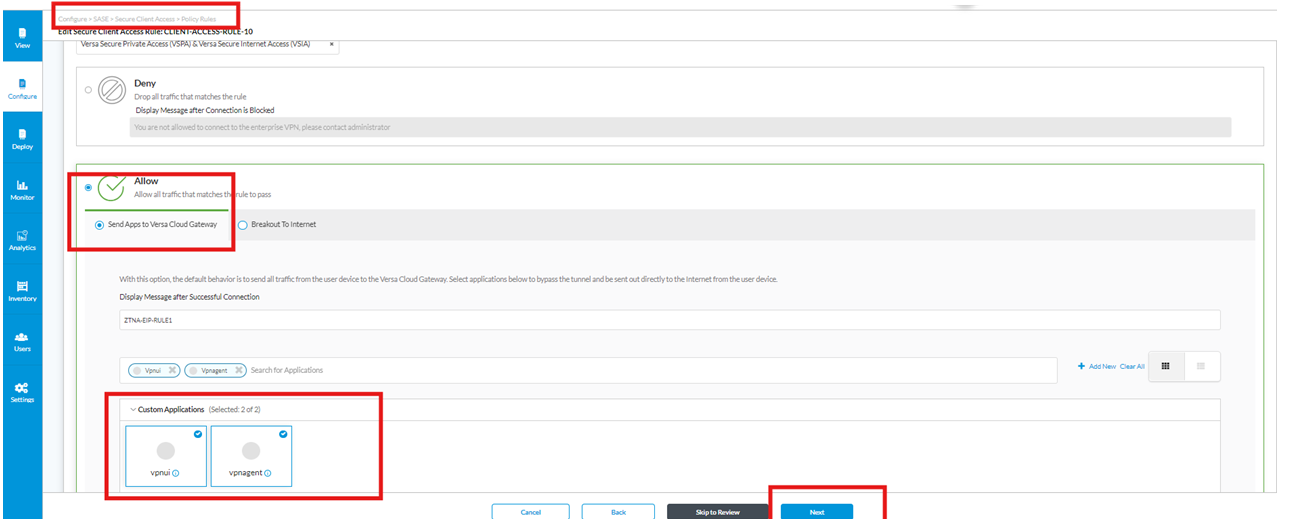
- match the step-1 and step-2 in the Secure access policies
Step-4
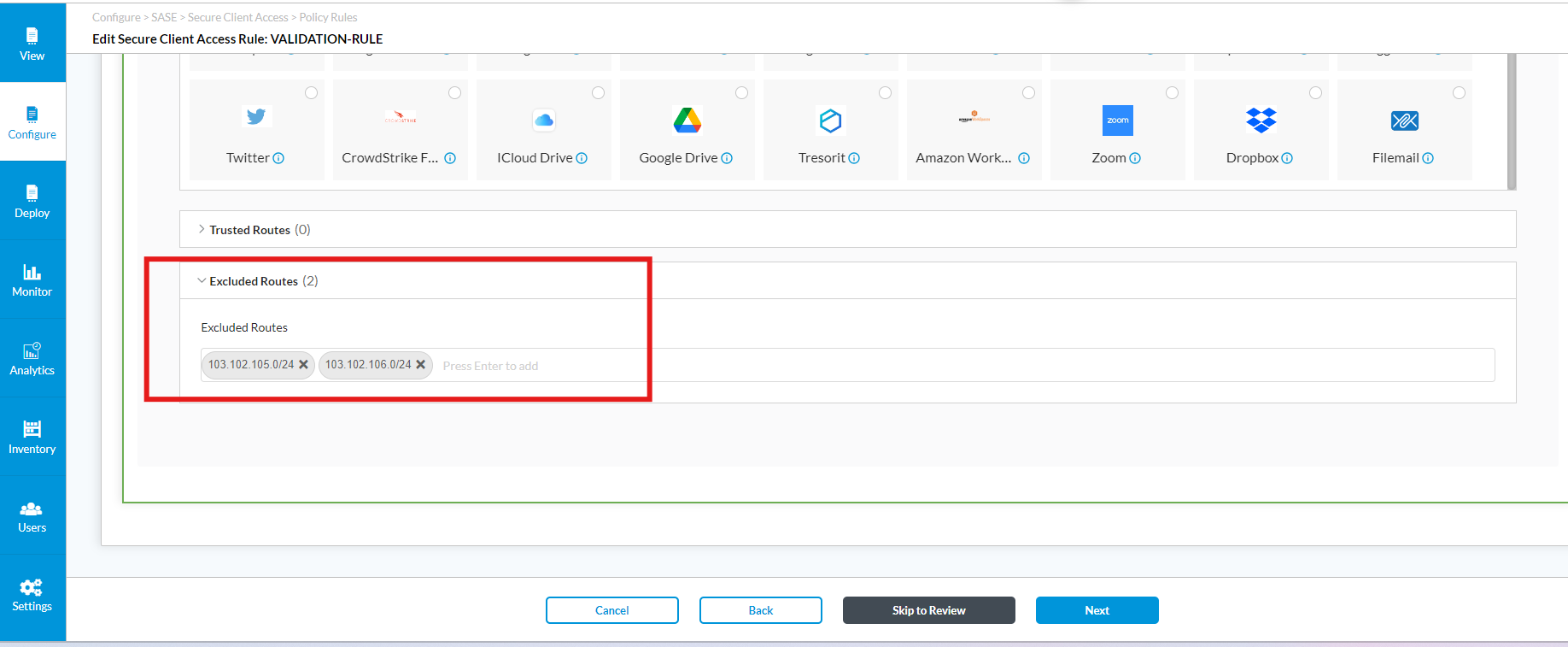
Scroll down on the same secure access policies page "traffic action" and add "exclude routes", Please remember these are routes matching the cisco Anyconnect VPN Public IP address
Step-5
Validate the behavior by connect Versa SASE client (always-on) and Cisco anyconnect for private app access.
Validate the results using "CMD" prompt "route print" to check the respective next-hop for 0.0.0.0 and private routes
AWS VPN Client
AWS VPN operates using the QUIC protocol and features a basic client model. It first performs HTTPS Connect authentication, then establishes an IPSEC VPN tunnel to the AWS Gateway. The VPN profile is delivered to the end user as an OVPN file, which includes details like the primary and secondary FQDNs for AWS locations. Additionally, it may be necessary to exclude specific AWS processes using the "application path" option, similar to how it's done with Cisco AnyConnect VPN.
The AWS client install file contains the following information:

After installing the AWS VPN client, the ".ovpn" file must be imported to connect to the AWS cloud, which may advertise both default and private routes. During our testing, we observed that the AWS client first uses the "QUIC" protocol for the initial connection request, followed by an IPSEC UDP-500 request to establish the tunnel. Therefore, it's important to ensure that the QUIC protocol is not blocked in the SASE gateway configuration for traffic directed toward AWS VPNs. This will ensure proper communication and successful tunnel establishment.
Points to note:
- AWS may sometimes announce 0.0.0.0/1 route, which will override Versa default route, ask the customer to disable the announcement.
- This testing was conducted with Private access using AWS client and Internet Access using Versa SASE client version 7.8.10
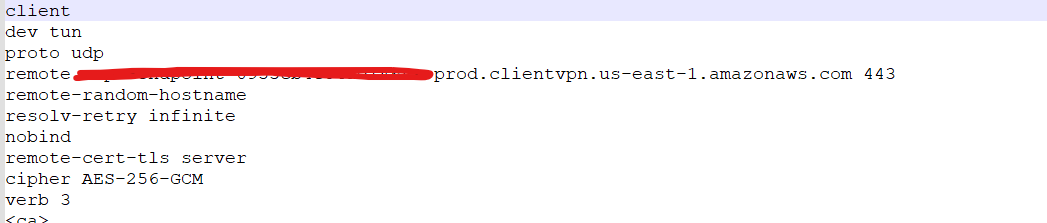
The OVPN file would have the remote endpoint FQDN of AWS, since these public IP's are allocated from a range of IP addresses, its always advisable to get the entire /24 or higher subnet block belonging to AWS and allow those IP's in our exclude routes settings.
Steps to configure the policies on Versa
1.Create custom application paths with the FQDN's mentioned in the .OVPN file and additional authentication URL"s the customers may use, best way would be to perform "PCAP" to analyze and configure

2. Navigate to Concerto, Secure Access policies, "Traffic Action" Step-5 and exclude the FQDN, custom application path
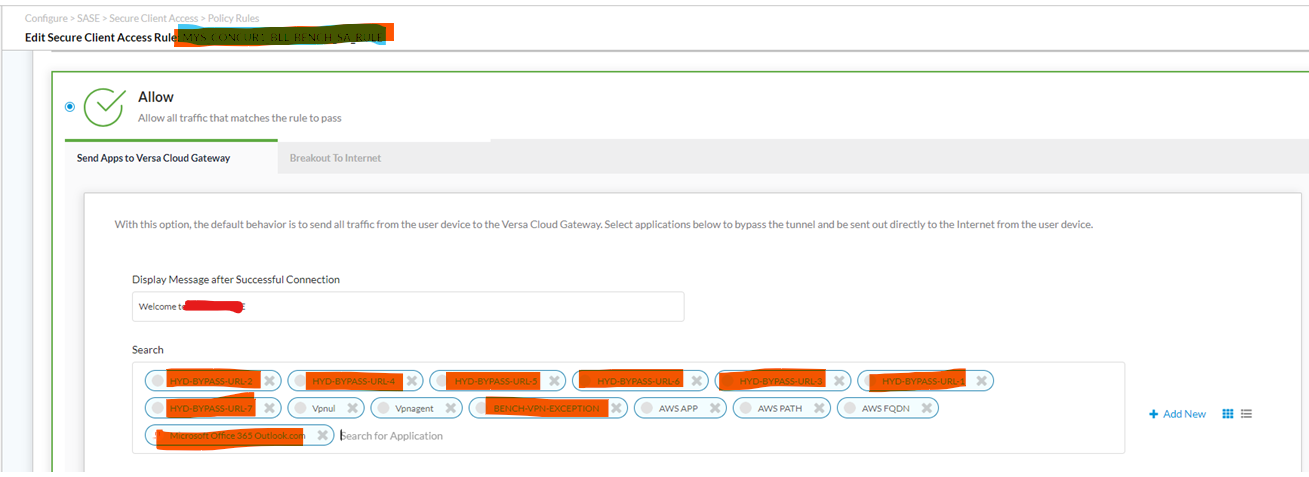
3. Register the Client connect the Versa SASE client to the Internet and then connect the AWS client and validate the results.
Checkpoint VPN
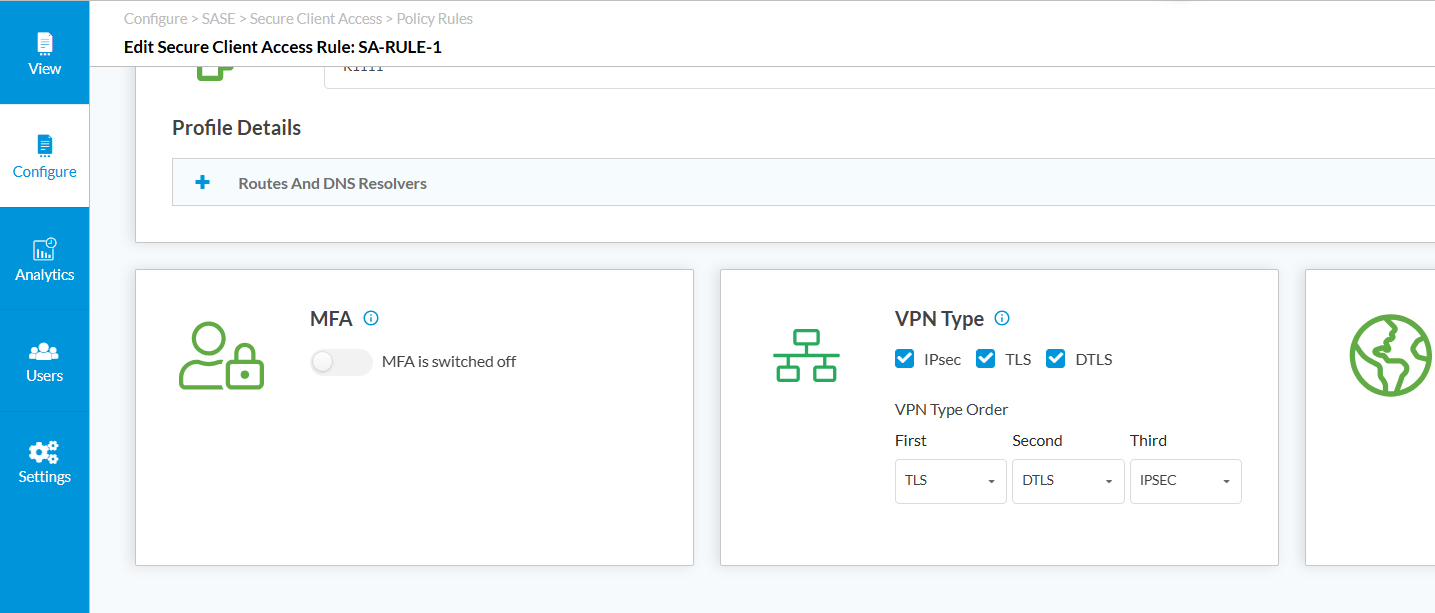
As per update from Checkpoint VPN support, it was updated that checkpoint VPN does not share the driver (IPSEC) with another VPN service running on the same host creating issues with the routing of the traffic. Hence its advised that Versa SASE settings are changed from to TLS or DTLS tunnel mode while trying to work with the checkpoint VPN.
Fortinet
Fortinet VPN integration would require us to capture both the FQDN's and the Public IP address range, usually, Fortinet operates in IP mode majorly with few customers configuring FQDN based access to the VPN's for c2s tunnel.
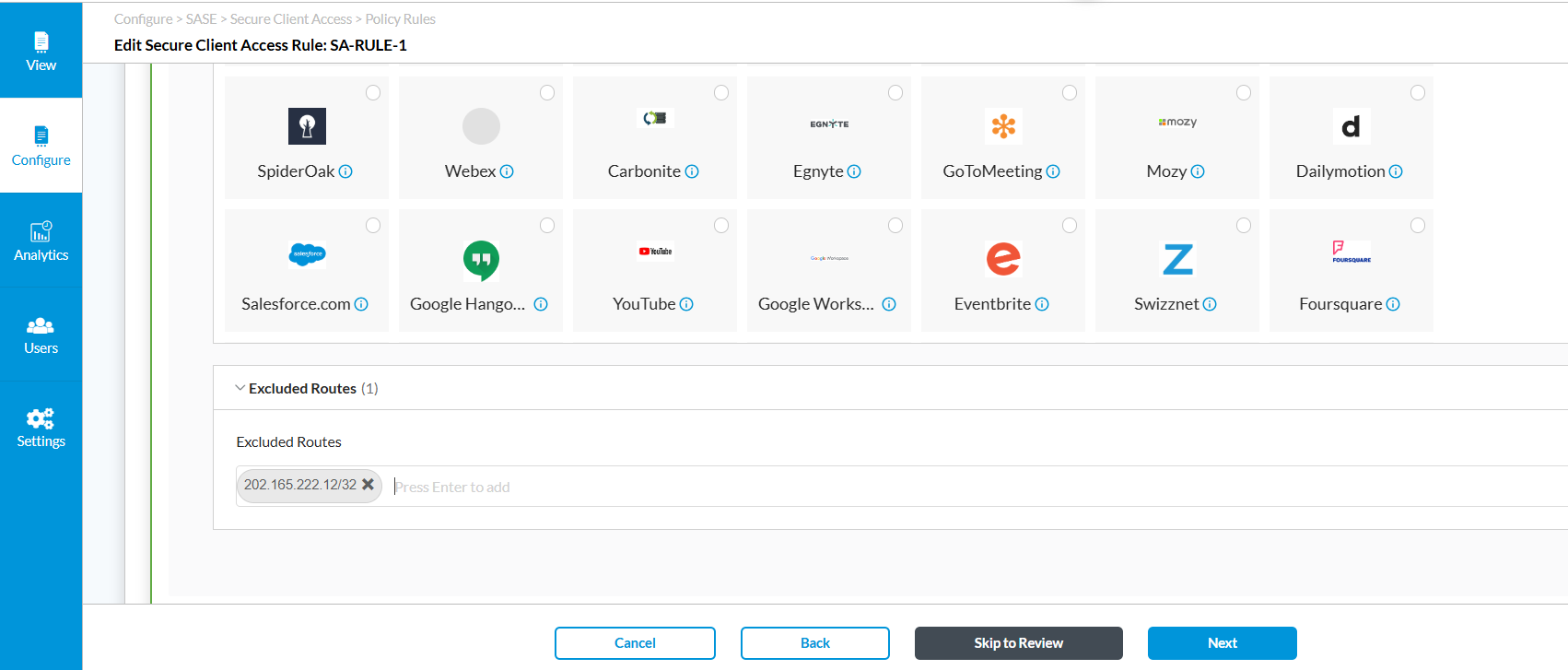
Configure exclude IP's of the WAN links with public IP's connected to the fortinet firewall, these must be excluded from being brought into the Versa gateway using the Versa secure access profile, "exclude routes" option.
Any other VPN service provider or SSE provider
Versa SASE client can work on any modes for IPSEC/TLS /DTLS for C2S communication to Versa SSE gateways, in the event of requirements where you would want to co-work any other VPN agents not listed in this article, you could follow in-general prinicples explained for other VPN agents like excluding specific service processes running on the windows to breakout locally(this can be checked from relevant VPN providers website articles), or exclude public IP's or exclude FQDN's or both can be leveraged in a scenario where public IP keeps changing to have parallel tunnels from single end host machine.
Notably, other SSE providers like Netskope and Zscaler are using HTTPS proxy over TLS and not tunneling for Internet bound traffic.