Contents
1.1 Check the DIA/Internet connectivity on Branch.
1.3 Routing and Reachability issue.
Step2: Validate split tunnel between lan-vr and transport-vr
2.1 Split-Tunnel configurations
2.2 Check the Redistribution Policies and Route advertisement for DIA.
2.2.1 Check Transport-VR advertising default to Lan-VR
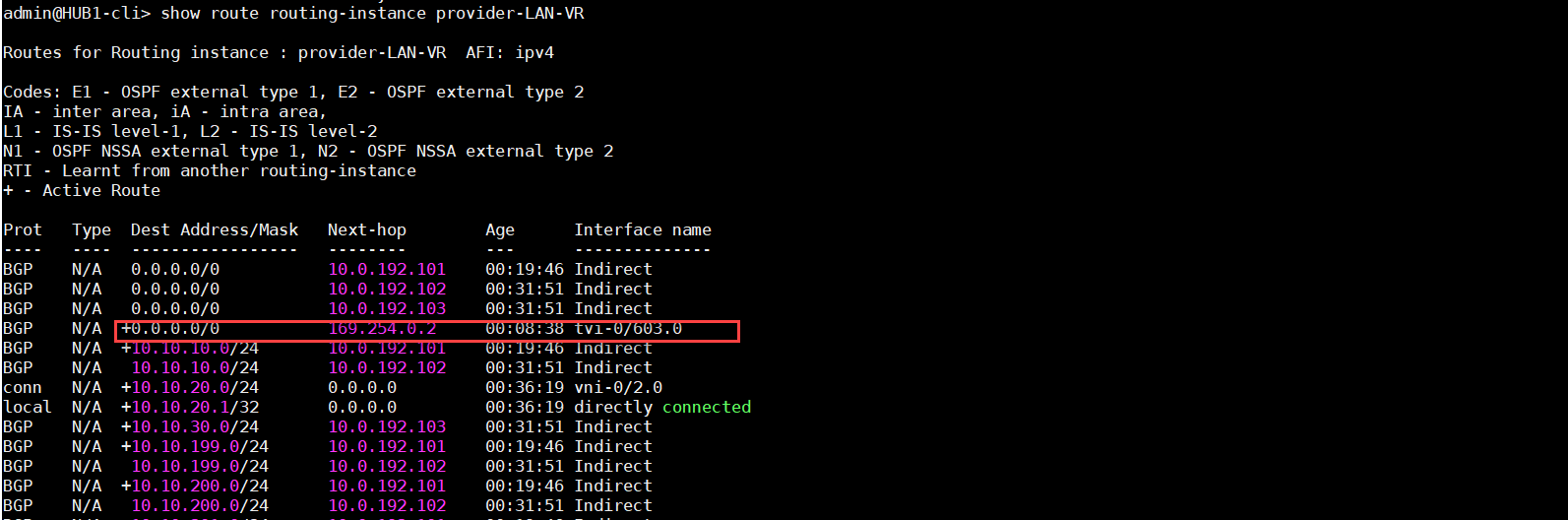
2.2.1 Check LAN-VR is receiving and installing default to Lan-VR
2.3 Check the CGNAT configurations.
Step3: Check the Session extensive output for the DIA traffic
3.1 Check the session extensive for DIA traffic
3.2 NGFW may be blocking the DIA traffics.
Check the session extensive to find the drop module as below.
Step4: Check NAT pool usage and session
4.4 Check alarm for NAT pool ultilization
Step 5: Check if traffic is hitting LAN and WAN interface
You can run tcp dump on LAN Interface to check the traffic is hitting or not.
Check the traffic is leaving on WAN interface and do we see reverse traffic
Introduction:
DIA is a component of the Versa solution where Internet-bound traffic or public cloud traffic from the Branch is routed directly to the Internet. DIA helps reduce IT spending and ensures better application experiences.
The primary advantages of DIA are:
- Reduced bandwidth requirements at headquarters
- Fewer network hops, and
- Reduced latency due to direct routing and better optimization.
Purpose:
The purpose of this document is to help troubleshoot the DIA related issue.
Step1:
1.1 Check the DIA/Internet connectivity on Branch.
- Please check if you are able reach the internet from your internet-Transport-VR

1.2 Interface duplex issue.
- Check the physical interface(vni) speed/duplex settings. It should be up and in full duplex. There should be no increase in RX/TX errors. Please hardcode full-duplex on both sides
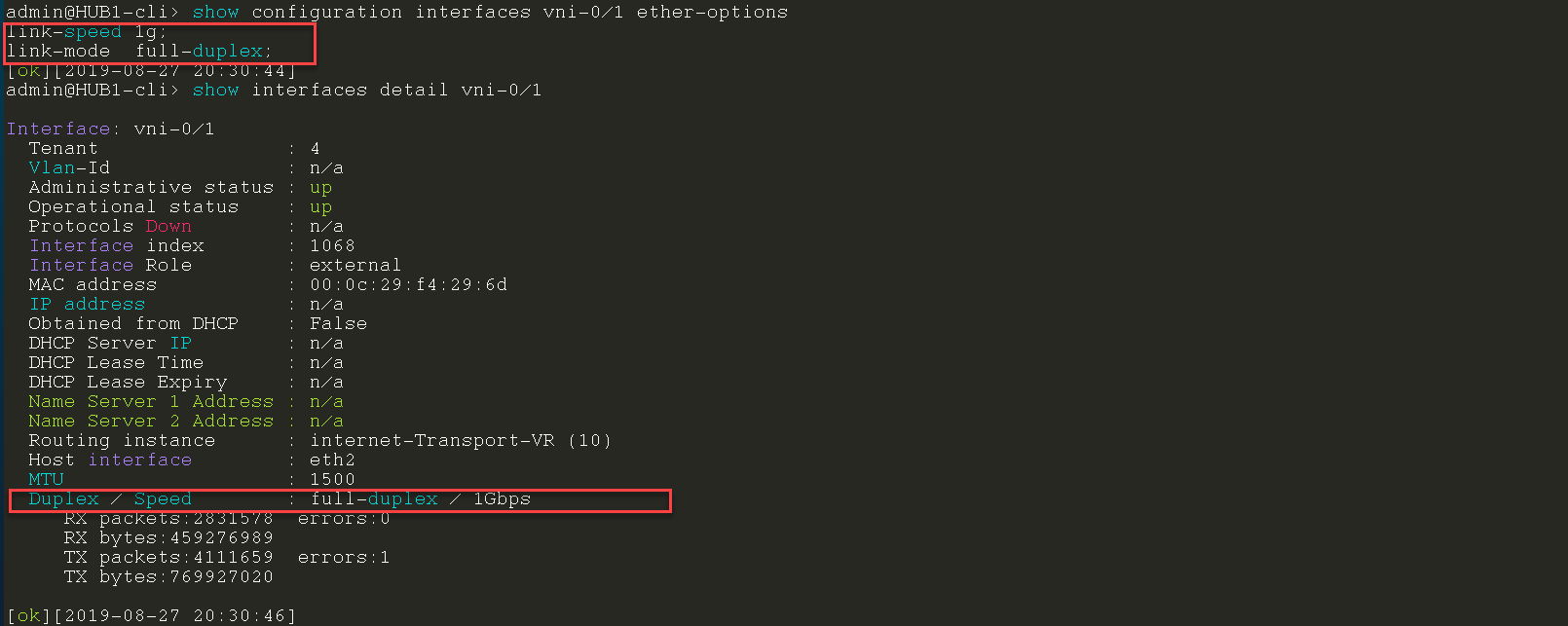
1.3 Routing and Reachability issue.
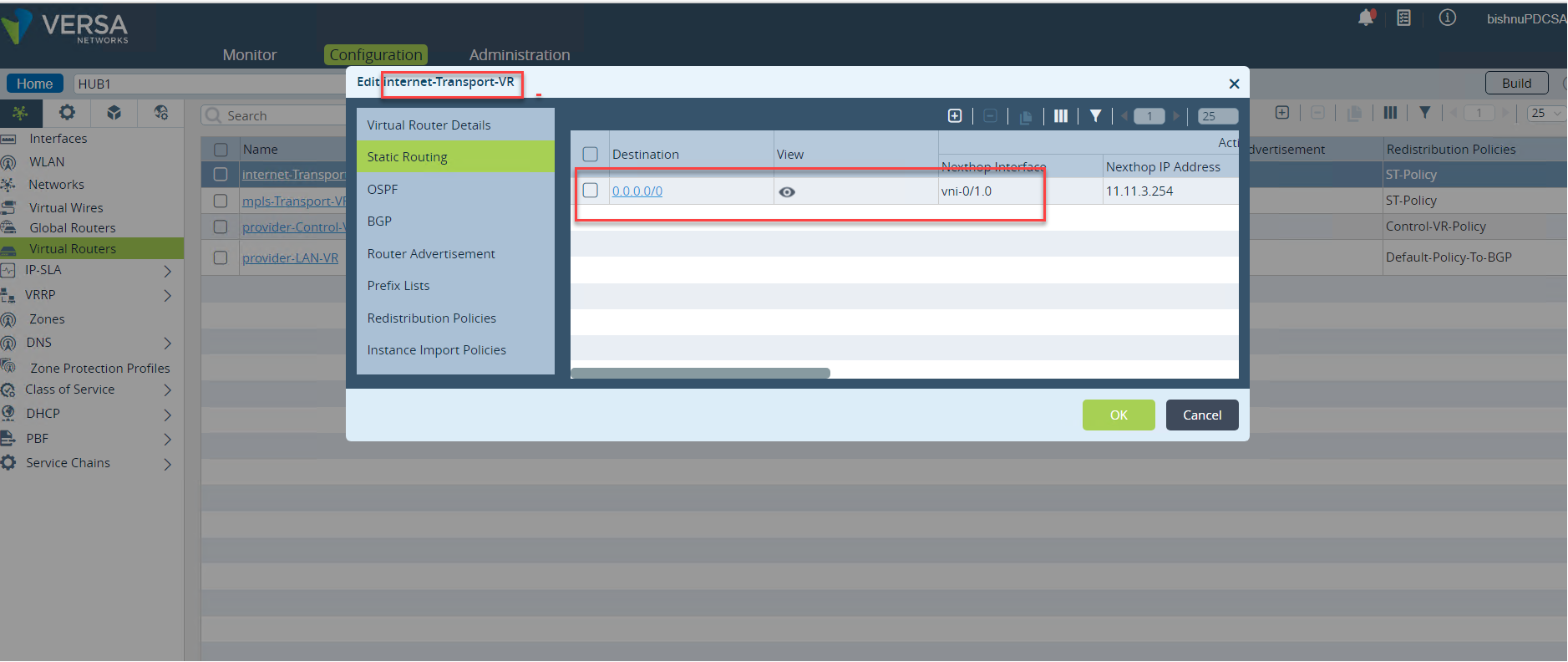
- If you observer any issue from internet-Transport-VR to internet check the Next-Hop reachability and default route in internet-Transport-VR is active.
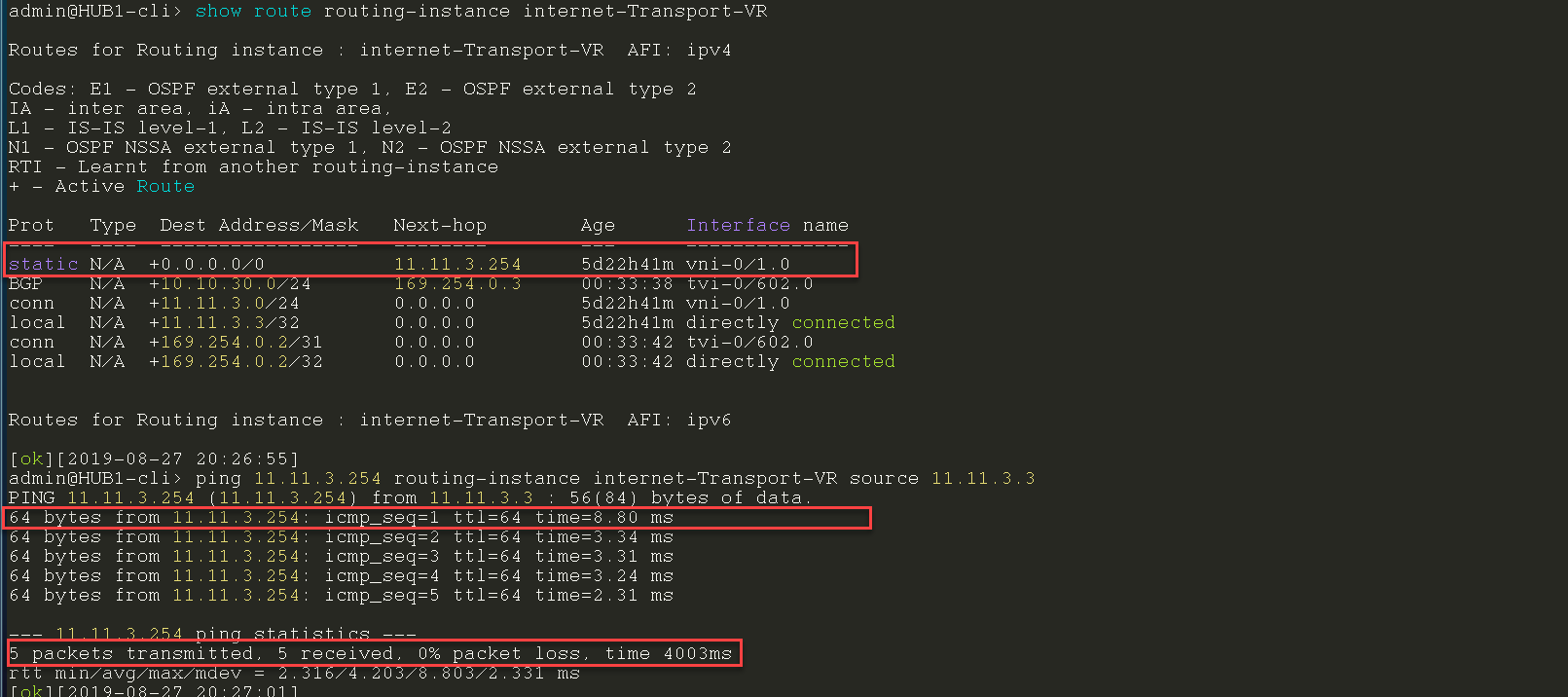
- If route is not active check the Next hop/Interface is configured correctly or not. Check the ARP entry for the next hop.

Step2: Validate split tunnel between lan-vr and transport-vr
2.1 Split-Tunnel configurations
- Check the split-tunnel interface are configured correctly and are part of correct routing-instances.
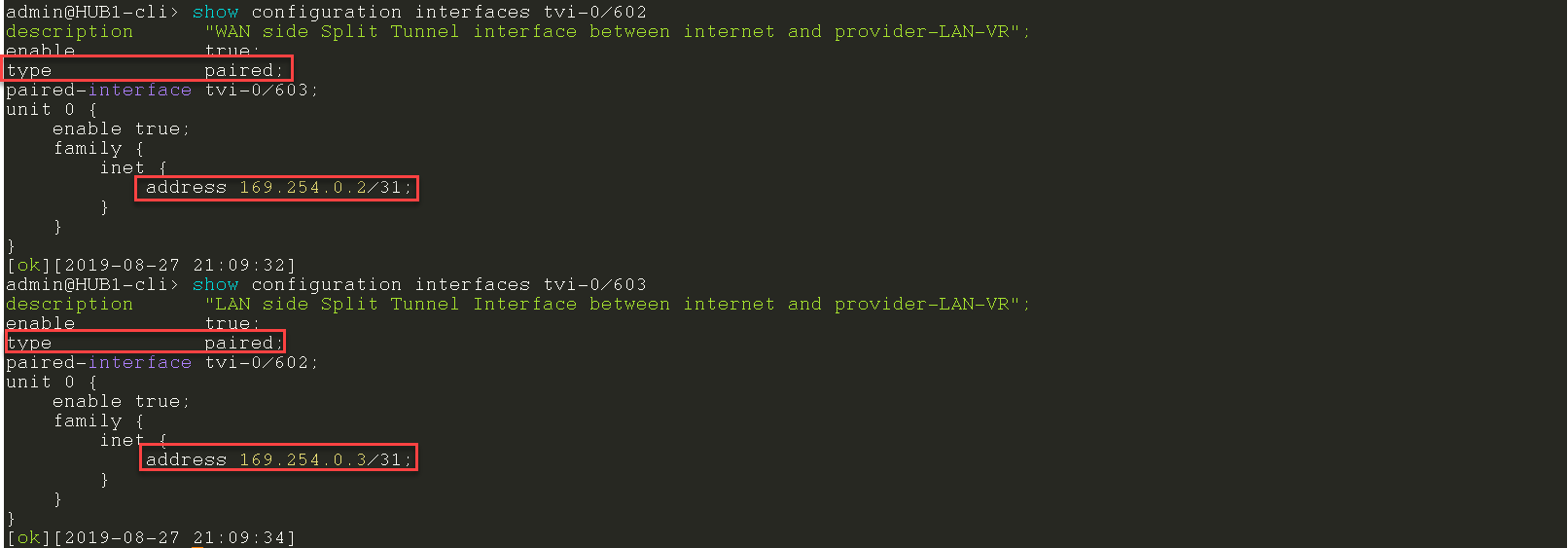


- Check the reachability between the paired tvi.
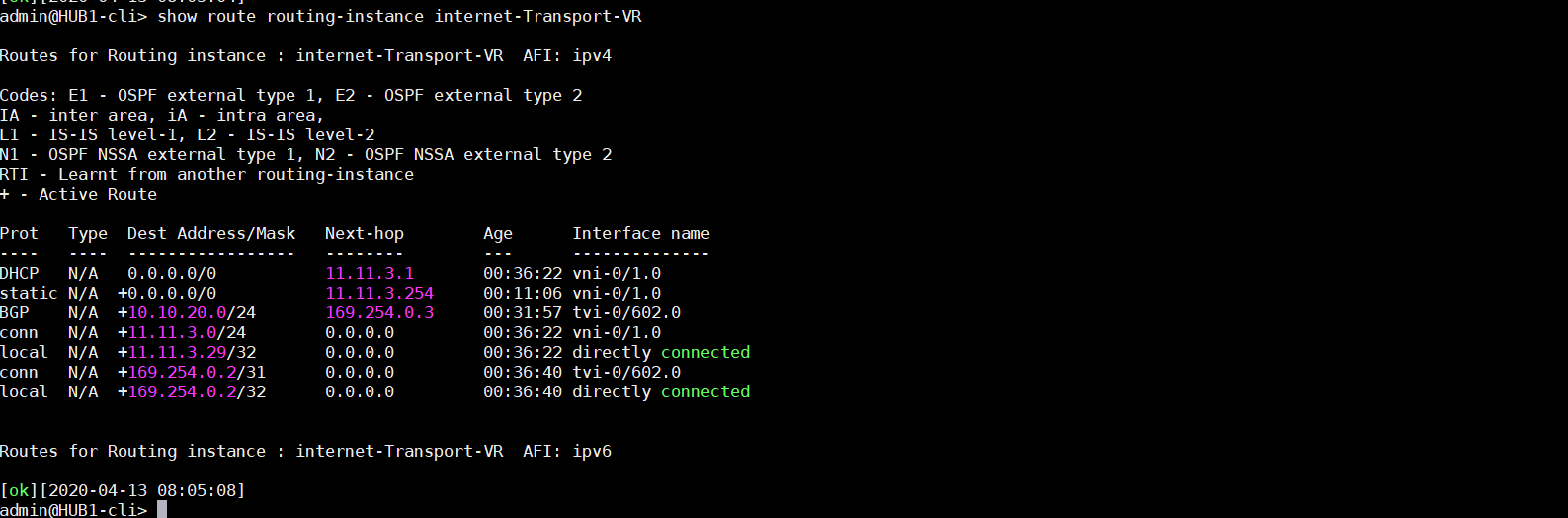
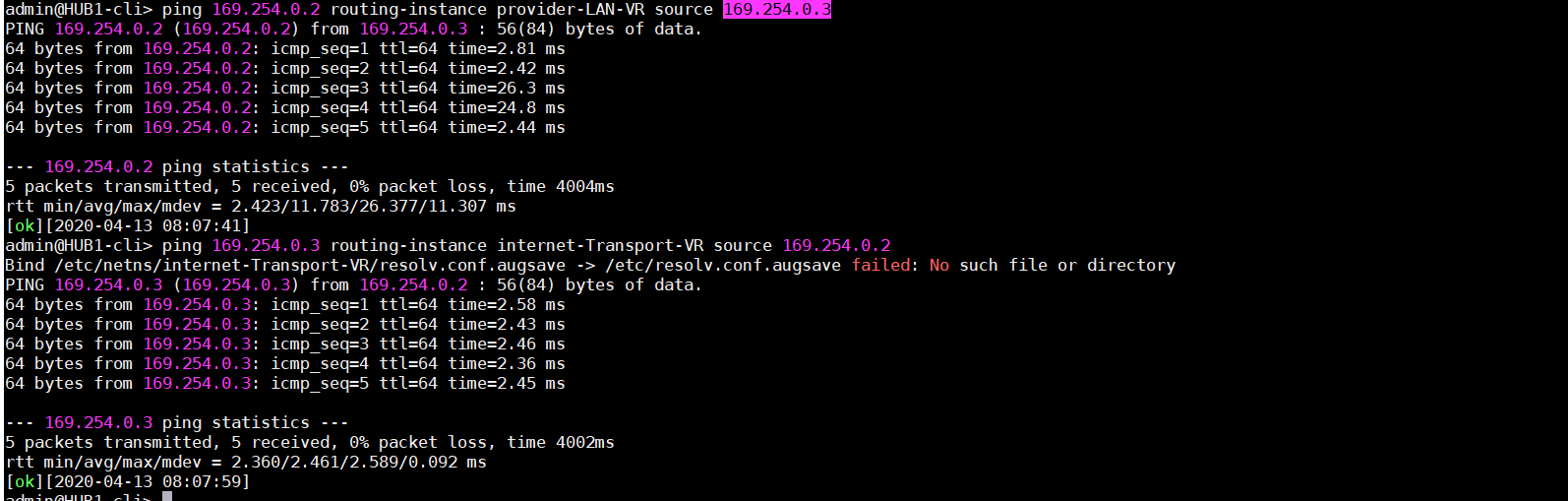
- Check the zone mapping of the paried TVI

Note: If split tunnel is enabled from workflow template, it will by default push configuration related to CGNAT,BGP, Paried-TVI and Zones, but you may have to tweak it as per your requirement and desgin.
2.2 Check the Redistribution Policies and Route advertisement for DIA.
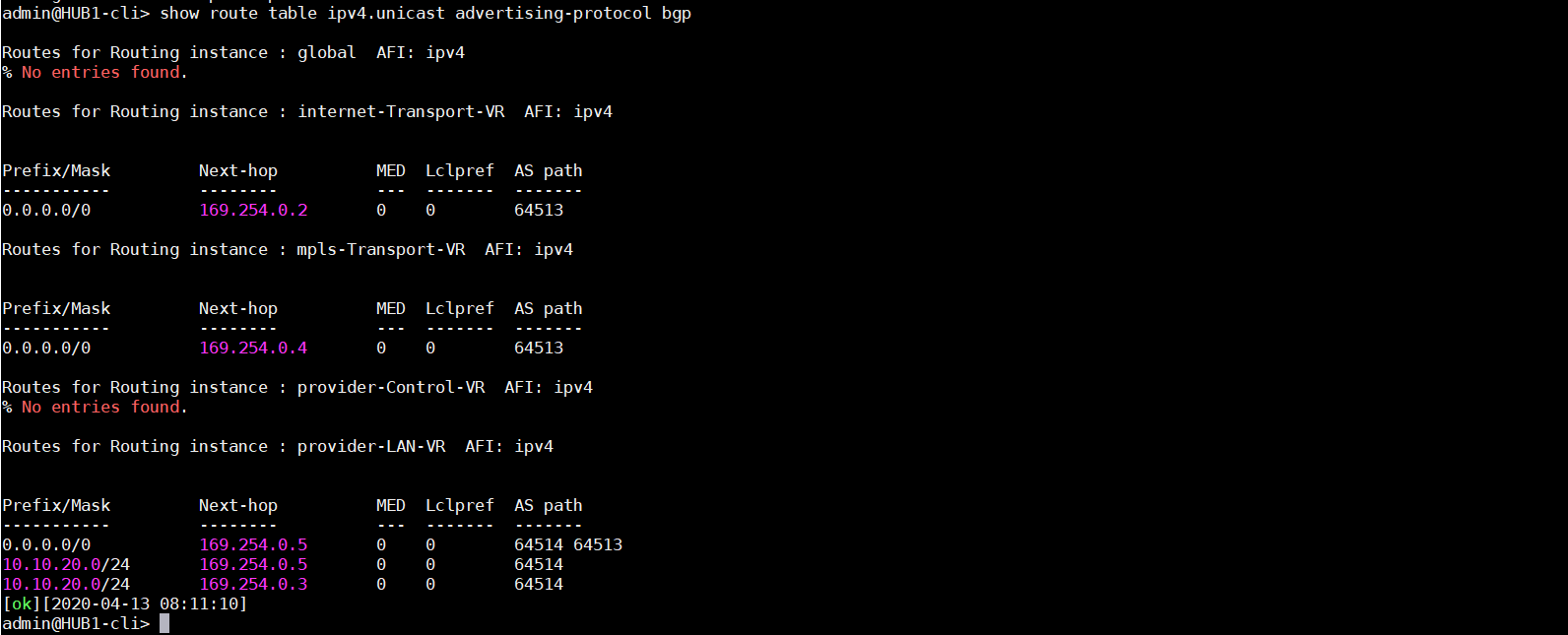
2.2.1 Check Transport-VR advertising default to Lan-VR
Check the redistribution Policy in internet-Transport-VR. This redistribution is required to advertise the default route from Transport-VR to LAN-VR. We are having BGP peering between LAN-VR and Transport-VR via which the routes are getting exchanged.
- Here we are redistributing static route in BGP
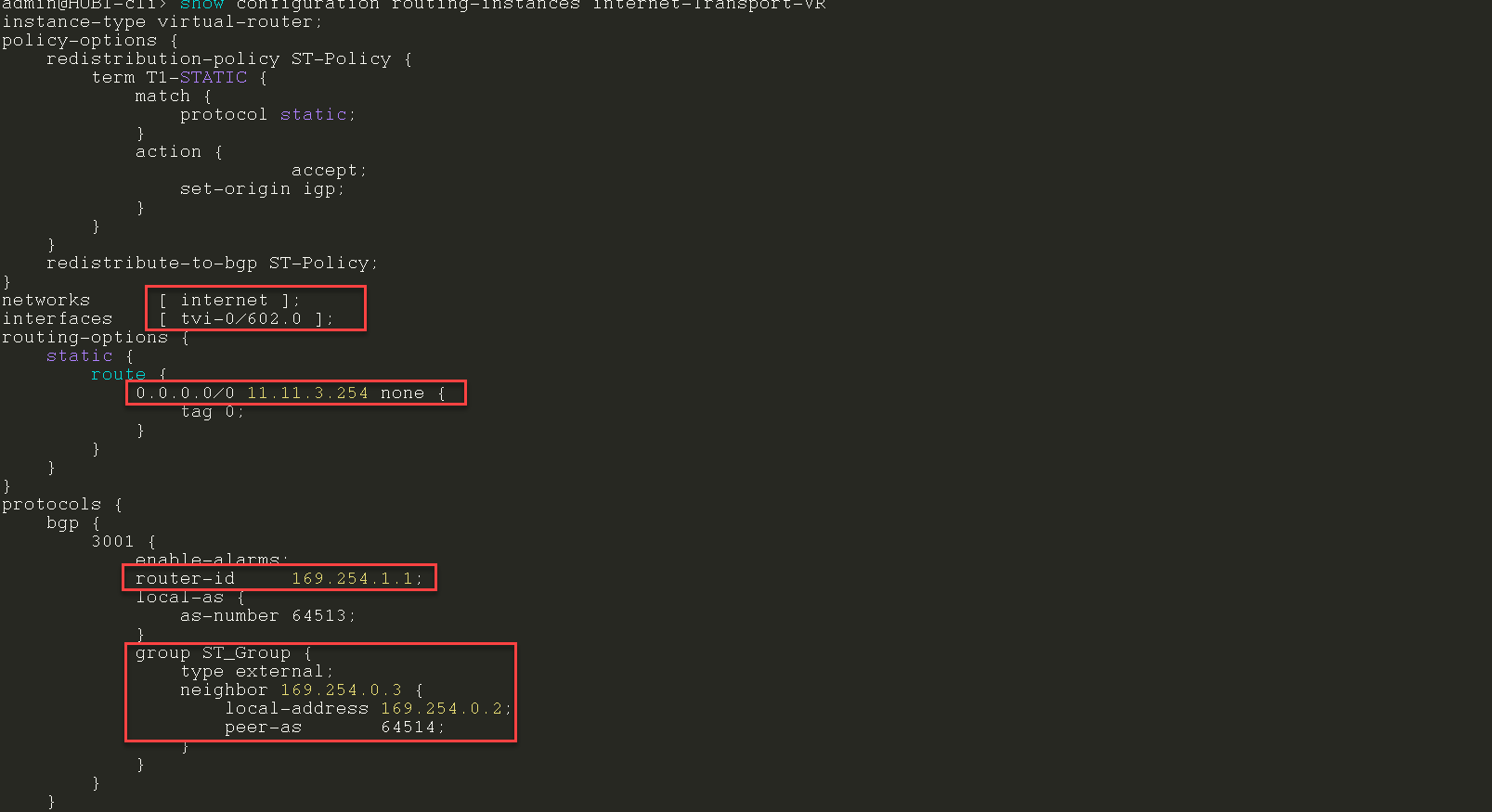

- Check default route is advertised to LAN-VR from transport-vr
2.2.1 Check LAN-VR is receiving and installing default to Lan-VR
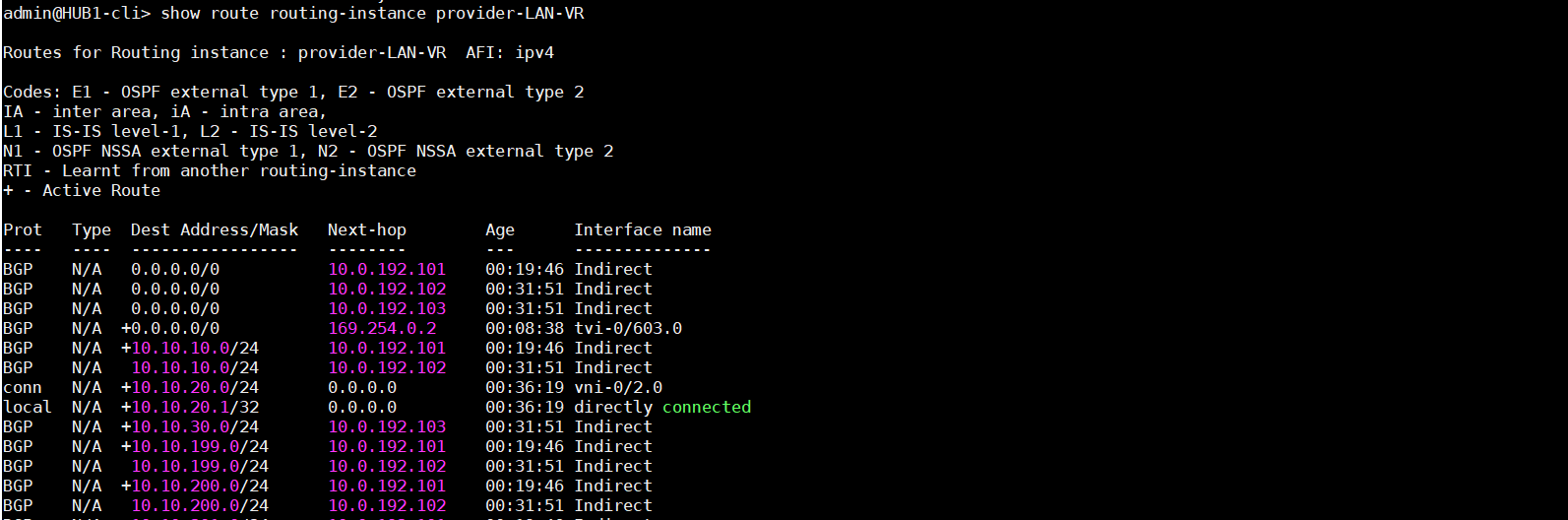
- Check BGP import policy in LAN-VR to accept default route from Transport-VR
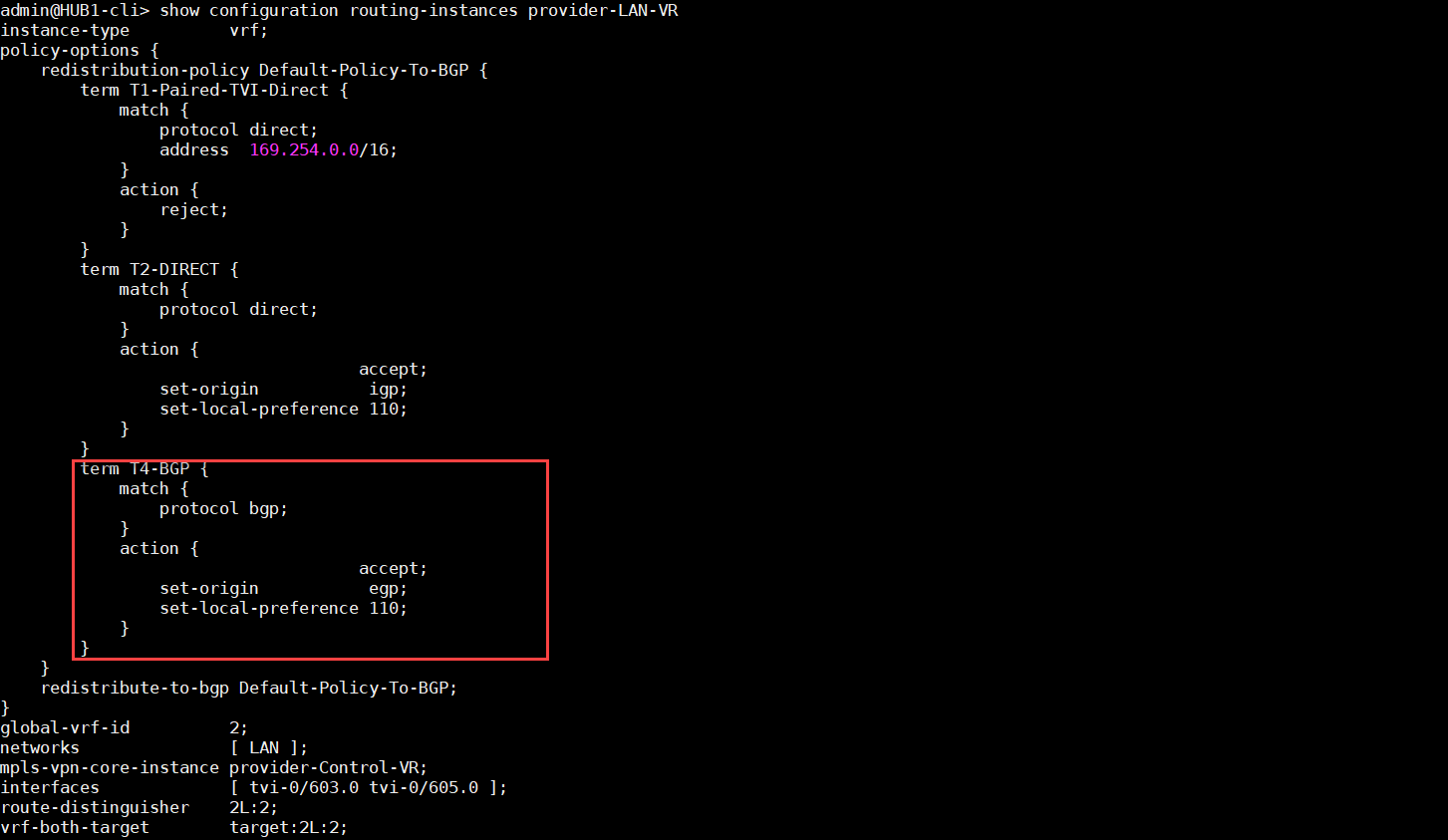
- Check default route is received in LAN-VR from transport-vr
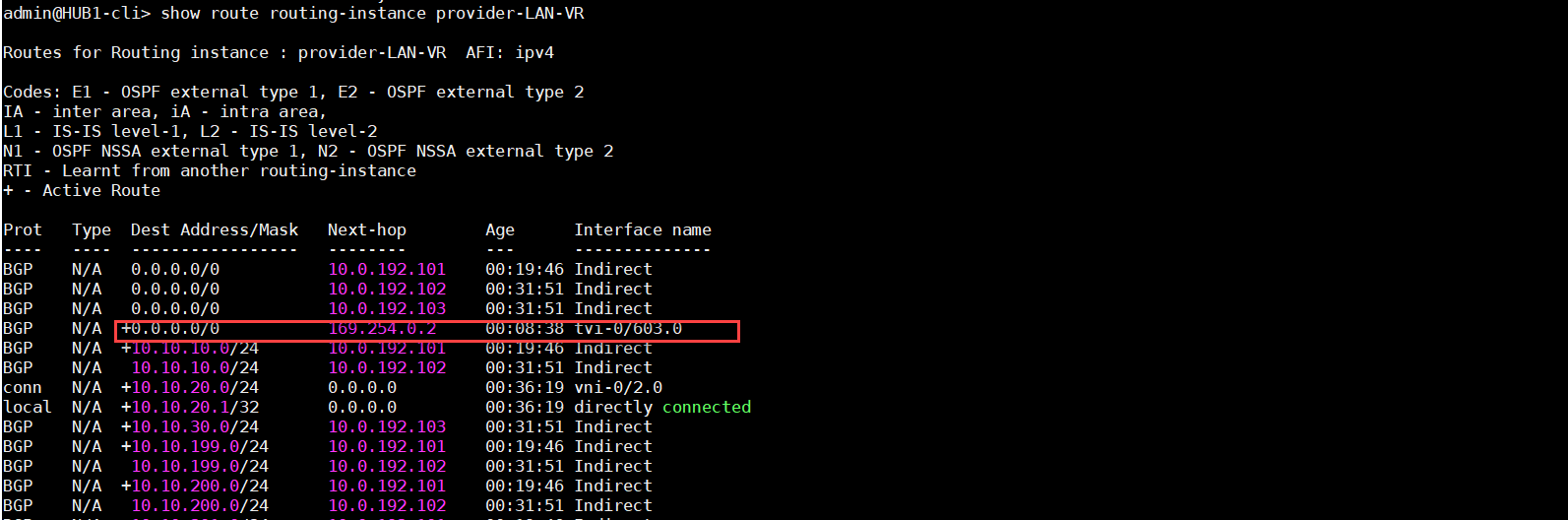
- Check route is active in LAN-VR
2.3 Check the CGNAT configurations.
Note: If in place of routing, PBR(sdwan policy/pbf with nexthop) is used local or remote DIA, then please refer the kb “How to configure PBR + CGNAT (Remote Breakout || Local Breakout)”
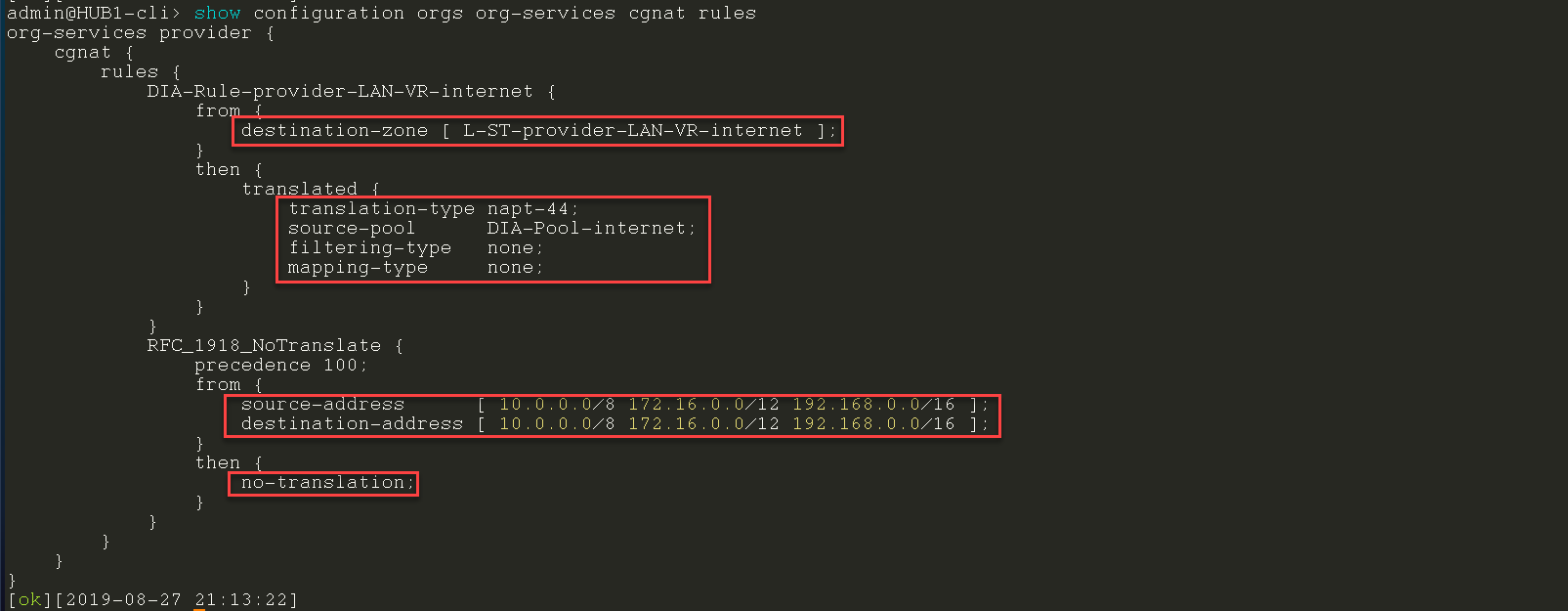
- Check the nat pool configuration for respective routing instance, egress interface/network, org


- Check the configured rule and validate the zone, source destination, nat pool and nat type.
Step3: Check the Session extensive output for the DIA traffic
3.1 Check the session extensive for DIA traffic
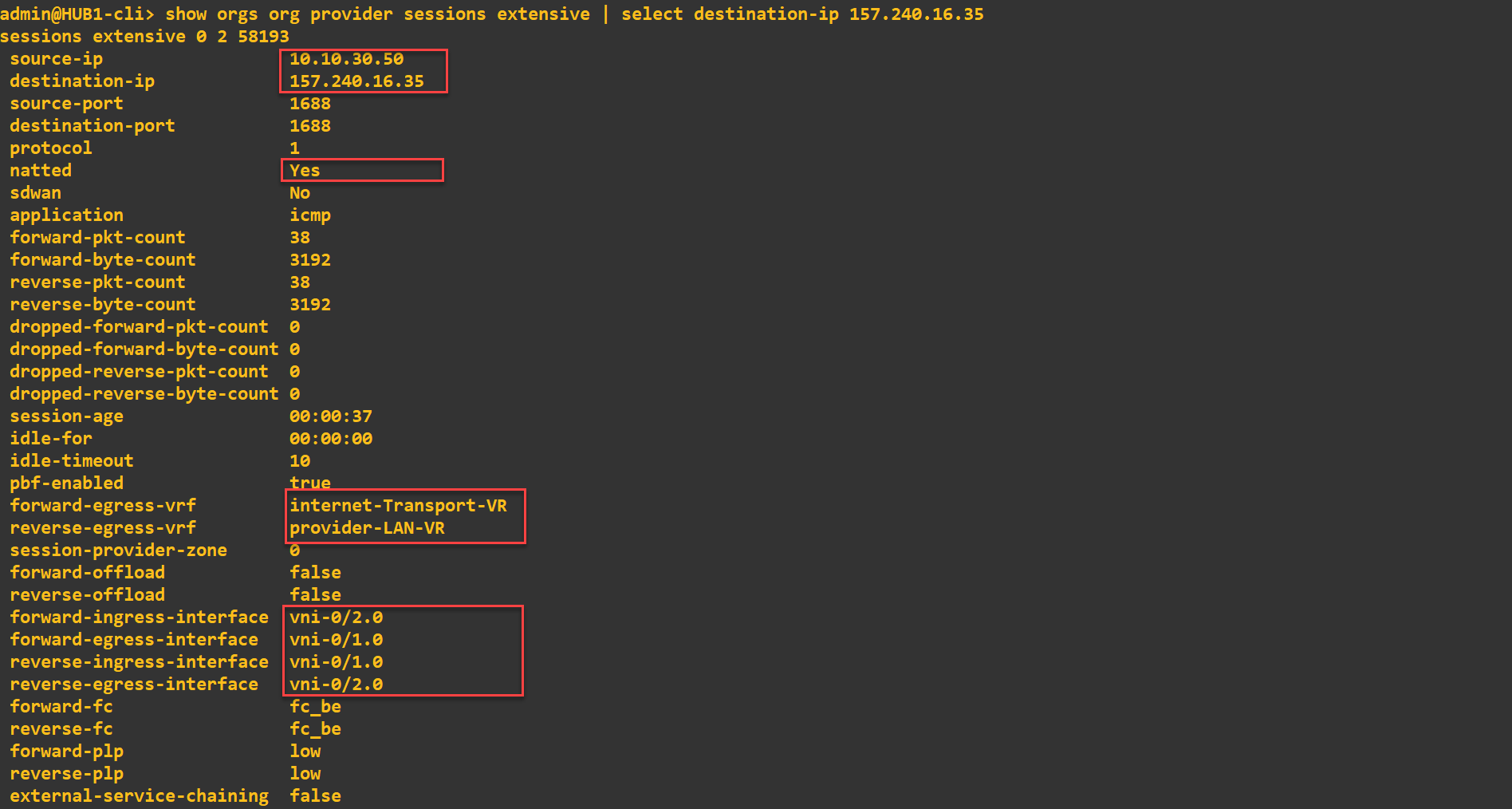
- Check the SRC/DST IP Address.
- Check the session is natted and SDWAN is no
- Check pkt count is increasing in both directions
- Check routing instance are expected, reverse-*: LAN-VR and forward-*:Tansport-VR
- Check the forward-ingress-interface/ forward-egress-interface is correct or not.
- Check the reverse-ingress-interface/ reverse-egress-interface is correct or not.
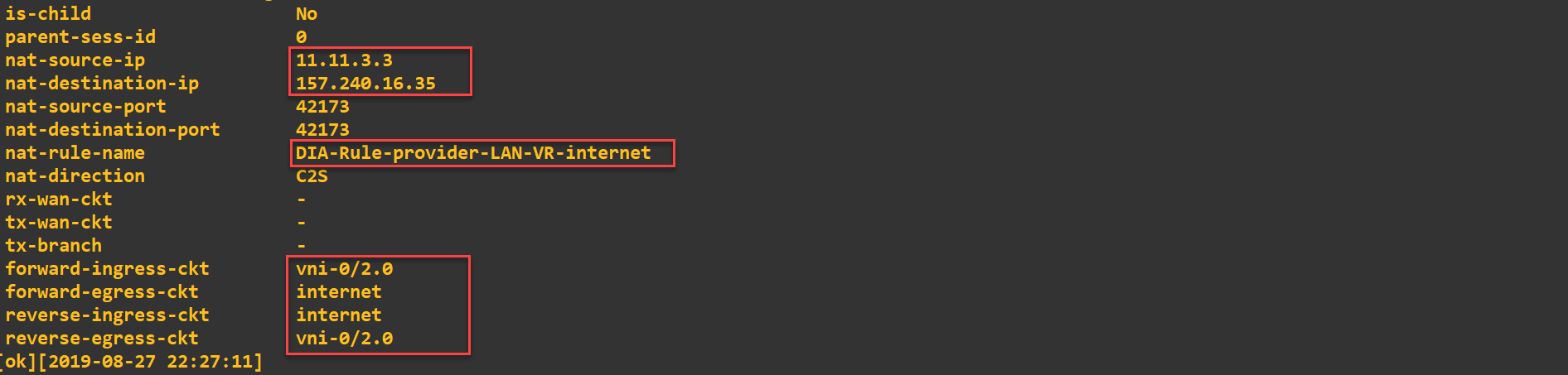
- Check the nat-source-ip/ nat-destination-ip.
- Check correct nat-rule-name is shown.
- Check traffic is taking correct wan circuit for egress and ingress
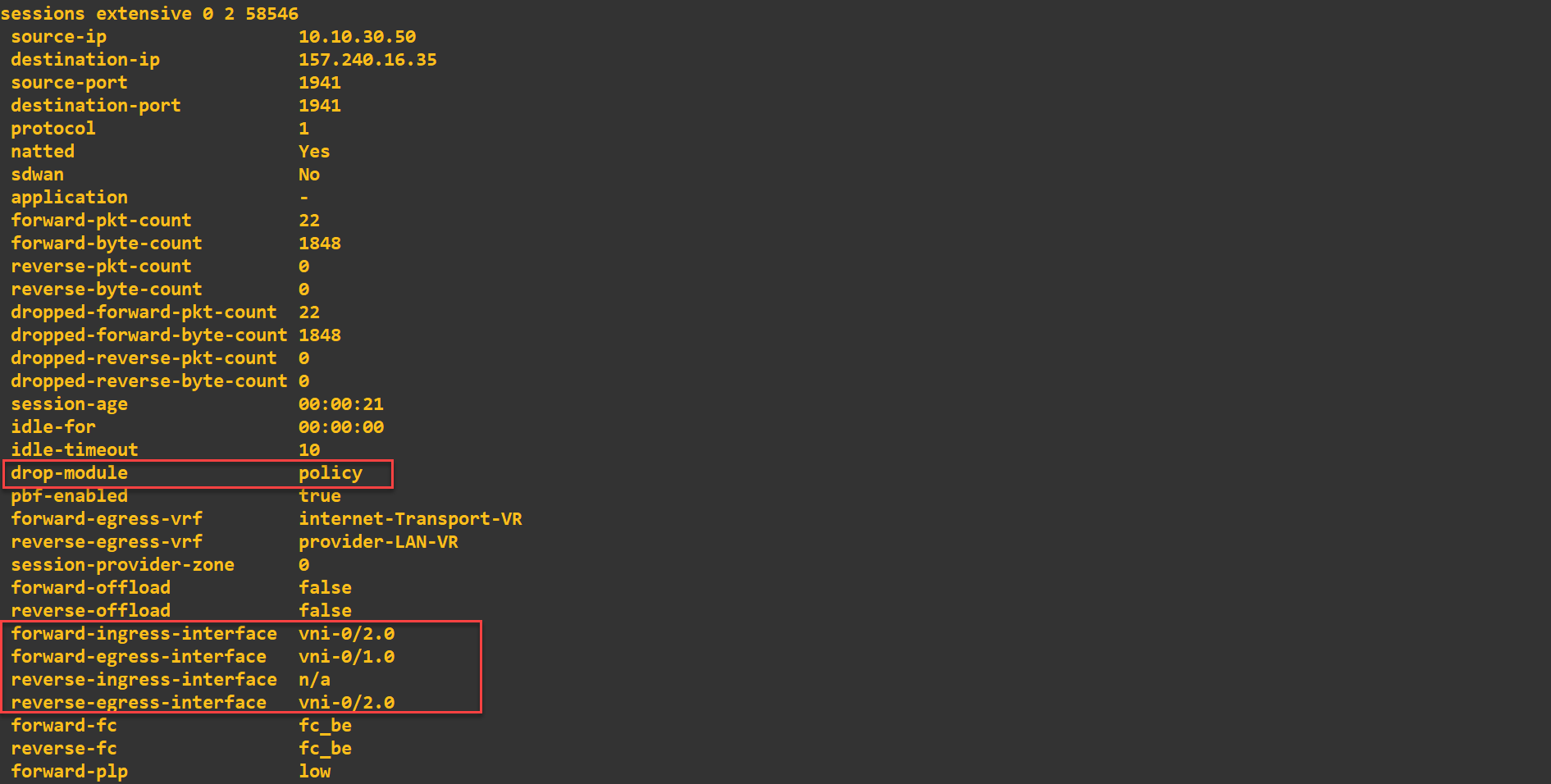
- Check if there is any drop module, e.g. policy.
3.2 NGFW may be blocking the DIA traffics.
Check the session extensive to find the drop module as below.
- If drop-module is policy, it means the firewall is blocking the traffic. Please verify the if allow NGFW rules is configured. It may happen also if the interfaces(tvi,vni) are not associated with zone.
Step4: Check NAT pool usage and session
4.1 NAT Pool usage
- Check the tcp binding allocated, freed and failed.
- Check the UDP binding allocated, freed and failed.
- Check the pool usage. Make sure it is not exhausted due to high utilization.
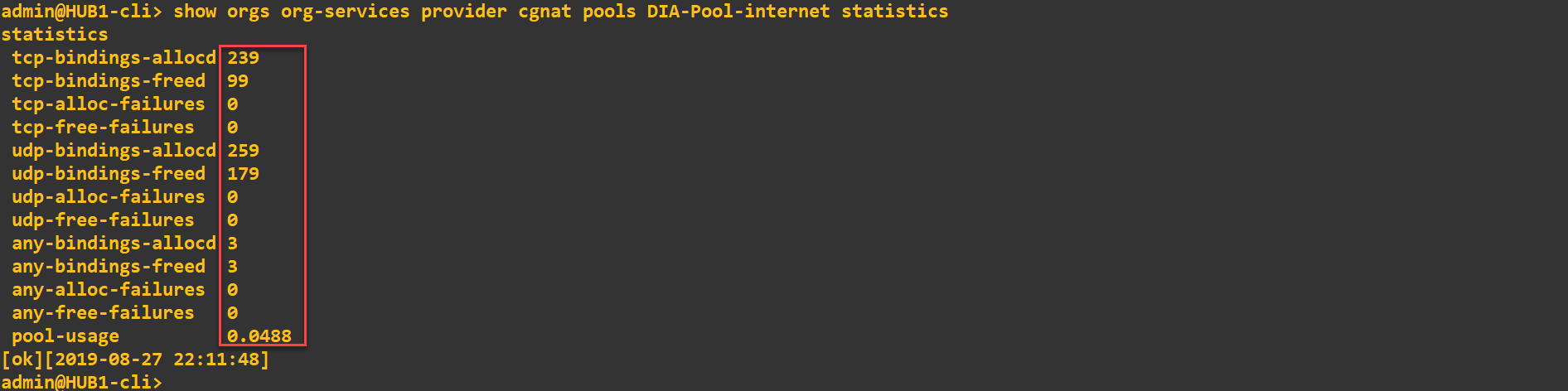
4.2 NAT Session summary.
Check NAT session summary and failed count is increasing

4.3 Check the CGNAT counters

4.4 Check alarm for NAT pool utilization
cgnat cgnatPoolUtilization 2019-05-24T14:32:24+0 PointSTire-939795628: CGNAT pool SLKHUTSM02W_0 has excedded threshold value (utilization: 94%)
Step 5: Check if traffic is hitting LAN and WAN interface
- You can run tcp dump on LAN Interface to check the traffic is hitting or not.

- Check the traffic is leaving on WAN interface and do we see reverse traffic

Contact Support
Logs to be collected.
Please collect the below logs from the FlexVNF and share the output with support-team.
Note: Allow initiate traffic from the Host behind the LAN-VR, not from the FlexVNF-LAN(vni)
show configuration orgs org-services provider cgnat | nomore
show orgs org provider sessions nat brief
show orgs org-services provider cgnat summary
show debug cgnat counters internal
show orgs org-services provider cgnat pools DIA-Pool-internet statistics
show orgs org-services provider cgnat rules DIA-Rule-provider-LAN-VR-internet statistics
show orgs org provider sessions extensive | select [source-ip,source-port,destination-ip,destination-port,application] <SRC IP>
tcpdump vni-0/x filter "host y.y.y.y and port zzz"
Capture Logs all above outputs and contact Versa Support.
NOTE: Log the putty/terminal session to capture all outputs when performing requested steps, will be helpful when engaging Support.