TABLE OF CONTENTS
Purpose
The purpose of this document is to illustrate how to configure the PBR/SDWan to steer specific types of traffic over different internet WAN links.
We will see how to configure DIA and then will see the use case of traffic steering based on application/ URL category.
DIA Introduction:
DIA is a component of the Versa solution in which certain Internet-bound traffic or public cloud traffic from the Branch can be routed directly to the Internet.
The primary advantages of DIA are:
Reduced bandwidth requirements at headquarters
Fewer network hops, and
Reduced latency due to direct routing and better optimization.
The increased reliability of the Internet for WAN transport makes DIA desirable in Branch deployments.
Procedure to configure DIA:
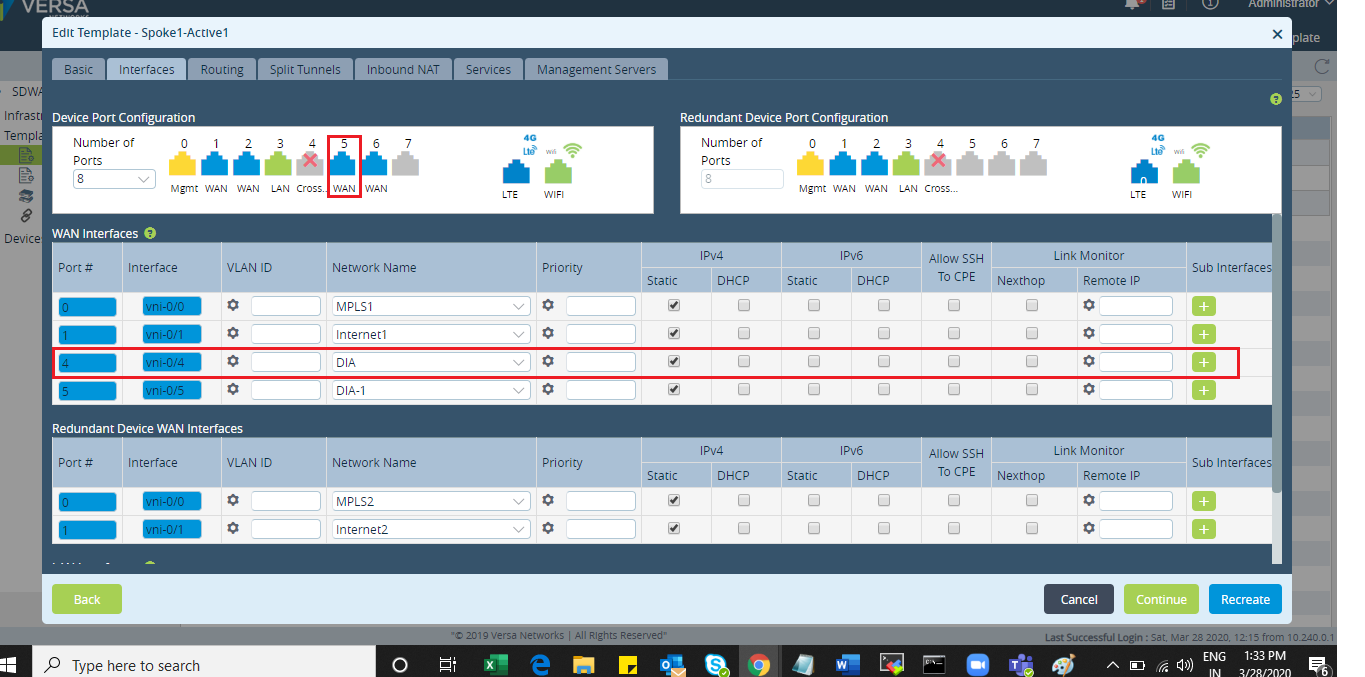
Step 1: Add Wan interface for internet breakout in device template as shown:
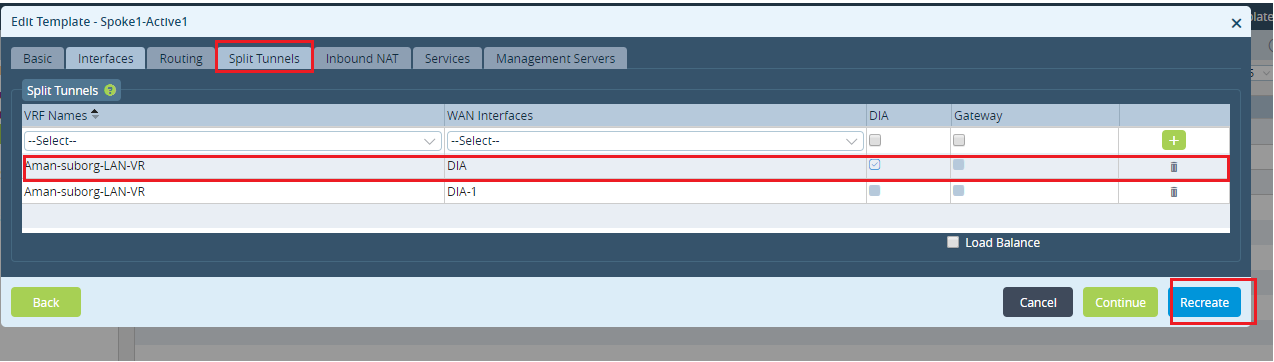
Step2: Then go to Split Tunnel TAB and create SPLIT tunnel b/w LAN VR and DIA VR.
Split tunneling allows a Branch to access dissimilar security domains like a public network (e.g., the Internet) and a local LAN or WAN at the same time, using the same or different network connections. Versa leverages the split tunnel mechanism which help the Branch use the same or multiple internet link for both internet as well as VPN traffic.
After adding split tunnel recreate the template as shown:
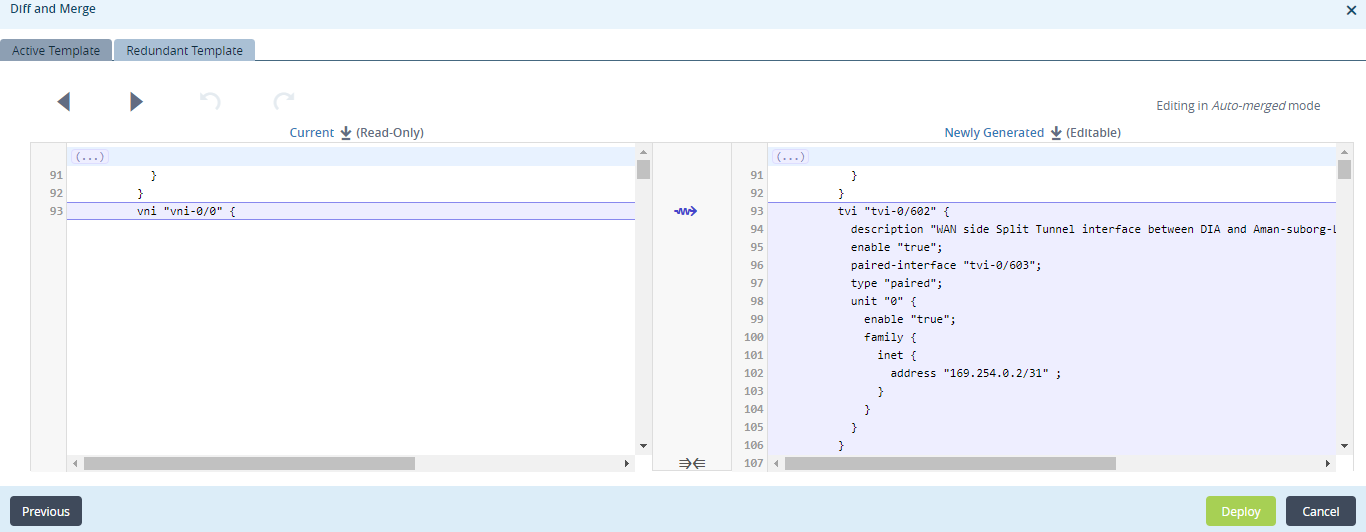
Step 3: Then deploy and commit template on device as shown:
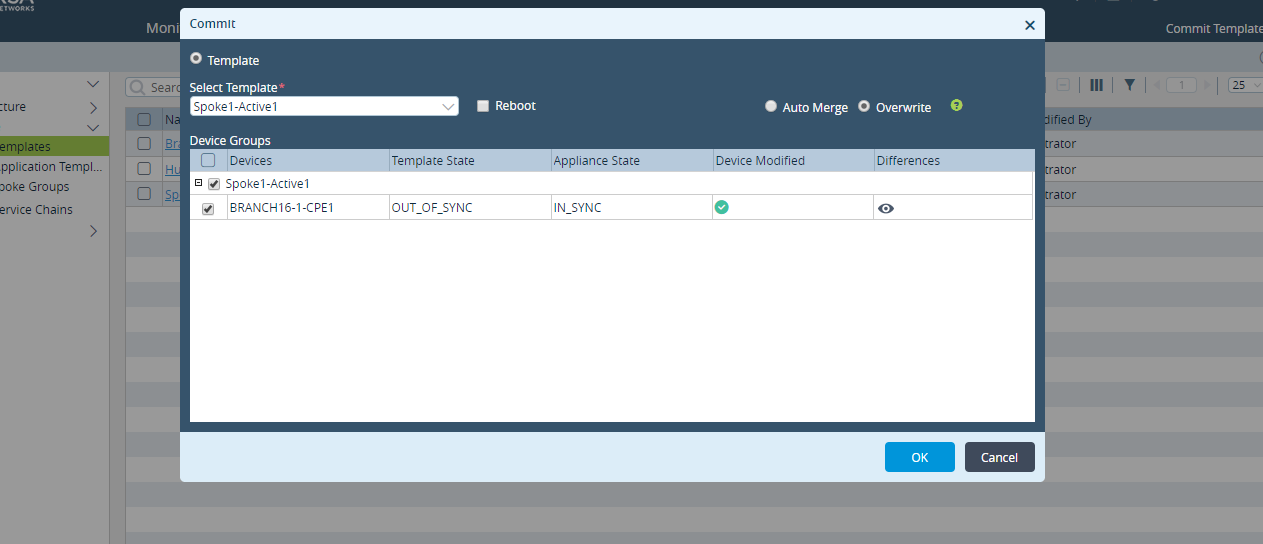
Step 4: Verify the configuration via cli:
Split tunnel has been created b/LAN VR and DIA VR: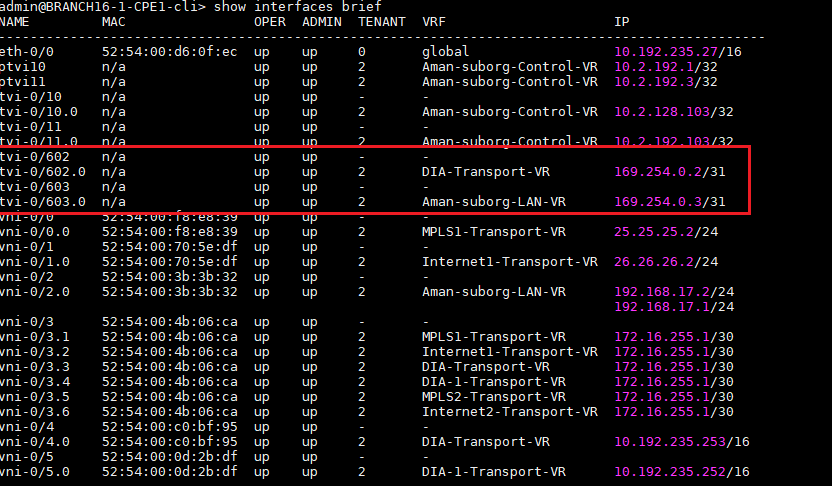
BGP session got established over split tunnel to advertise default route in LAN-VR which is used to forward the internet traffic directly bypassing hub device as shown: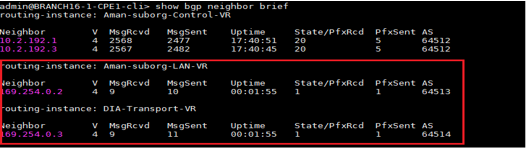
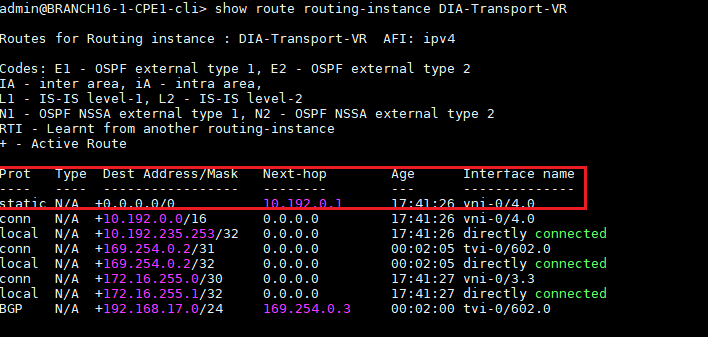
Static route has been created in DIA-VR routing instance and has been redistributed in BGP as shown:
Default route received in LAN-VR with next hop of TVI IP address on DIA-Transport VR as shown: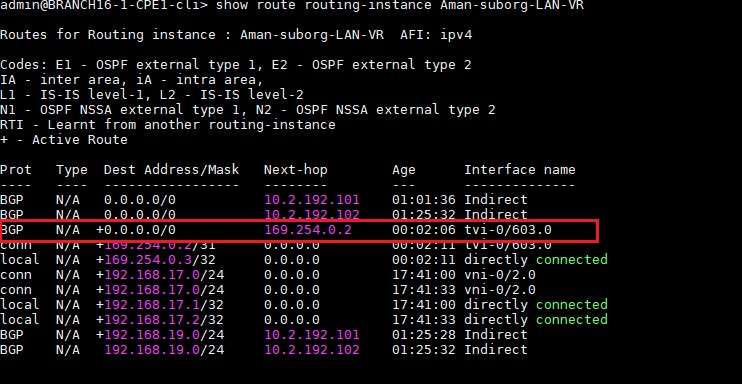
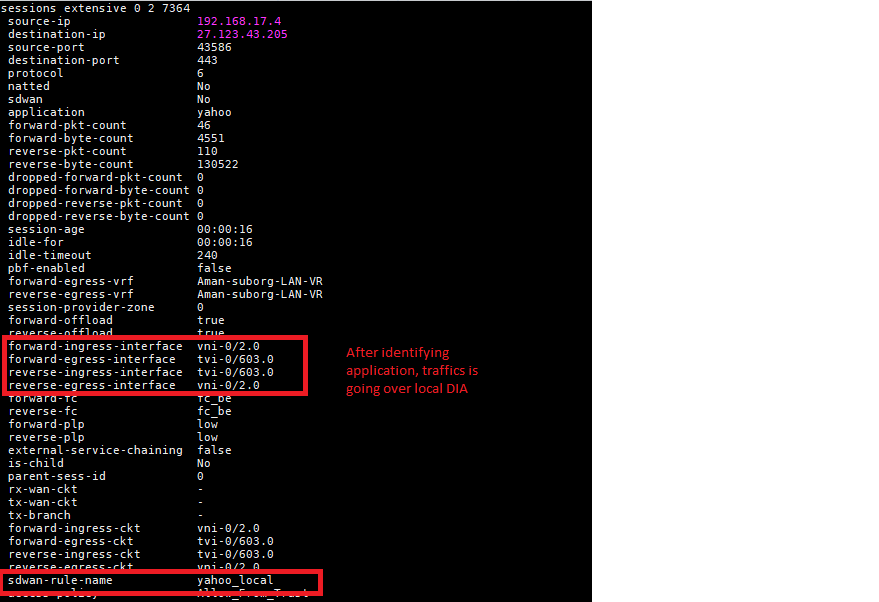
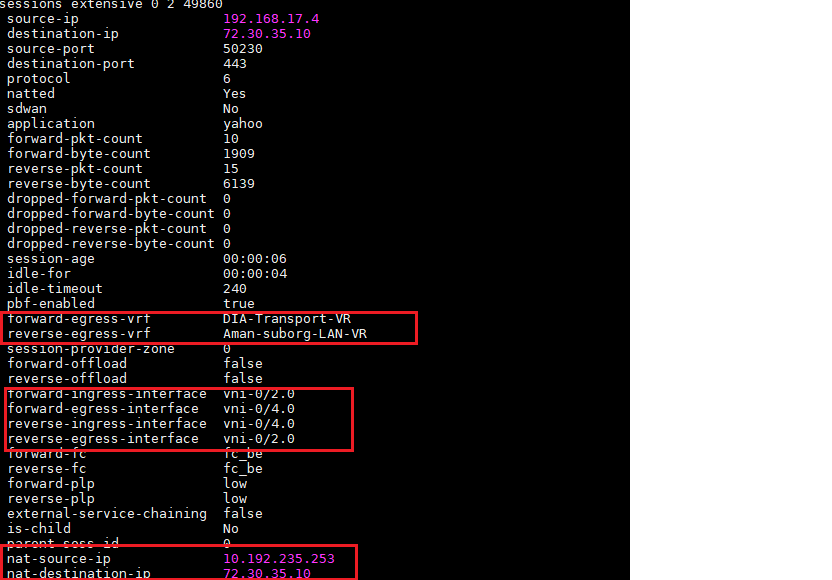
Session detail of yahoo application which state that traffic has been passed through DIA locally as shown:
Policy Based Routing Concepts:
- PBF policy: is used for evaluation when traffic matches a non-sdwan in routing instance. Route can be static/connect/ospf/ebgp/RTI, PBF with nexthop can be used when local DIA is enabled on the branch and the default route on the LAN-VR is pointing to Transport-VR.
- SD-WAN policy: is used for evaluation when traffic match a sdwan learned route(l3vpn). SDWAN policy with nexthop can be used in case of Remote DIA, where default route is learned from SD-WAN and preferred.
- App Based PBR: Its also important to understand that in app-based PBR, initial sessions will take next hop based on routing table(not PBF/SDWAN Nexthop) and session should succeed to help build the app cache first, it can take few session to fully populate the app-cache as some application can resolve to different IP in an region. Once new session starts matching the app-cache table, then it will be forward based on next-hop configured in SDWAN policy. So its important that initial session succeed based on default routing.
Case 1: Preferring specific Internet link for business application, incase of redundant local DIA using PBF.
This case illustrates where traffic based on application/URL need to be forwarded over 2 different internet links. For example, Customer has 2 Wan links out of which one is high bandwidth link and another has low bandwidth link. Now customer want business traffic to take high bandwidth link while other use low-bandwidth link. As this is non-SDWAN traffic so PBF is used to achieve it
Prerequisite:
All headend should be deployed. All internet traffic breakout locally. We should have 2 interfaces, and both should have DIA configured i.e. internet is accessible via both links. In our scenario, We are using DIA and DIA-1.
Scenario used to illustrate PBF for local breakout:
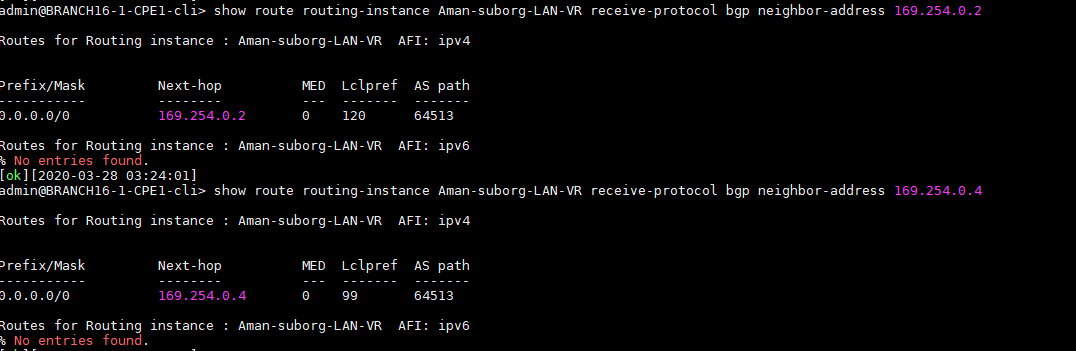
We have 2 links for internet local breakout i.e. DIA and DIA1. After configuring, there will 2 default routes received via BGP in LAN-VR. Out of which one default route will be active based on local preference and all the traffic will go via that internet breakout as shown:
Now, we want that some traffic (in our case yahoo application) will use DIA-1 internet link and all other traffic should go via DIA link. To achieve this, we will make use of PBF policy.
Steps to be followed:
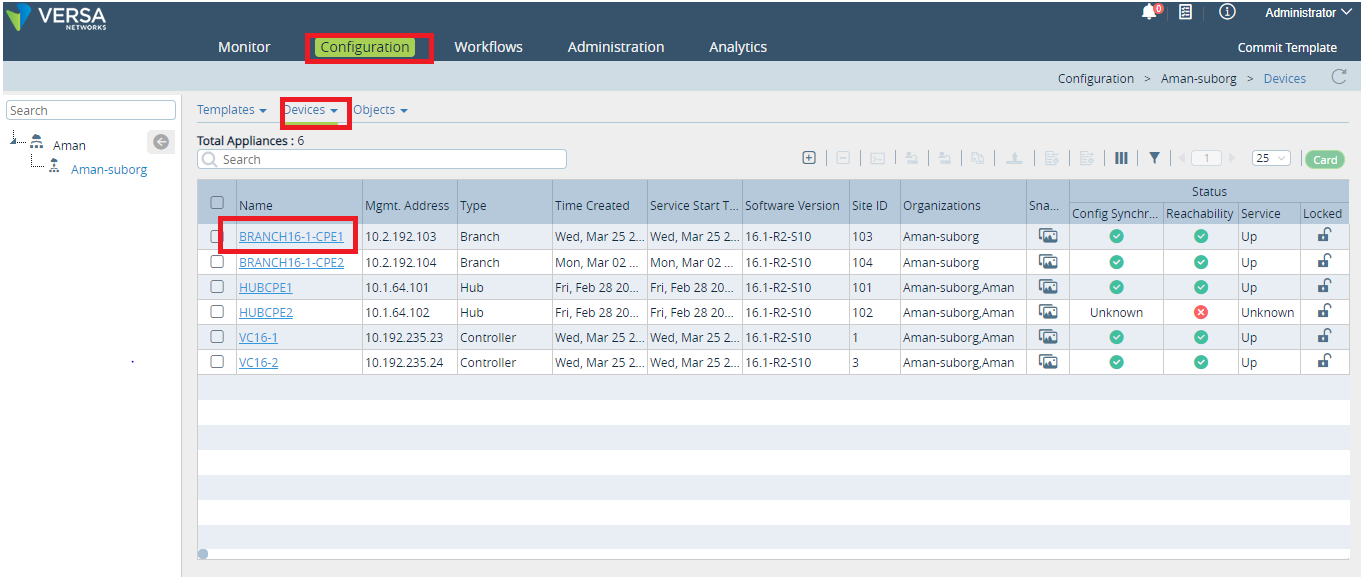
Step 1: In director GUI, Go to Configuration>Devices> Select the Branch
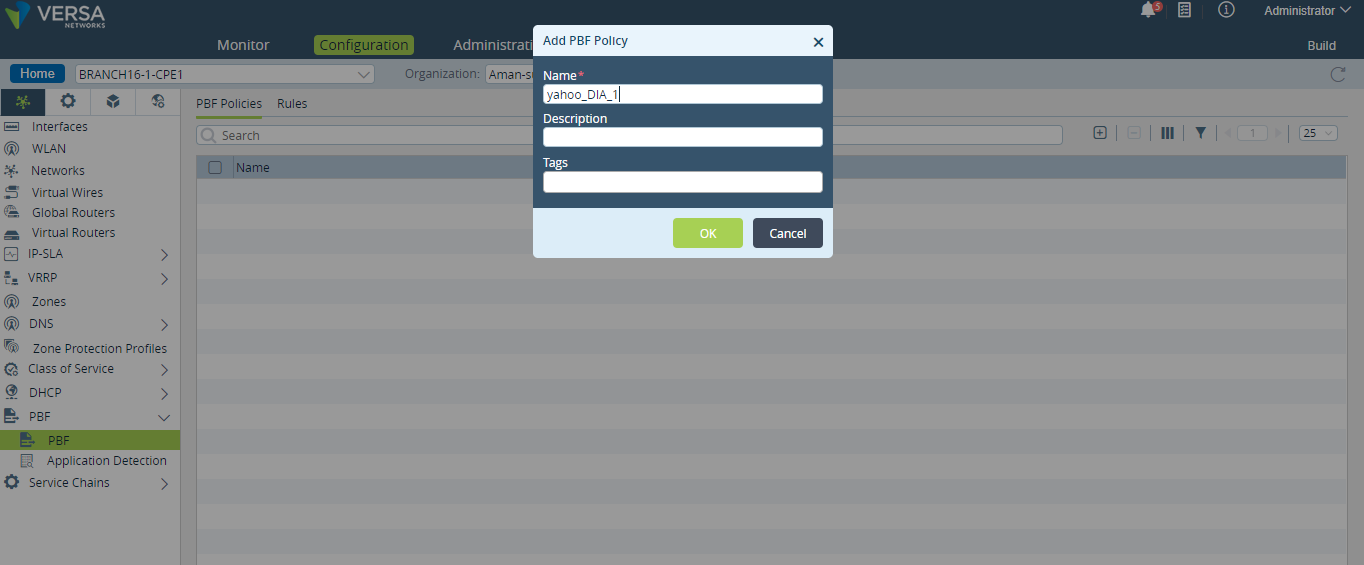
Step 2: Create PBF Policy
Go to configuration > Networking > PBF
Click on + button to create new PBF policy
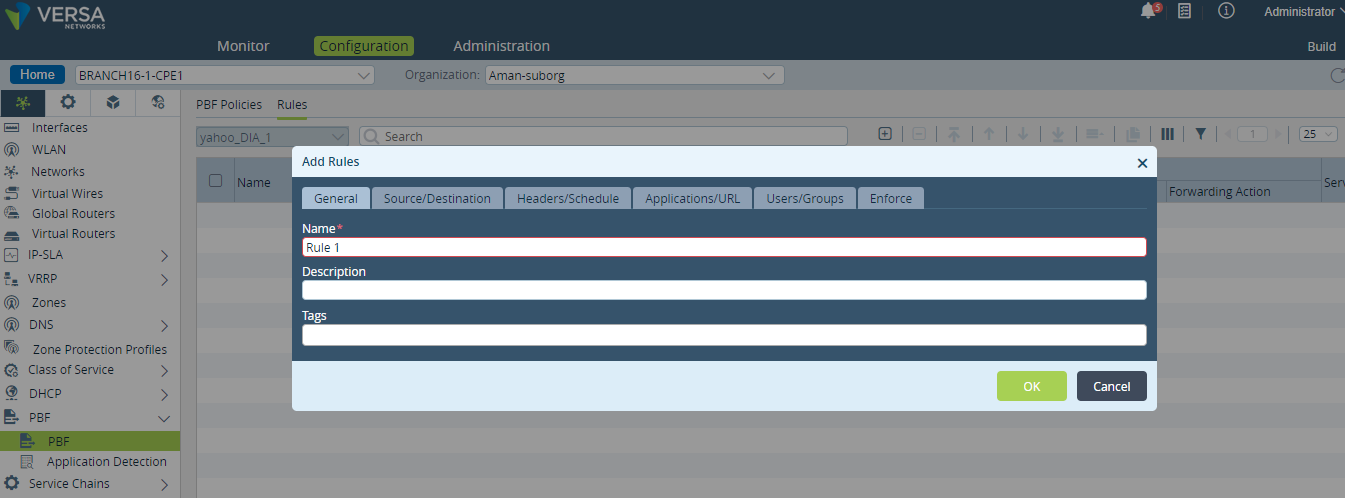
Step 3: Then go to Rules and click on + Button to create rules for PBF policy.
Rule 1: Match Application Yahoo – set the next hop to paired TVI address of DIA_1 Transport VR address.
Create Rule 1 for Yahoo application as shown:
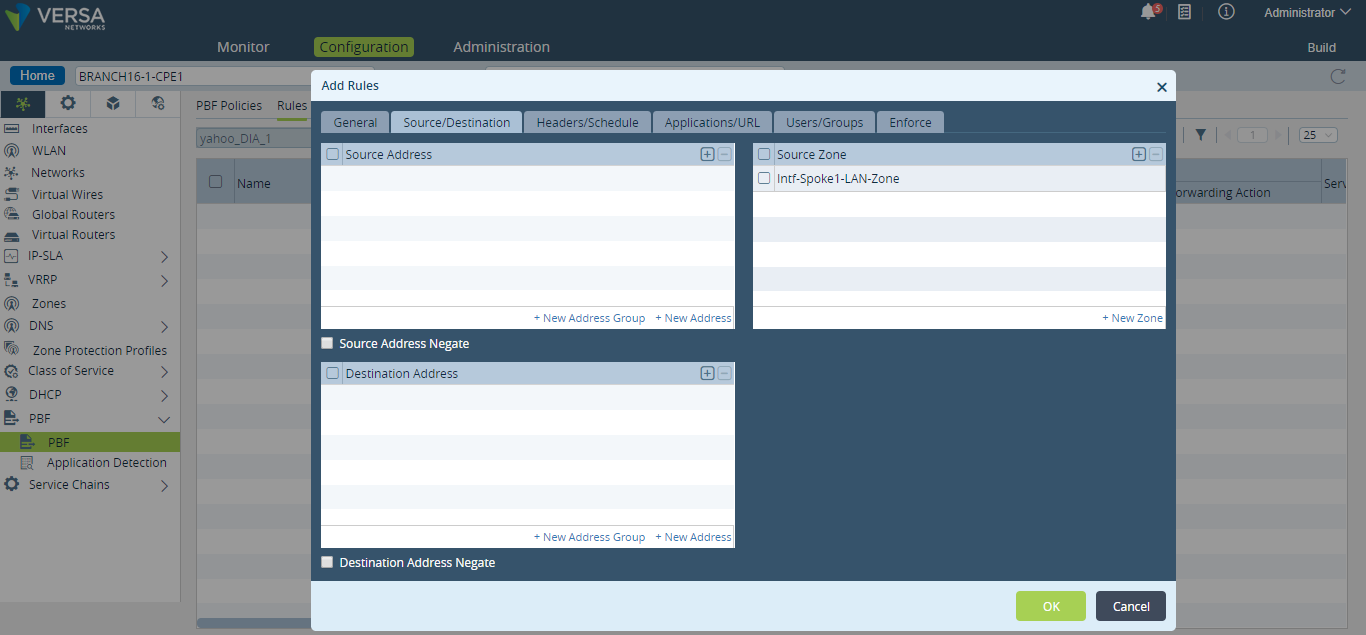
Then Add the source zone as LAN VR as traffic will come from LAN VR as shown:
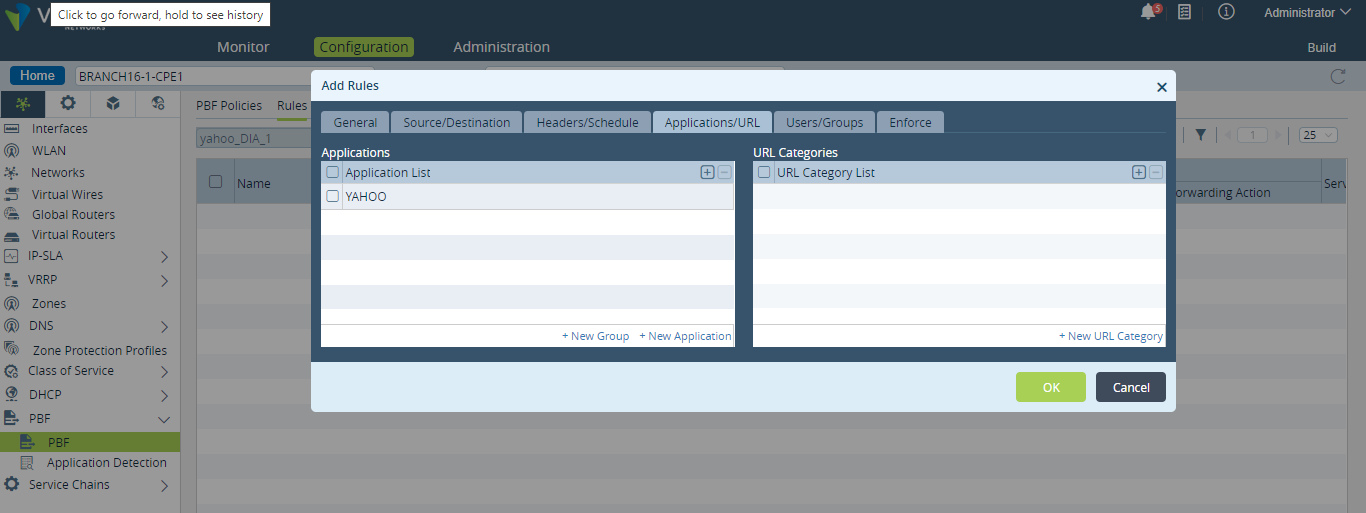
Then Match the application as yahoo in Application/URL tab as shown:
Then in Enforce tab set the next hop as TVI IP address of DIA_1 Transport VR address as shown:
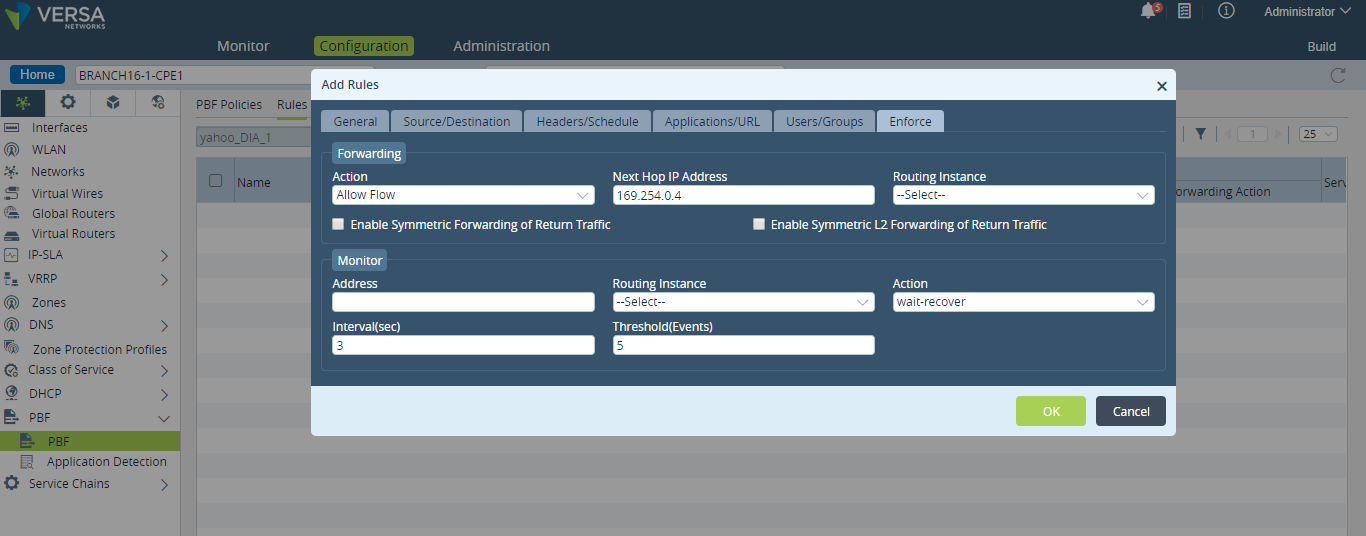
Step 4:
CGNAT configuration:
By default, CGNAT rule is applied based in the LAN VRs and will NAT all internet bound traffic with DIA interface IP as Egress. This traffic will get forwarded to based on which NAT rule got hit and Egress/NAT interface configured.
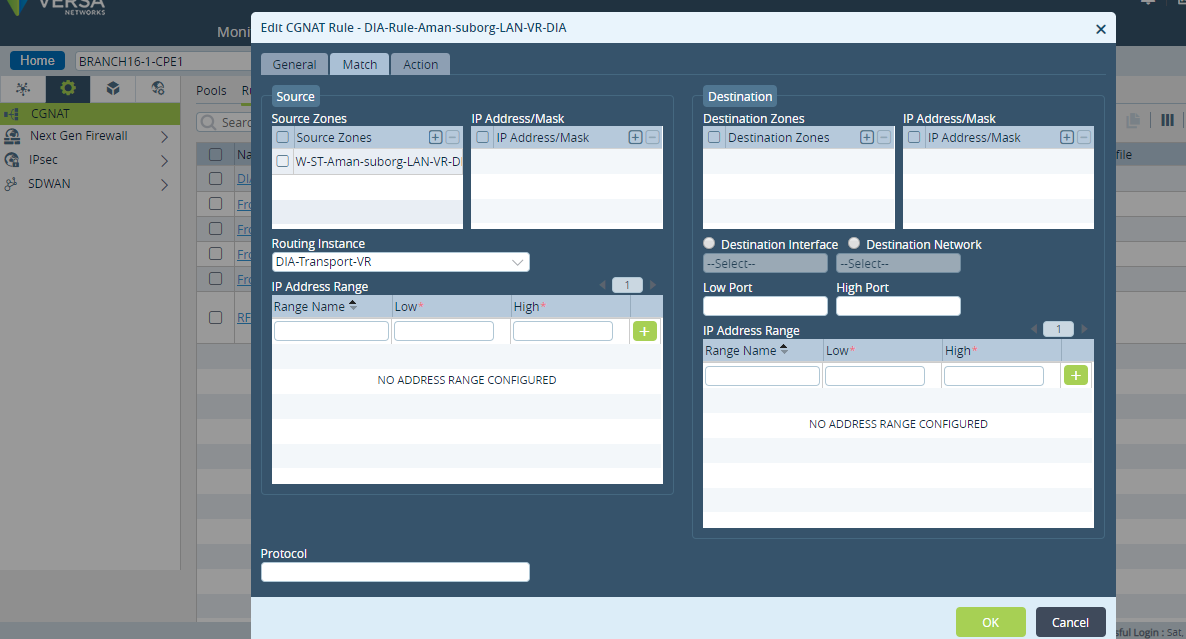
IMP NOTE: We must do modification in CGNAT rule because with default configurations when the packet is evaluated, CGNAT rule will get applied first and PBF nexthop will not take effect, CGNAT and PBR will not working in same session lookup and should be split. Here CGNAT rule will be modified in a way that it gets applied on DIA-VR(WAN side) not on LAN side, this will create two session one LAN-VR and other in DIA-VR. After these changes traffic will gets evaluated against PBF in LAN-VR and matching traffic will get forwarded based on action configured against PBF rules.
CGNAT Pools configured for DIA and DIA-1 transport VR:
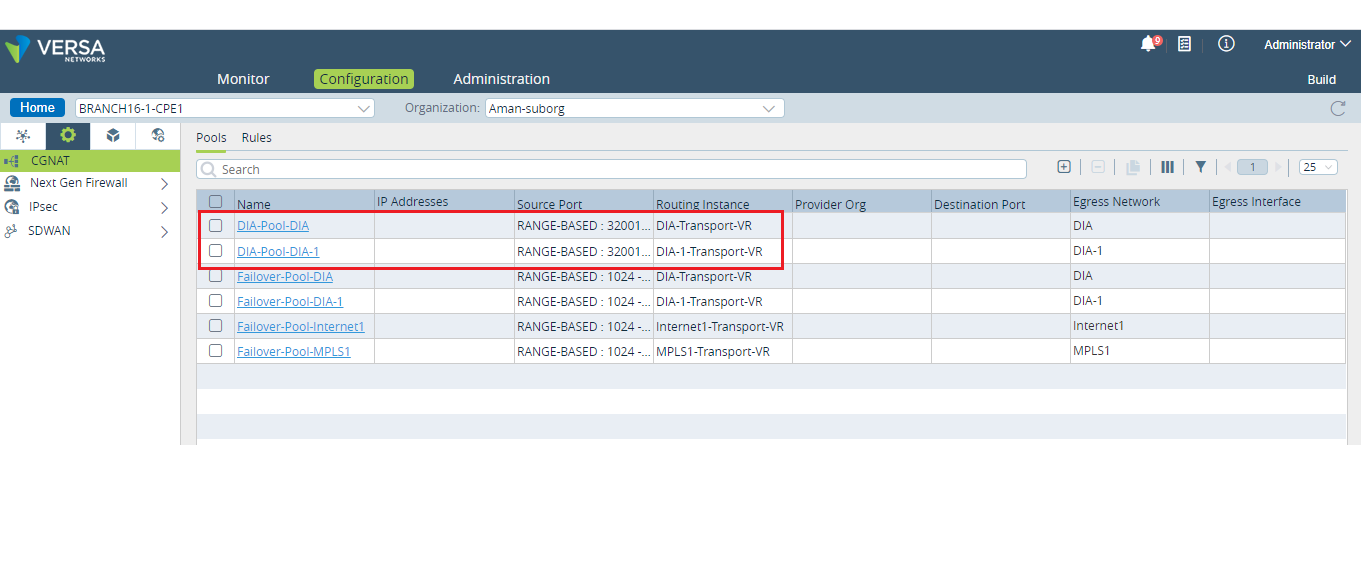
Modify the CGNAT rule, Delete Destination Zone mention as LAN VR and Add source zone as WAN-VR so that traffic should be natted in WAN Transport VR as shown:
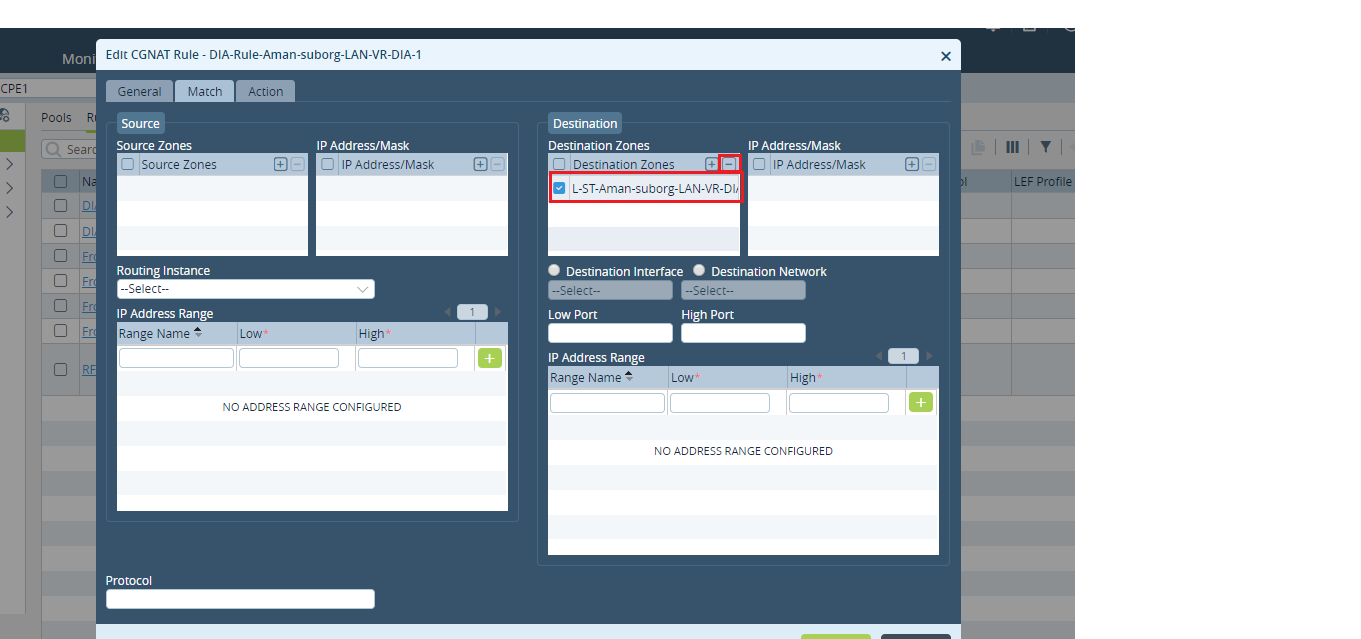
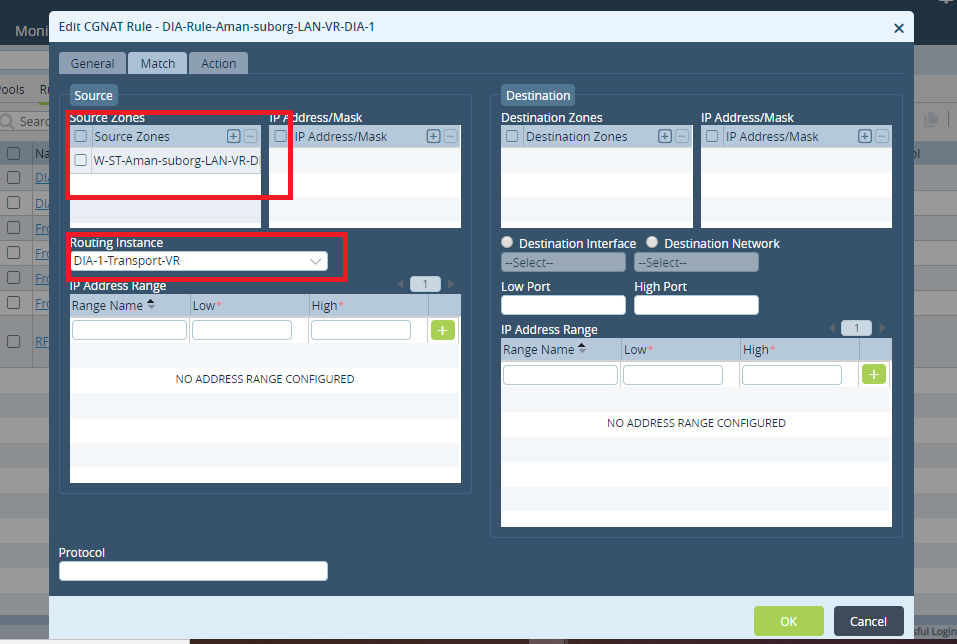
Step 5: Verification of PBF policy:

Started yahoo application traffics from LAN side and we are able to see PBF policy getting hit as shown:

Yahoo application session detail shows that traffic is going based on PBF policy defined i.e via DIA: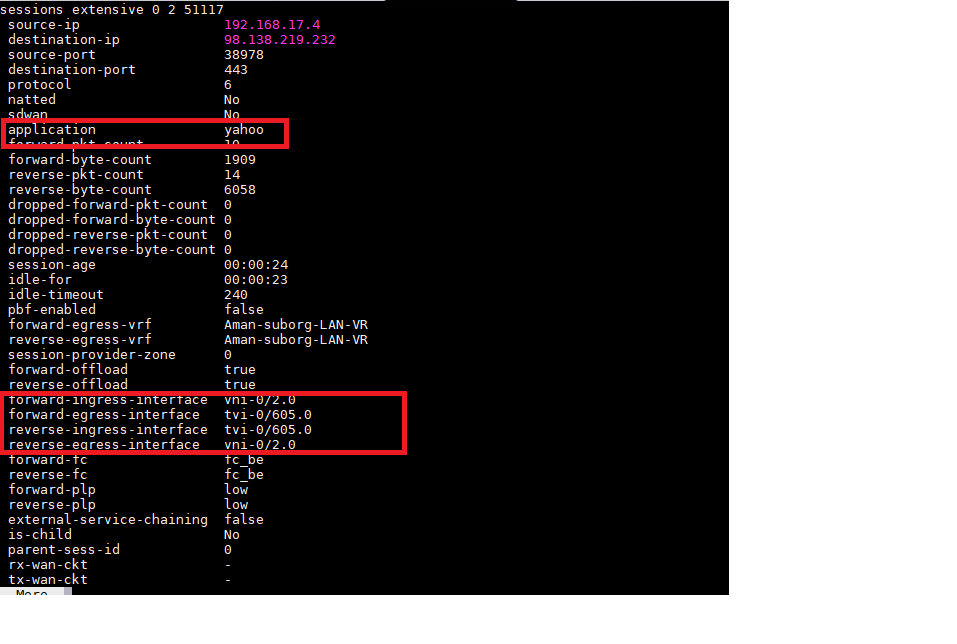
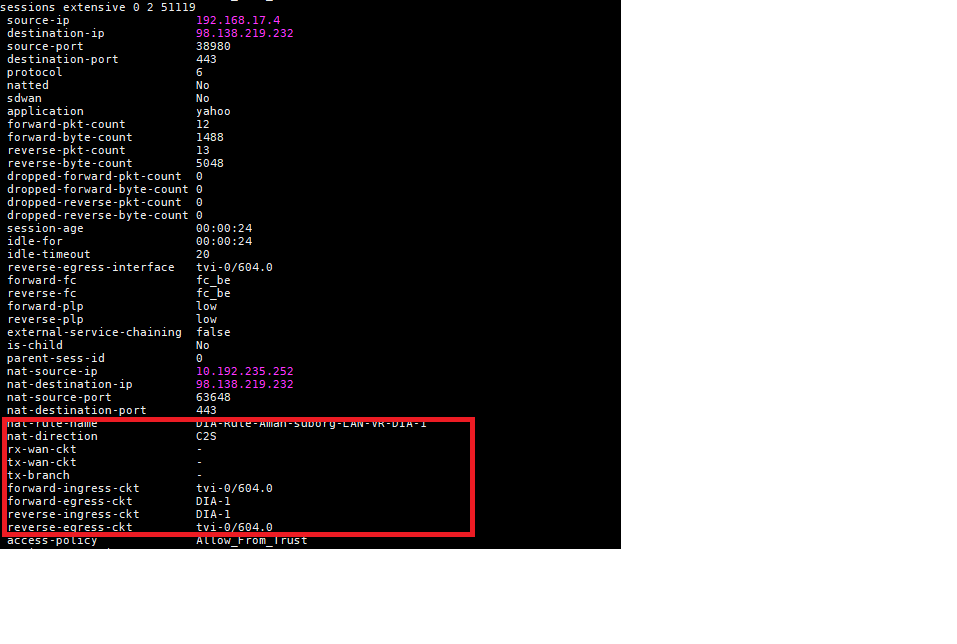
Now, Nat rule has been evaluated on WAN side as shown:
Case 2: Steer specific application via Hub/Remote branch in case of Local DIA(Break out).
In some scenarios like HUB and spoke, Customer required that some traffic should reach internet via Hub only while the rest of traffic should leave locally via local DIA. We will take a scenario in which yahoo application traffic goes to hub location first and then forward towards internet whereas all other traffic should leave locally.
Prerequisite:
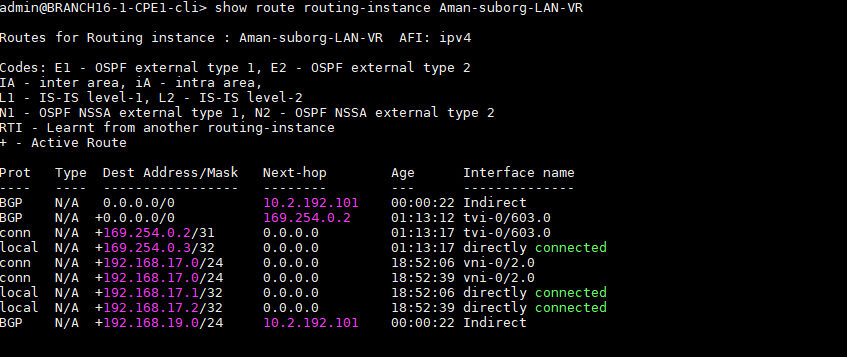
All headend should be deployed.Internet traffic breakout on Branch.Internet traffic breakout on Hub with Gateway enabled so that the default route to be sent to all other branches. Routing table may look like below
Steps to be followed:
Step 1: Define a sdwan forwarding profile and set next-site as the remote branch/ Hub location.
Create a forwarding-profile
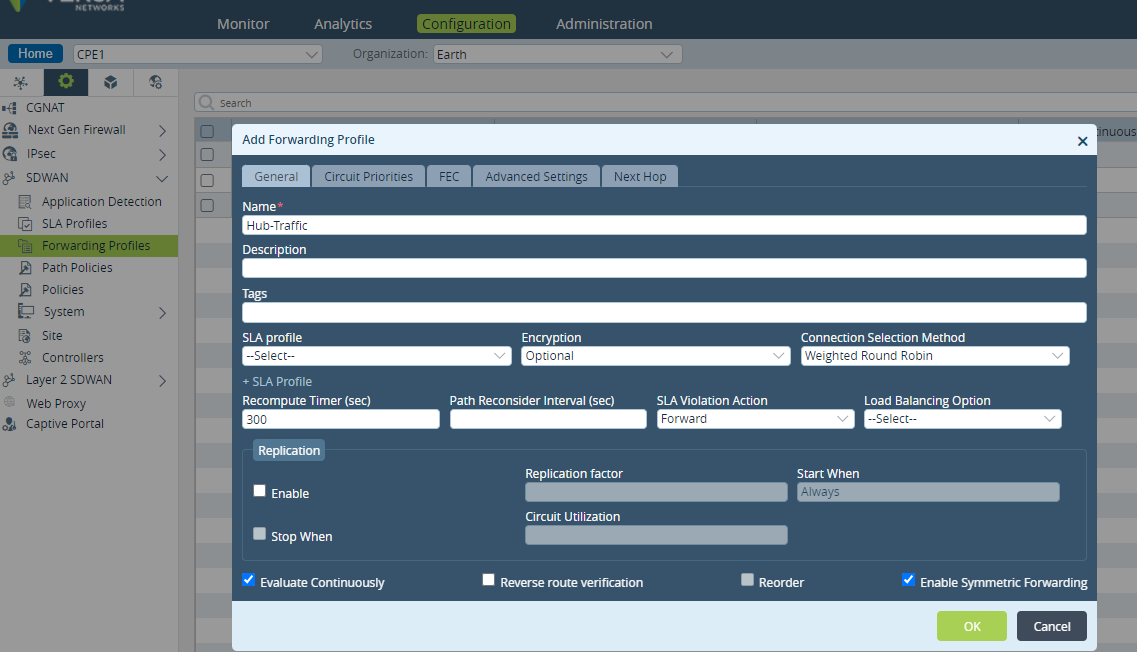
Set the next-hop of remote-branch (or Hub). You may set multiple remote sites with priority (lower is preferred) and can also set a monitor with each next-hop (site).
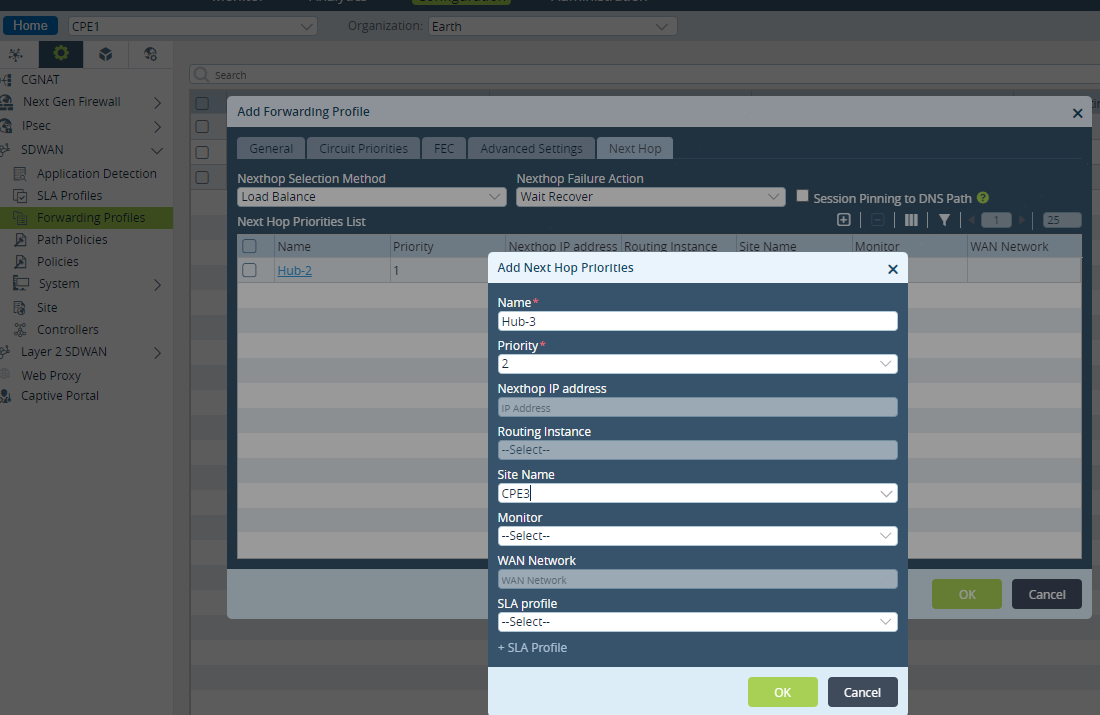
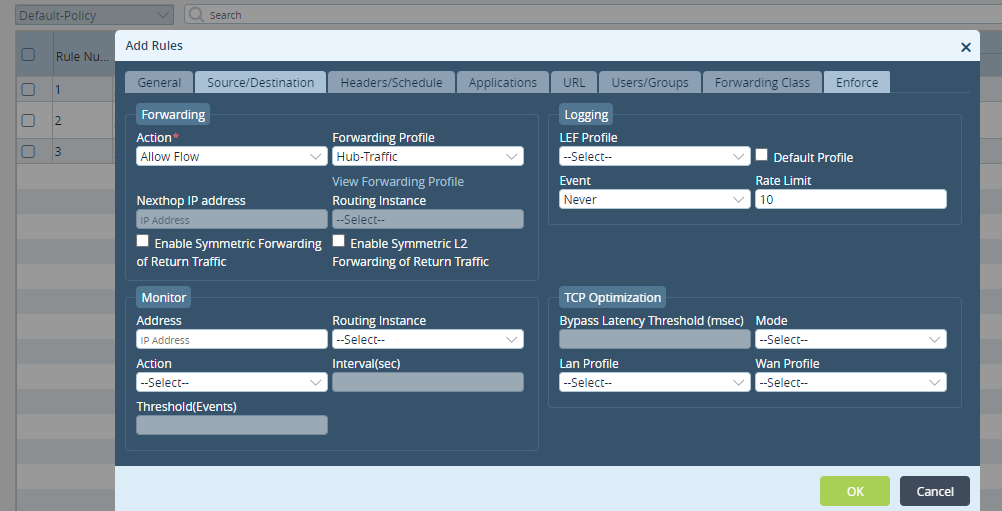
Step 2: Define a sdwan policy rule, match yahoo application and associate forwarding-profile defined earlier:
Create a sdwan policy rule as shown
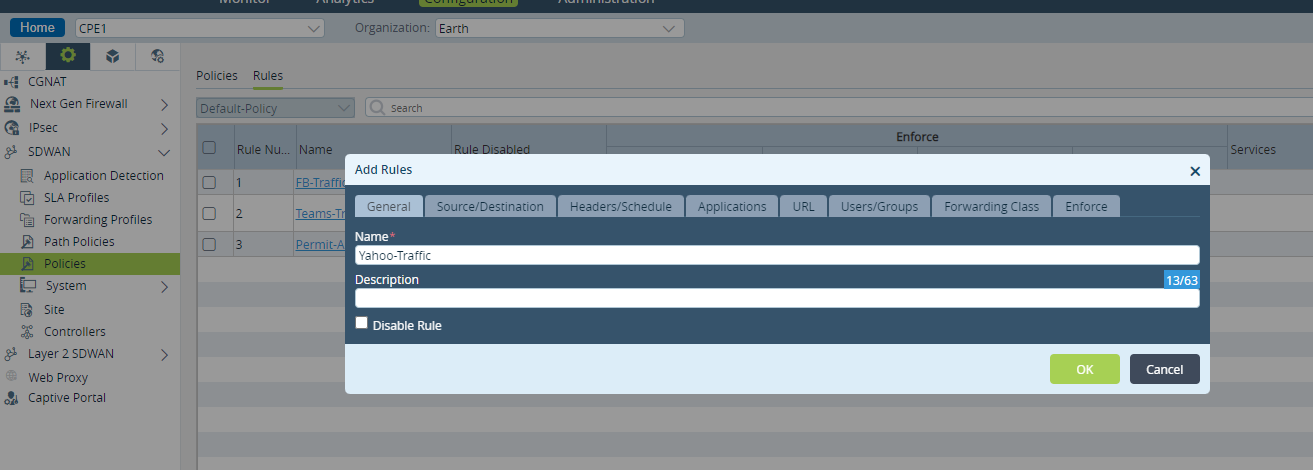
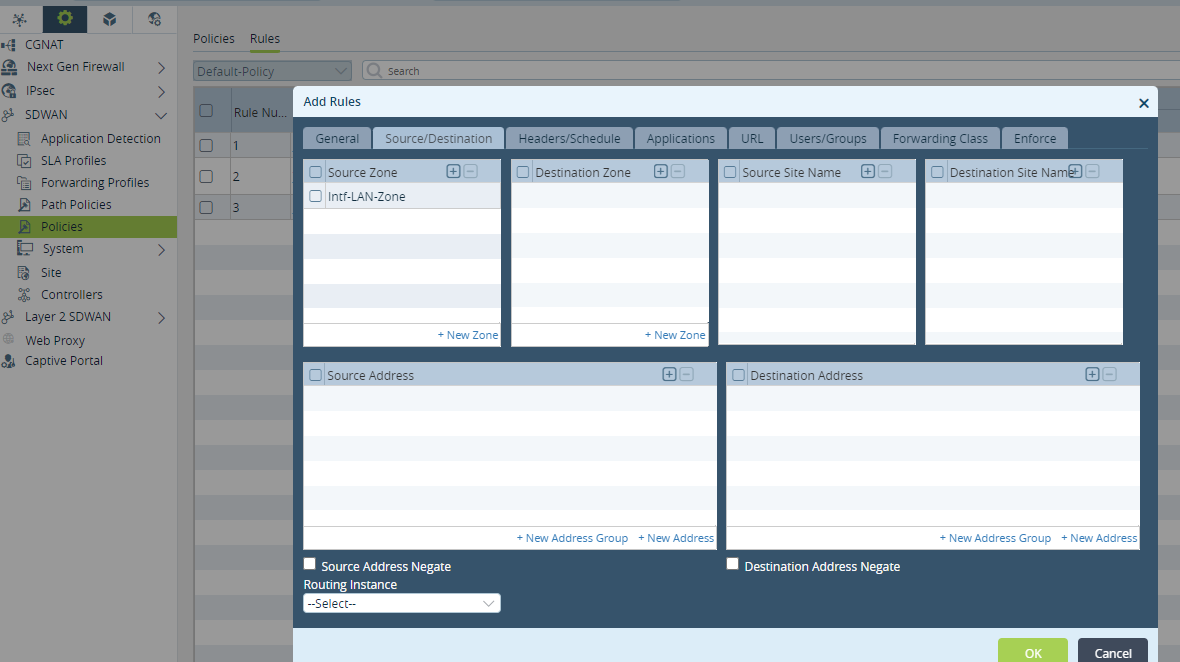
Match source Zone as Lan interface as all traffic will come from LAN Side:
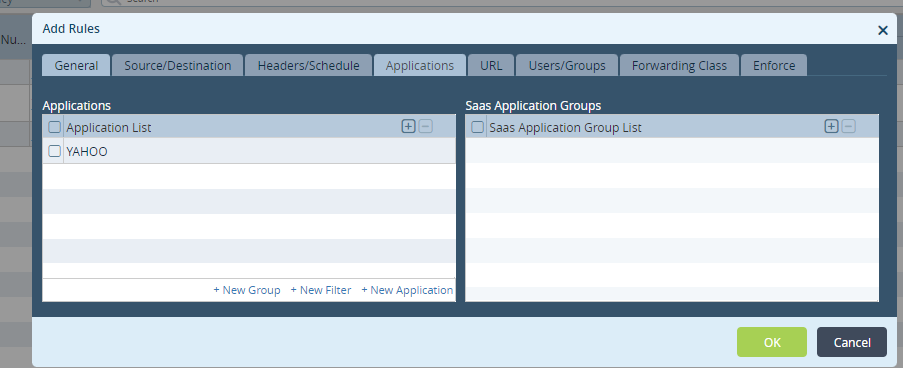
Then match the application as Yahoo:
Then Enforce the traffic to follow the Forwarding-Profile
Step 2 : Modify CGNAT Rule so that traffic should evaluate sdwan policy first.
Step 3: Verification of sdwan policy to see whether yahoo traffic is going via remote breakout.
Start the yahoo traffic from LAN side and check the session on Branch which states that traffic is going via SDWAN instead of local DIA:
Checked the session detail for yahoo application and we are able to see traffic is going out via ptvi toward Hub:
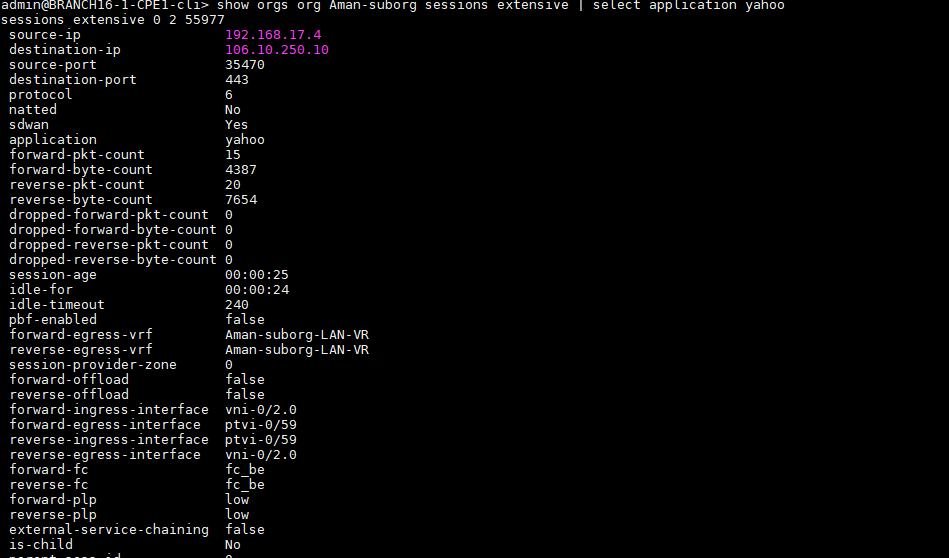
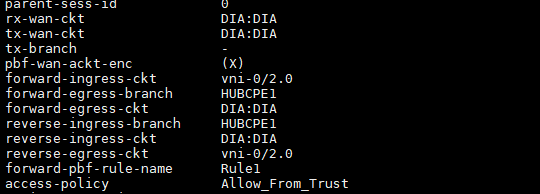
And On Hub site, we are seeing yahoo session created as shown:
Case 3: Steer specific application via local Internet in case of Remote DIA(Break out).
In some scenario, Customer has preferred Remote DIA over local DIA to pass all the traffic via hub site so that he can apply some firewall rules. In this case, In LAN VR, default route is learnt over SDWAN and is preferred over local DIA default route. In such cases, if customer want some traffic to go via local DIA then we need to apply SDWAN policy to steer the traffic to local DIA as SDWAN policy been processed for SDWAN traffic whereas PBF is used to steer non-SDWAN traffic.
Prerequisite:
All headend should be deployed.Internet traffic breakout on Branch.Internet traffic breakout on Hub with Gateway enabled so that default route to be sent to all other branches. There would be 2 default routes in LAN-VR out of which default route from Hub location is preferred over local DIA so that all the traffic should go to hub via SDWAN.
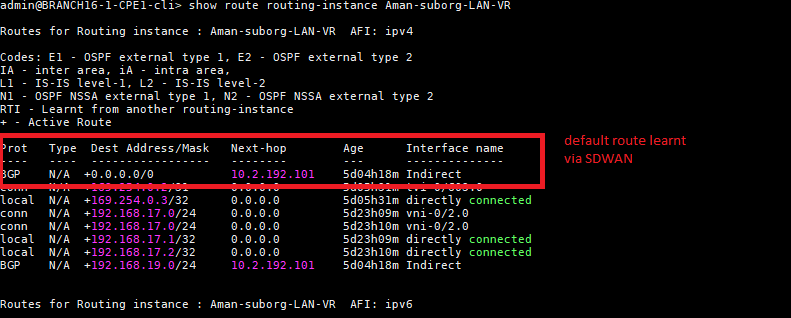
In our scenario, we will create SDWAN policy to steer yahoo traffic locally and all other traffic should go to hub via SDWAN.
Steps to be followed to create SDWAN policy:
NOTE: You may need to modify default CGNAT rule so that nat should happen on Transport VR and Remote DIA for rest of the traffic works fine.(Check Case1>step4 or Case2 step2)
Step1: By default, Default FP policy has been created for SDWAN traffic. We just need to add rules to match yahoo application traffic and enforce that traffic towards local DIA. To add rules, Go to Configuration > Devices > Select branch > SDWAN > Policies as shown:
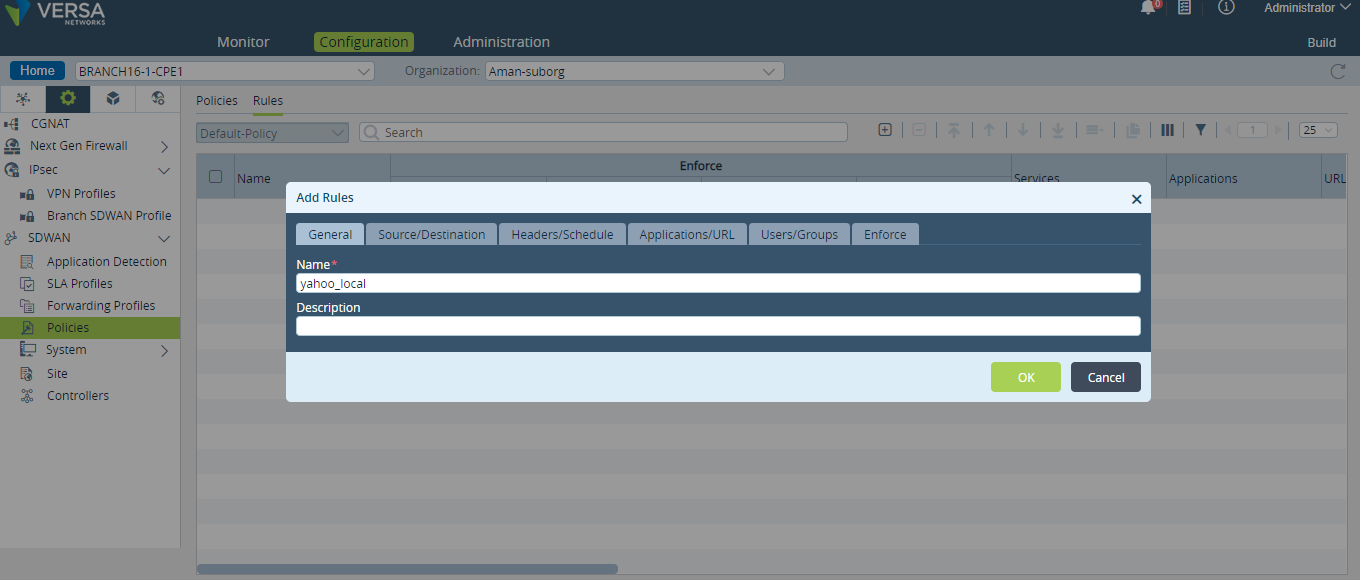
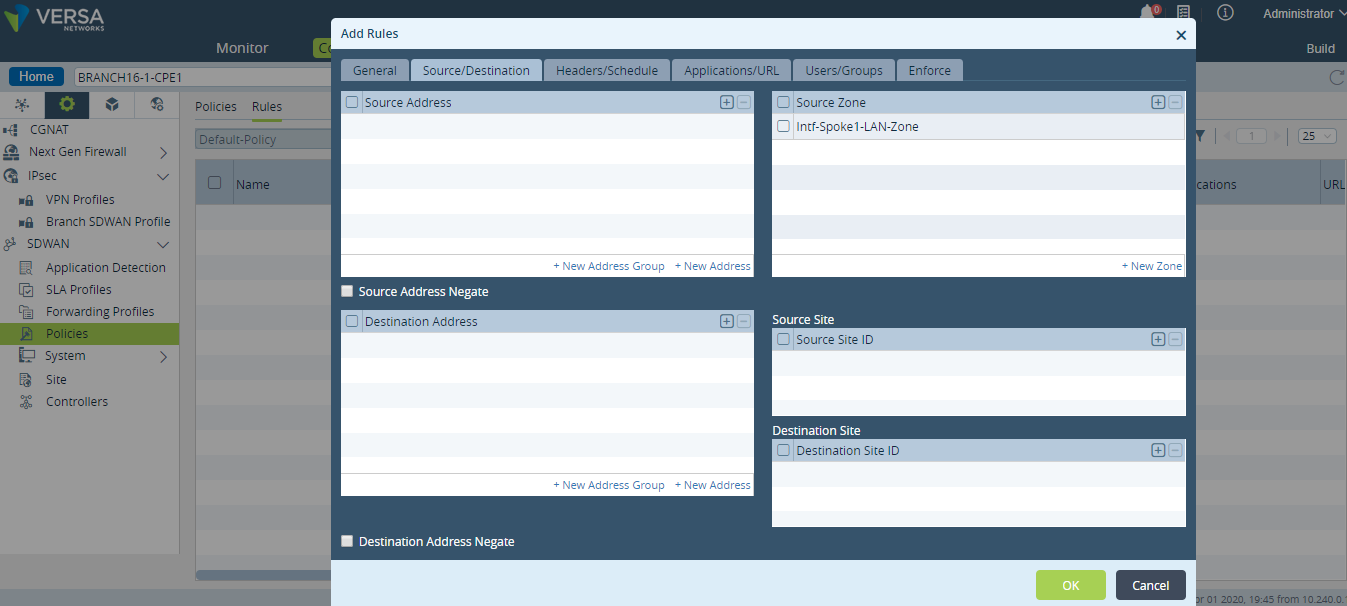
Step 2: Then go to Source/Destination , add LAN-VR in source-Zone as traffic will come from LAN side:
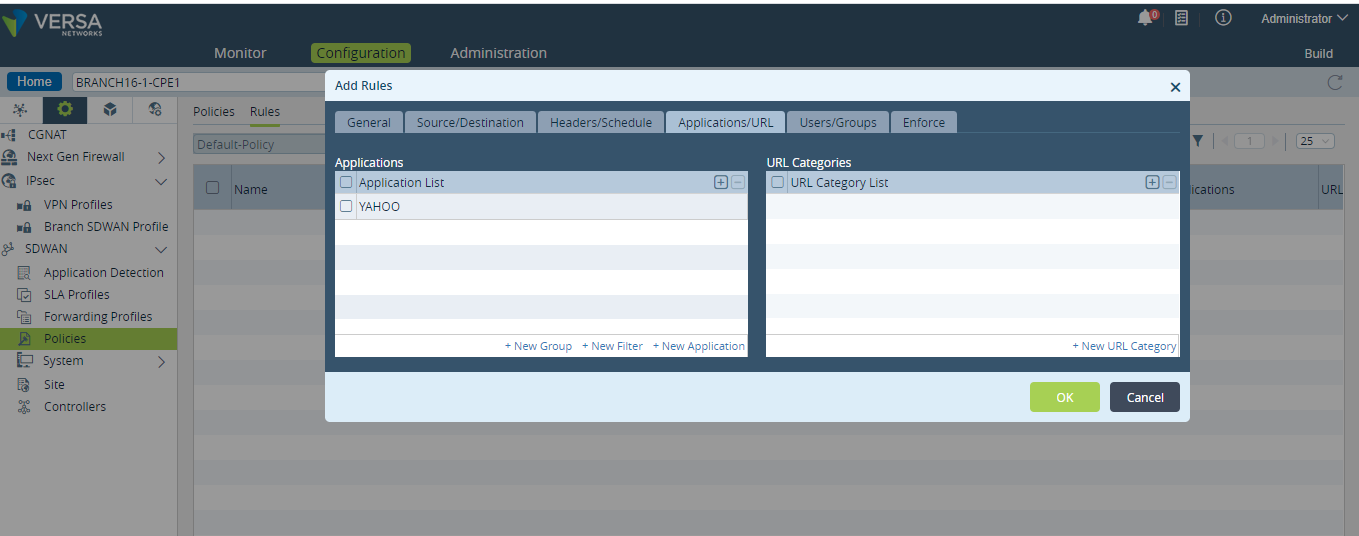
Step3: Match the application as yahoo as shown:
Step4: Then enforce the traffic towards TVI Ip address of DIA-Transport-VR as shown: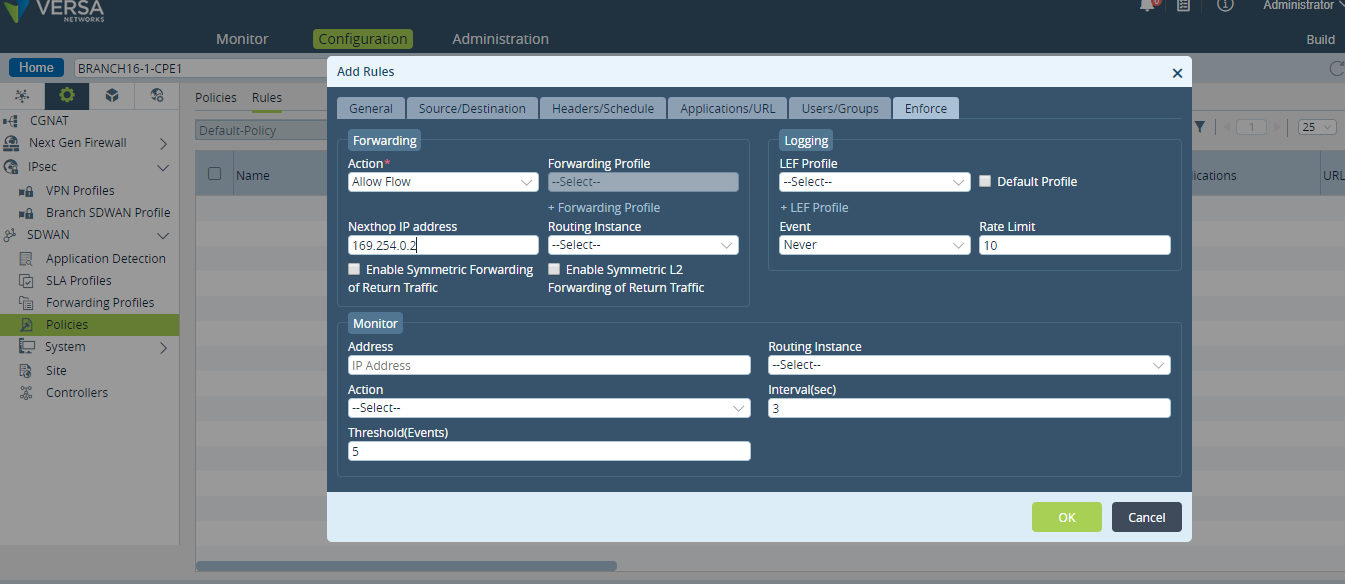
Step 5: Verification of SDWAN policy via CLI:
As shown in output of session extensive, Ist session for yahoo application will go via SDWAN to identify the application as shown:
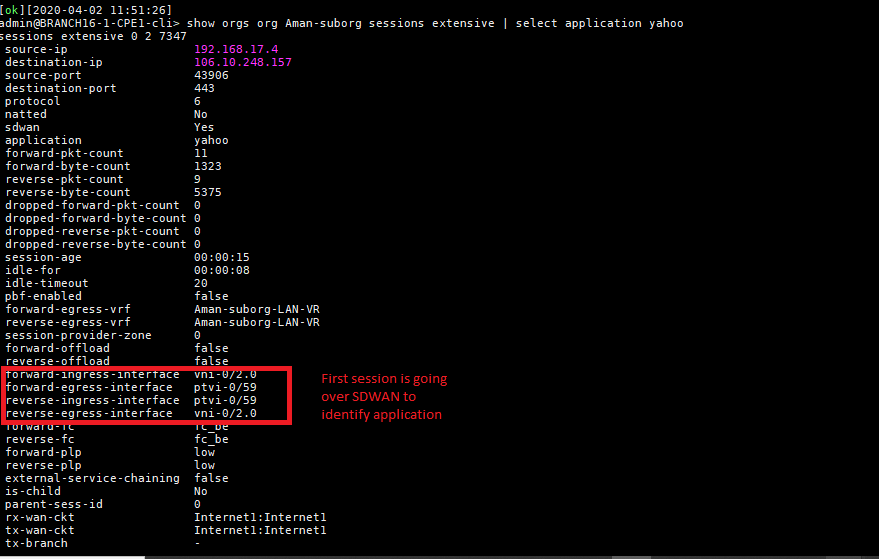
Then after identification of application yahoo, we are able to see hit count in sdwan rule statistics as shown:

And from 2nd session onwards, traffic will steer via local DIA as shown: