
1. Overview
This article describes how to configure SaaS application monitoring in VOS to enable dynamic path selection for cloud and internet applications such as Microsoft 365, Salesforce, Zoom, or any publicly reachable service.
With this capability, traffic is automatically steered to the best-performing WAN link based on real-time performance metrics (e.g., latency and packet loss). This eliminates the need for static routing or manual failover, as VOS continuously evaluates link performance and adjusts forwarding decisions accordingly.
The solution is built on the following three components:
SaaS Application Monitor — Defines the application or destination to probe and the WAN routing instances (VRFs) to evaluate
SLA Profile — References the application monitor and defines acceptable performance thresholds such as latency and packet loss
Forwarding Profile — Applies the SLA profile and enables automatic path selection based on monitored performance
2. How the Steering Engine Works
When the monitor runs, VOS resolves the FQDN, sends probes from each routing instance defined in the monitor, and tracks latency and packet loss per WAN link. Measurements are smoothed over time using an Exponentially Weighted Moving Average (EWMA), so a single degraded probe does not immediately trigger a path switch.
The result is a Versa Link Score (VLS) per link — lower is better. VOS selects the routing instance with the lowest VLS and signals the Policy-Based Forwarding (PBF) subsystem to update the steering decision immediately — no route changes, no convergence delay. If that link later degrades, VOS moves traffic to the next best alternative automatically.
What appears in Analytics as VLR (Versa Link Rank) is the same score normalized to a 0–100 scale for reporting.
ℹ | E2E Monitoring: For multi-hop deployments, E2E app monitoring (vsm_appmonitor_e2e) combines local probe results with overlay tunnel SLA metrics (SLAM) for a full end-to-end quality score. Three modes are available: e2e (combined view), s2s (site-to-site tunnel only), or appmon (local probe results only). |
3. Configuration Steps
1 | Create the SaaS Application Monitor |
The application monitor defines what to probe and from which WAN links. Configure Director → Templates → [Template] → Networking → SaaS App monitor in the Director UI.
The routing-instance-list is the core of the monitor — list every WAN VRF you want to compare. Each routing instance listed gets its own independent probe session.
Monitor Parameters
Parameter | Description |
monitor-type | Probe protocol: icmp (default), tcp, or http. TCP and HTTP provide a more accurate picture of actual SaaS reachability but require a destination-port. |
fqdn-list | The FQDN to probe. Accepts one entry only. Use this or predefined-saas-group-list — not both. |
predefined-saas-group-list | A Versa-managed SaaS group (e.g. Microsoft 365, Salesforce). Versa keeps the underlying endpoint list updated as vendors rotate IPs. Preferred over manual FQDN where available. |
routing-instance-list | The WAN VRFs to probe from. Add every link you want compared. Maximum 8 entries. |
monitoring-interval | Probe frequency in seconds. Range: 1–60. Default: 3. |
monitoring-threshold | Consecutive failures before a link is declared down. Range: 1–60. Default: 3. |
destination-port | Required when using tcp or http monitor type (e.g. 443). |
forwarding-class | CoS marking for probe packets. Default: fc_be. |
response-codes / response-code-range | HTTP response codes that count as a successful probe. Required for http monitor type. |
local-organization-list | Organizations that use the metric locally for traffic steering decisions. |
export-organization-list | Organizations that receive the metric via Analytics export. |
export-threshold | Minimum change in metric value before a new sample is exported to Analytics. |
⚠ | Important: Both fqdn-list and predefined-saas-group-list accept only one entry each despite the plural naming. If a Versa predefined group exists for your SaaS application, use it — Versa automatically maintains the endpoint list as vendors rotate IPs, eliminating manual upkeep. |
Example — HTTP Monitor for Microsoft 365
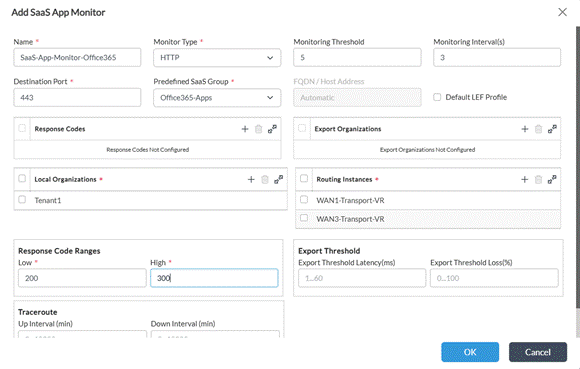
Figure 1: HTTP application monitor configured for Microsoft 365, probing across two WAN VRFs.
Example — TCP Monitor for Microsoft 365
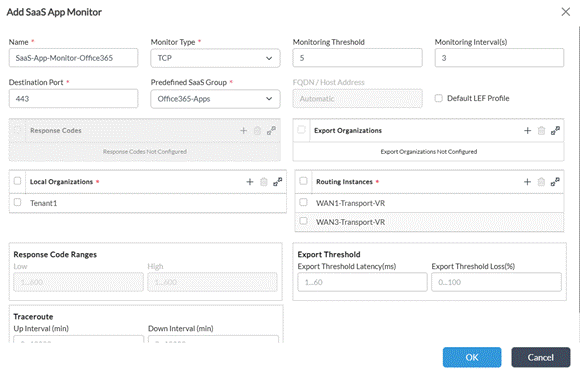
Figure 2: TCP application monitor for Microsoft 365 with destination port 443.
2 | Create an SLA Profile and Attach the Monitor |
Navigate to Director → Templates → [Template] → Services → SDWAN → SLA Profiles and create or edit a profile. Under the Application Monitor section, reference the monitor created in Step 1.
Set the acceptable thresholds for maximum latency and/or maximum packet loss, or use the Low Latency and Low Packet Loss preset knobs as a starting point.
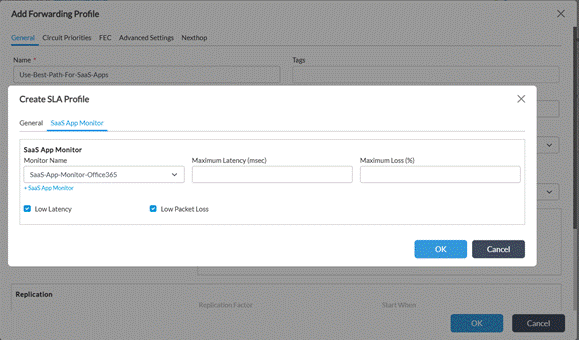
Figure 3: SLA Profile with Application Monitor attached and latency/loss thresholds configured.
3 | Apply the SLA Profile to a Forwarding Profile |
Open the Forwarding Profile, go to the General tab, select the SLA Profile created in Step 2, and set Nexthop Selection Method to Load Balance.
Additional settings on the General tab worth reviewing:
- circuit-priorities — when two or more links both meet the SLA thresholds, this setting determines which link is preferred as the tiebreaker.
- sla-violation-action — defines behavior when no link meets the SLA: drop, forward, or throttle-lowpriority-traffic.
- recompute-timer — how frequently the steering decision is recalculated. Default: 300s. Minimum: 5s. Lower values increase responsiveness but add CPU overhead.
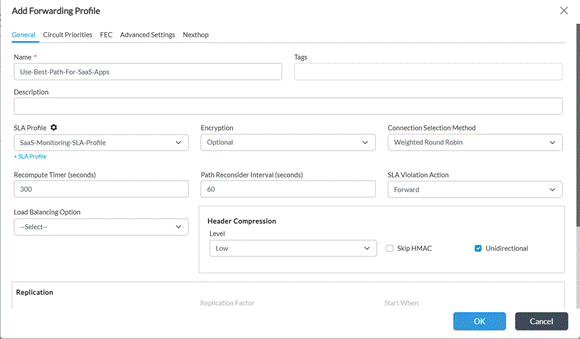
Figure 4: Forwarding Profile General tab with SLA Profile selected.
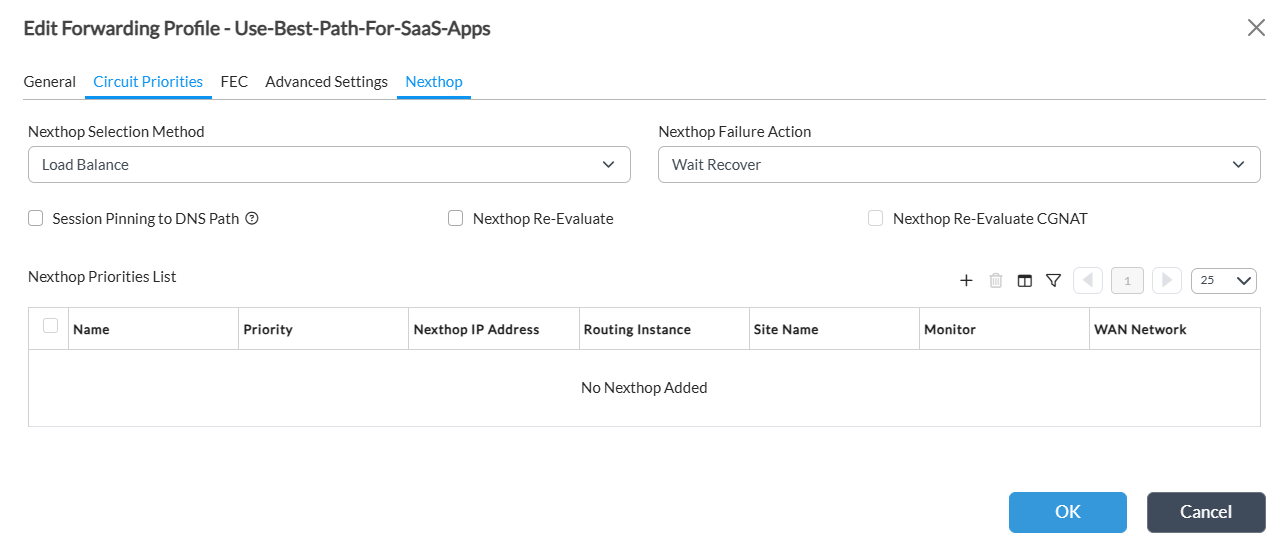
Figure 5: Forwarding Profile showing nexthop selection method with no nexthop priorities (If nexthop priorities not configured, the one configured in SaaS app monitoring WAN routing list will be used)
4 (Optional) | Per-Nexthop SLA Profile Override |
You can attach an SLA Profile directly to an individual nexthop entry in the Forwarding Profile rather than via the SLA Profile on the General tab. Set a WAN Priority and point the nexthop at a specific monitor.
Per-nexthop configuration takes precedence over the General tab settings. This is most useful when multiple SaaS applications share a forwarding profile but require different probe targets or different WAN link preferences.
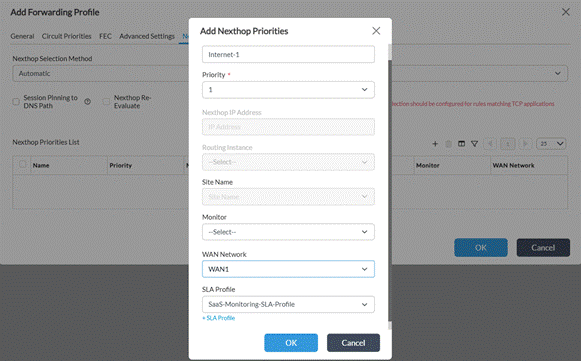
Figure 6: Per-nexthop SaaS app monitor override with WAN Priority configured.
4. Quick Reference
The table below summarizes the complete configuration path for each step.
Step | Location | Action |
1 | Director → SDWAN → Application Monitors | Create monitor: 1 FQDN or predefined group, up to 8 routing instances, monitor type and interval |
2 | Director → SDWAN → SLA Profiles | Create SLA Profile, attach Application Monitor, set latency/loss thresholds |
3 | Director → SDWAN → Forwarding Profiles → General tab | Attach SLA Profile; set nexthop-selection-method to automatic |
4 (optional) | Forwarding Profile → Nexthop | Set WAN Priority and per-nexthop SaaS app monitor to override General tab |